Connecting Bluetooth to your car stereo lets you stream music, take calls, and use navigation hands-free. This guide walks you through the process whether your car has built-in Bluetooth or needs an adapter.
How to Connect Bluetooth to Car Stereo Easily
Imagine driving down the highway, your favorite playlist streaming seamlessly from your phone to your car speakers—no wires, no hassle. That’s the magic of Bluetooth connectivity in your car stereo. Whether you’re making hands-free calls, listening to podcasts, or using GPS navigation, connecting Bluetooth to your car stereo makes every drive safer and more enjoyable.
In this guide, we’ll show you exactly how to connect Bluetooth to car stereo systems—whether your vehicle has built-in Bluetooth or needs a simple adapter. You don’t need to be a tech expert. With clear, step-by-step instructions, you’ll be up and running in under 10 minutes.
Step 1: Check If Your Car Stereo Supports Bluetooth
Before you start pairing, confirm that your car stereo actually has Bluetooth capability. Here’s how:
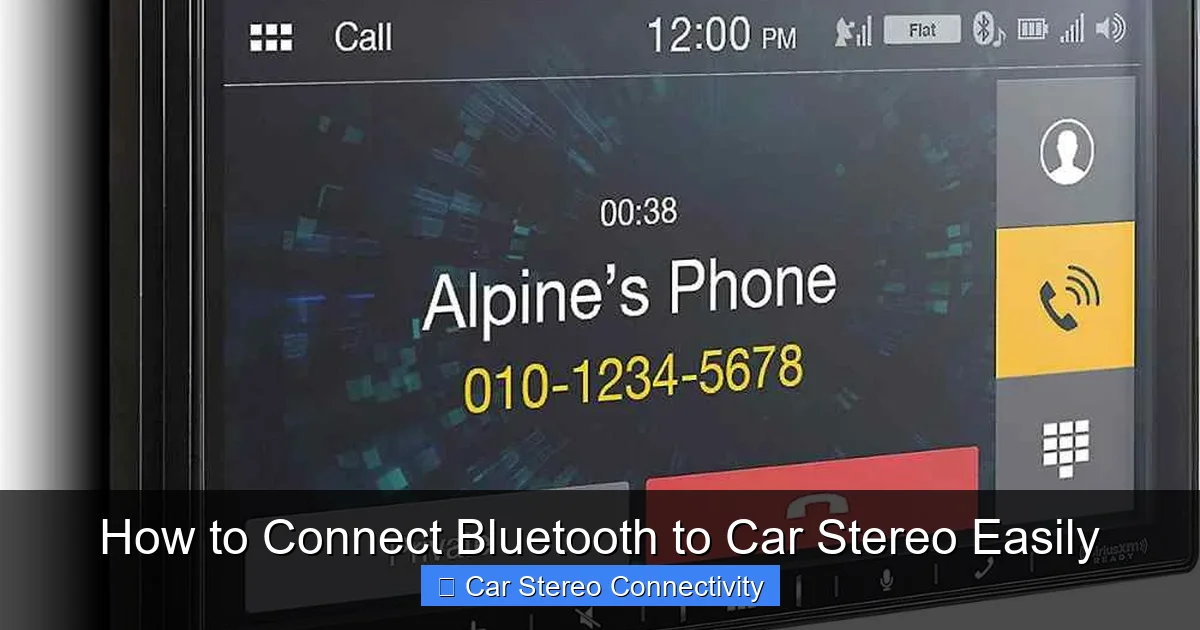
Visual guide about How to Connect Bluetooth to Car Stereo Easily
Image source: improvestereo.com
Look for Bluetooth Symbols
Check the front of your stereo unit for a Bluetooth logo (usually looks like a blue “B” with two arrows). It might also say “BT,” “Wireless,” or “Hands-Free.”
Check the Owner’s Manual
If you don’t see a logo, consult your car or stereo manual. Search for terms like “Bluetooth,” “wireless audio,” or “hands-free calling.” Most modern cars (2010 and newer) include Bluetooth, but older models may not.
Test the Menu
Turn on your car stereo and navigate the menu. Look for options like “Bluetooth,” “Device,” or “Pair.” If you see it, you’re good to go.
Tip: If your stereo doesn’t have Bluetooth, don’t worry—there are easy workarounds we’ll cover later.
Step 2: Prepare Your Phone and Car Stereo
Now that you’ve confirmed Bluetooth is available, it’s time to get both devices ready.
Enable Bluetooth on Your Phone
- Open your phone’s Settings.
- Tap Bluetooth and toggle it On.
- Make sure your phone is discoverable (most phones do this automatically when Bluetooth is on).
Put Your Car Stereo in Pairing Mode
This step varies by model, but here’s the general process:
- Turn on your car stereo.
- Press the Menu or Source button.
- Navigate to Bluetooth or Device Settings.
- Select Pair New Device or Add Device.
- The stereo will now search for nearby Bluetooth devices.
Example: On a Pioneer stereo, press and hold the “Phone” button until “BT PAIRING” appears.
Keep Devices Close
Stay within 3 feet of your stereo during pairing. Walls, metal, and other electronics can interfere with the signal.
Step 3: Pair Your Phone with the Car Stereo
Once both devices are ready, it’s time to connect.
Select Your Car Stereo on Your Phone
- On your phone, under Available Devices, look for your car stereo’s name.
- Common names include “My Car,” “Hands-Free Unit,” or the stereo brand (e.g., “Sony BT”).
- Tap the name to initiate pairing.
Enter the Pairing Code (If Required)
Some stereos will ask for a PIN. Common codes include:
- 0000
- 1234
- 1111
If none work, check your stereo manual. Most modern systems don’t require a code and pair automatically.
Confirm the Connection
Once paired, your phone will show “Connected” or “Paired.” The stereo may play a confirmation tone or display “Connected to [Your Phone Name].”
Tip: Some cars require you to press “OK” or “Accept” on the stereo screen to complete the connection.
Step 4: Test the Connection
Don’t assume it’s working—test it!
Play Music
Open your music app (Spotify, Apple Music, etc.) and play a song. The audio should come through your car speakers. If not, check your stereo’s audio source—switch to “Bluetooth Audio” or “BT.”
Make a Test Call
Call a friend or use a test number (like your voicemail). Speak and listen to ensure the microphone and speakers work. You should hear the caller clearly, and they should hear you without echo or static.
Use Voice Commands
Try saying “Hey Siri” or “OK Google” to test voice assistant integration. This confirms full hands-free functionality.
What If Your Car Stereo Doesn’t Have Bluetooth?
No built-in Bluetooth? No problem. Here are three easy and affordable solutions.
Option 1: Bluetooth FM Transmitter
This device plugs into your car’s 12V power outlet (cigarette lighter) and broadcasts audio to an unused FM frequency.
- Plug in the transmitter.
- Set it to an empty FM channel (e.g., 88.1).
- Tune your car radio to the same frequency.
- Pair your phone to the transmitter via Bluetooth.
Best for: Older cars with no AUX input. Look for models with USB charging and LCD screens.
Option 2: Bluetooth AUX Adapter
If your stereo has a 3.5mm AUX input, this is the cleanest solution.
- Plug the adapter into the AUX port.
- Power it via USB (use your car charger).
- Put the adapter in pairing mode (usually by holding a button).
- Pair your phone to the adapter.
Best for: Clear audio quality and stable connection. No signal interference like FM transmitters.
Option 3: Cassette Adapter (For Older Cars)
If your car has a cassette player, use a Bluetooth-enabled cassette adapter.
- Insert the adapter into the cassette deck.
- Pair your phone to the adapter.
- Press play on your stereo.
Best for: Vintage cars or rental vehicles with cassette players.
Troubleshooting Common Bluetooth Connection Issues
Even with perfect setup, problems can happen. Here’s how to fix the most common ones.
Bluetooth Won’t Pair
- Restart both devices: Turn off Bluetooth on your phone, wait 10 seconds, then turn it back on. Do the same for your stereo.
- Forget old pairings: Go to your phone’s Bluetooth settings, tap the “i” next to your car, and select “Forget This Device.” Then try pairing again.
- Check compatibility: Some older stereos only work with certain phone models. Try pairing with another phone to test.
Audio Cuts In and Out
- Move closer: Stay within 3 feet during initial setup.
- Reduce interference: Keep your phone away from metal objects, power cords, or other electronics.
- Update software: Check for phone or stereo firmware updates.
No Sound or Poor Audio Quality
- Check audio source: Make sure your stereo is set to “Bluetooth Audio” or “BT.”
- Adjust volume: Increase volume on both your phone and stereo.
- Test with another app: Try a different music app to rule out app-specific issues.
Phone Connects but Calls Don’t Work
- Enable call audio: On iPhone, go to Settings > Bluetooth > tap “i” next to your car > enable “Phone Audio.” On Android, check “Call audio” in Bluetooth settings.
- Check microphone: Ensure the stereo’s mic isn’t blocked or damaged.
Tips for a Smooth Bluetooth Experience
Once connected, keep these tips in mind for the best experience:
- Auto-connect: Most systems reconnect automatically when you start the car. If not, check your stereo settings.
- Keep software updated: Manufacturers often release updates that improve Bluetooth stability.
- Use a phone mount: Keep your phone visible and secure while driving.
- Charge your phone: Bluetooth uses battery. Use a car charger during long drives.
- Limit paired devices: Too many paired phones can cause confusion. Remove old devices you no longer use.
Conclusion
Connecting Bluetooth to your car stereo is easier than you think—and once it’s set up, it transforms your driving experience. Whether you’re streaming music, taking calls, or following GPS directions, wireless connectivity keeps your hands on the wheel and your focus on the road.
From checking compatibility to pairing your phone and troubleshooting issues, this guide covers everything you need to know. Even if your car doesn’t have built-in Bluetooth, affordable adapters make it possible for almost any vehicle.
So grab your phone, fire up your stereo, and start enjoying a safer, smarter, and more connected drive. With just a few simple steps, you’ll wonder how you ever drove without it.

