Casting your phone to your car stereo lets you enjoy music, navigation, and hands-free calls safely while driving. This guide shows you multiple easy methods—from Bluetooth to CarPlay—so you can connect in minutes.
How to Cast Phone to Car Stereo Easily
Imagine driving down the highway with your favorite playlist streaming seamlessly through your car’s speakers, or getting turn-by-turn directions without fumbling with your phone. That’s exactly what happens when you cast your phone to your car stereo. Whether you’re commuting to work or heading out on a road trip, connecting your smartphone to your car’s audio system makes driving safer, more enjoyable, and more convenient.
In this guide, we’ll walk you through five simple ways to cast your phone to your car stereo, including wireless and wired options. You’ll learn how to use Bluetooth, USB connections, AUX cables, Android Auto, and Apple CarPlay—all with clear, step-by-step instructions. No technical expertise required!
Method 1: Connect via Bluetooth (Wireless & Easy)
Bluetooth is the most popular and convenient way to cast your phone to your car stereo. It’s wireless, works with most modern vehicles, and doesn’t require any cables.
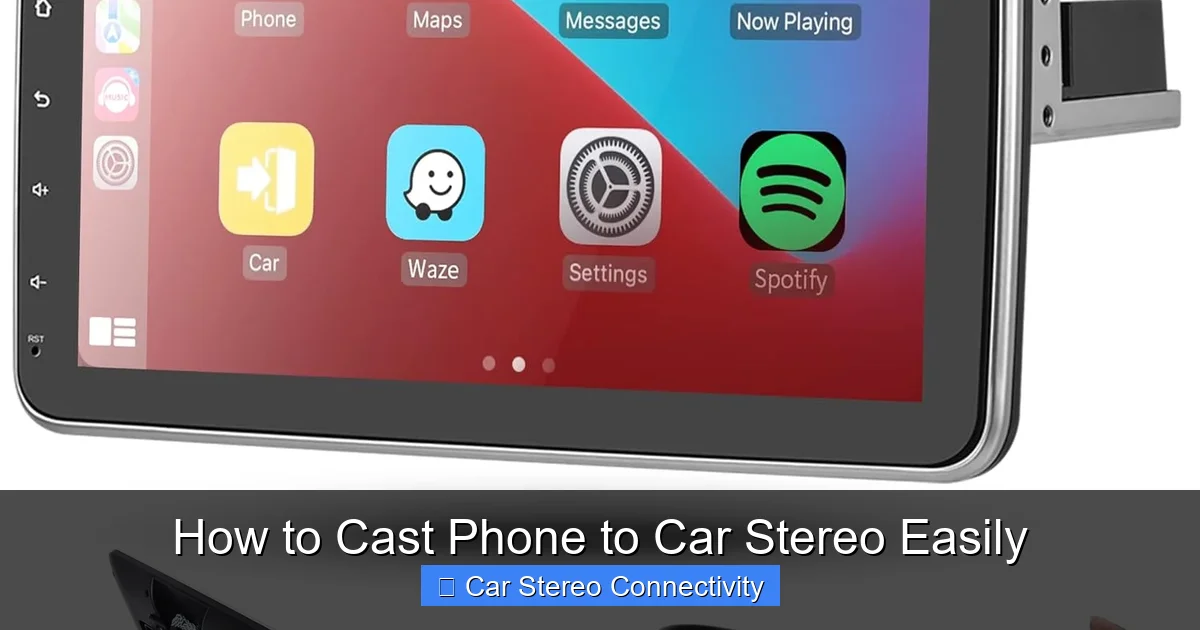
Visual guide about How to Cast Phone to Car Stereo Easily
Image source: m.media-amazon.com
Step 1: Turn on Bluetooth on Your Phone
Open your phone’s settings and tap on “Bluetooth.” Make sure it’s turned on. On iPhones, go to Settings > Bluetooth. On Android, go to Settings > Connected devices > Bluetooth.
Step 2: Put Your Car Stereo in Pairing Mode
Turn on your car and navigate to the audio or Bluetooth settings on your stereo. Look for an option like “Pair Device,” “Add Device,” or “Bluetooth Setup.” Press it to enter pairing mode. Your car’s display should show a message like “Searching for devices” or “Ready to pair.”
Step 3: Select Your Car from Your Phone
On your phone, under available devices, you should see your car’s name (e.g., “Toyota Camry,” “Ford Sync,” or “My Car”). Tap on it to connect. You may be prompted to confirm a PIN—common ones are 0000, 1234, or 1111. Enter it on both devices if needed.
Step 4: Test the Connection
Play a song or podcast from your phone. The sound should now come through your car speakers. If not, check that the audio output is set to Bluetooth in your car’s audio menu.
Pro Tip: Once paired, your phone should automatically reconnect to your car the next time you start the engine—no need to repeat the steps!
Method 2: Use a USB Cable (For Android Auto or Apple CarPlay)
If your car supports Android Auto or Apple CarPlay, a USB cable gives you the best experience. These systems mirror your phone’s interface on the car screen, allowing you to use navigation, music, messages, and calls safely.
Step 1: Check Compatibility
Make sure your car supports Android Auto or Apple CarPlay. Most vehicles made after 2016 do, but check your owner’s manual or the manufacturer’s website. Also, ensure your phone is compatible:
- Apple CarPlay: iPhone 5 or later with iOS 7.1+
- Android Auto: Android 8.0 or later (some features require Android 10+)
Step 2: Download the Required App (If Needed)
For Android Auto, download the Android Auto app from the Google Play Store. For CarPlay, no app is needed—it’s built into iOS.
Step 3: Connect via USB Cable
Use a high-quality USB cable (preferably the original one that came with your phone). Plug one end into your phone and the other into the car’s USB port—usually located in the center console or dashboard.
Step 4: Follow On-Screen Prompts
Your car screen should display Android Auto or CarPlay. If not, tap the corresponding icon on the stereo. You may need to allow permissions on your phone for access to contacts, messages, or location.
Step 5: Start Using Your Phone Safely
Now you can use Google Maps, Waze, Spotify, Apple Music, or send hands-free messages using voice commands. Keep your eyes on the road!
Note: Some cars only support CarPlay or Android Auto over USB—not wirelessly. Check your vehicle’s manual for details.
Method 3: Use an AUX Cable (Universal Wired Option)
If your car doesn’t have Bluetooth or smart features, an AUX cable is a reliable fallback. It works with any phone and any car that has a 3.5mm auxiliary input.
Step 1: Get the Right Cable
You’ll need a 3.5mm male-to-male audio cable. If your phone doesn’t have a headphone jack (like newer iPhones or Samsung Galaxy models), you’ll also need a Lightning-to-3.5mm or USB-C-to-3.5mm adapter.
Step 2: Plug In the Cable
Insert one end of the AUX cable into your phone (or adapter) and the other into the car’s AUX input—usually labeled “AUX IN” and found near the stereo or in the glove box.
Step 3: Switch to AUX Mode
On your car stereo, press the “Source,” “Mode,” or “Input” button until you see “AUX” on the display.
Step 4: Play Audio from Your Phone
Open your music app and start playing. The sound will now come through your car speakers. Adjust the volume on both your phone and car stereo for the best sound.
Tip: AUX cables don’t charge your phone, so use a separate car charger to avoid battery drain.
Method 4: Use a Bluetooth FM Transmitter (For Older Cars)
If your car has neither Bluetooth nor AUX input, a Bluetooth FM transmitter is a clever workaround. It plugs into your car’s cigarette lighter and broadcasts audio from your phone to a specific FM radio frequency.
Step 1: Buy a Reliable FM Transmitter
Look for one with good reviews, clear sound, and dual USB ports for charging. Popular brands include Nulaxy, Anker, and VicTsing.
Step 2: Plug It Into the Cigarette Lighter
Insert the transmitter into the 12V power outlet (formerly known as the cigarette lighter). It should power on automatically.
Step 3: Pair Your Phone via Bluetooth
Turn on Bluetooth on your phone and search for the transmitter (usually named “Car Kit” or the brand name). Pair them using the default PIN (often 0000).
Step 4: Tune Your Car Radio
Set your car radio to an unused FM frequency (like 88.1 or 107.9). Then, use the transmitter’s buttons to match that frequency.
Step 5: Play Music and Enjoy
Start playing audio on your phone. It will broadcast through the transmitter and play over your car radio.
Warning: FM transmitters can suffer from interference in areas with strong radio signals. Try different frequencies if the sound is fuzzy.
Method 5: Upgrade to a Smart Car Stereo
If your car is older and lacks modern connectivity, consider upgrading to a new head unit that supports Bluetooth, Android Auto, and Apple CarPlay. This is a more permanent and high-quality solution.
Step 1: Check Compatibility
Measure your current stereo size (usually single-DIN or double-DIN) and check if your car’s wiring harness supports aftermarket units. Websites like Crutchfield.com can help you find compatible models.
Step 2: Buy a Compatible Stereo
Look for units with built-in Bluetooth, USB ports, and support for Android Auto/CarPlay. Popular brands include Pioneer, Sony, Kenwood, and Alpine.
Step 3: Install the New Stereo
You can install it yourself with a wiring harness and dash kit, or hire a professional. Once installed, follow the on-screen setup to connect your phone.
Bonus: Many new stereos also support voice control, HD radio, and smartphone integration for a truly modern driving experience.
Troubleshooting Common Issues
Even with the best setup, you might run into problems. Here’s how to fix the most common ones:
No Sound After Connecting?
- Check that the correct audio source is selected (Bluetooth, AUX, etc.).
- Ensure your phone’s volume is up and not muted.
- Restart both your phone and car stereo.
Bluetooth Keeps Disconnecting?
- Move your phone closer to the stereo.
- Forget the device on your phone and re-pair it.
- Clear Bluetooth cache on Android: Settings > Apps > Show system apps > Bluetooth > Storage > Clear cache.
CarPlay or Android Auto Not Launching?
- Try a different USB cable—some cheap cables only charge, not transfer data.
- Make sure the USB port supports data (not just charging).
- Update your phone’s operating system and the car’s firmware if possible.
FM Transmitter Has Static?
- Switch to a different FM frequency.
- Move the transmitter away from other electronics.
- Use a transmitter with noise-canceling features.
Final Thoughts
Casting your phone to your car stereo doesn’t have to be complicated. Whether you use Bluetooth for quick wireless streaming, USB for full smart integration, or an AUX cable for universal compatibility, there’s a method that fits your car and lifestyle.
Start with the easiest option—Bluetooth—and upgrade as needed. And remember: always prioritize safety. Use voice commands, pre-set your playlists, and avoid handling your phone while driving.
With these simple steps, you’ll enjoy better sound, smarter navigation, and a more connected drive—every time you hit the road.

