Connect your phone to your car stereo via Bluetooth for wireless music streaming and safer hands-free calling. This guide walks you through setup, pairing, troubleshooting, and tips for a smooth experience.
Introduction: Why Use Bluetooth in Your Car?
Imagine driving down the highway with your favorite playlist streaming wirelessly from your phone to your car stereo—no tangled cords, no fumbling with aux cables. Or picture answering a call with just a tap, keeping your hands on the wheel and eyes on the road. That’s the magic of Bluetooth in your car stereo.
Bluetooth technology lets you connect your smartphone to your car’s audio system without wires. Whether you’re streaming music, using navigation apps, or making hands-free calls, Bluetooth makes driving safer and more enjoyable. This guide will show you exactly how to use Bluetooth on car stereo systems, no matter your car model or phone type. You’ll learn how to pair devices, stream music, handle calls, and fix common issues—all in simple, easy-to-follow steps.
Step 1: Check Your Car Stereo’s Bluetooth Compatibility
Before you start, make sure your car stereo actually supports Bluetooth. Not all older models do, and some only support calls—not music streaming.
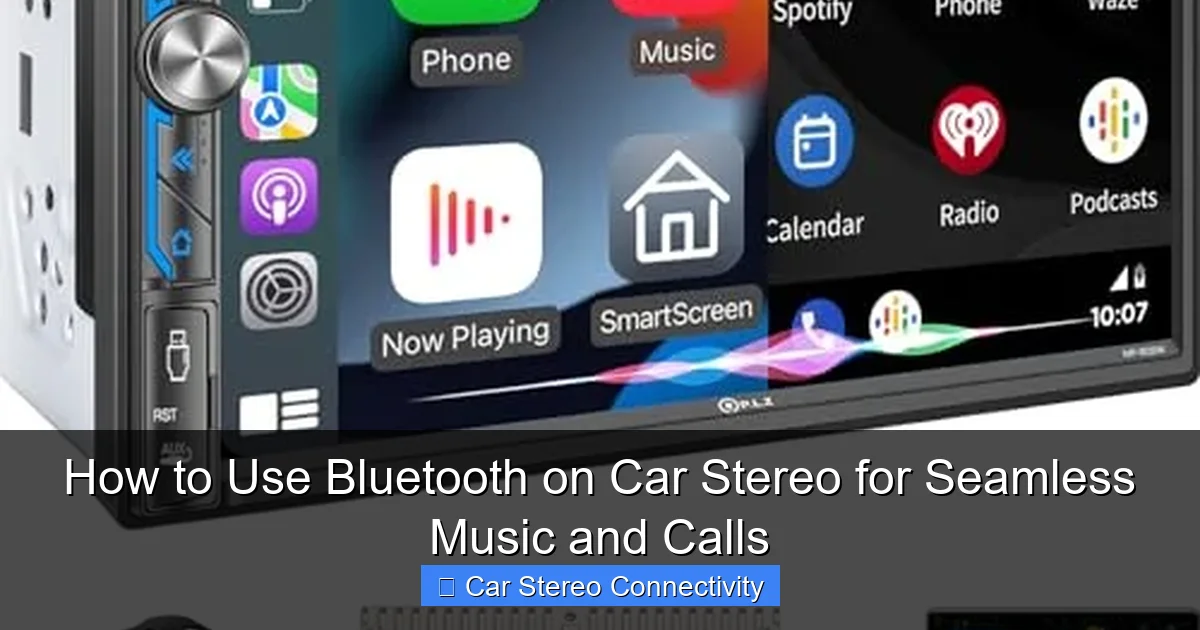
Visual guide about How to Use Bluetooth on Car Stereo for Seamless Music and Calls
Image source: m.media-amazon.com
How to Check
- Look for a Bluetooth logo on the stereo faceplate or in the user manual.
- Check the stereo’s menu for a “Bluetooth” or “BT” option.
- If you’re unsure, search your stereo model online or consult the manufacturer’s website.
Pro Tip: Even if your car doesn’t have built-in Bluetooth, you can add it with a Bluetooth FM transmitter or an aftermarket stereo. These plug into your cigarette lighter or aux port and pair with your phone.
Step 2: Turn On Bluetooth on Your Phone
Your phone needs to have Bluetooth enabled to connect to the car stereo.
How to Enable Bluetooth
- Open your phone’s Settings app.
- Tap Bluetooth (on iPhone) or Connections > Bluetooth (on Android).
- Toggle the switch to On.
- Make sure your phone is discoverable—this means other devices can find it.
Note: On some phones, Bluetooth turns off automatically after a while to save battery. Keep it on while setting up your car connection.
Step 3: Access Bluetooth on Your Car Stereo
Now it’s time to get your car stereo ready to pair.
How to Find the Bluetooth Menu
- Turn on your car stereo (you don’t need to start the engine).
- Press the Menu, Source, or BT button.
- Navigate to Bluetooth Settings or Pair Device.
- Select Add New Device or Search for Devices.
Example: On a Pioneer stereo, press the “Menu” button, scroll to “Bluetooth,” then select “Pairing.” On a Sony unit, press “Source” until you see “BT Pairing.”
Step 4: Pair Your Phone with the Car Stereo
This is the core step—connecting your phone and stereo so they can “talk” to each other.
How to Pair
- On your car stereo, start the pairing process (as described above).
- On your phone, go to Bluetooth settings and look for your car stereo’s name (e.g., “MyCar BT” or “Ford SYNC”).
- Tap the stereo name to connect.
- You may see a pairing code (PIN) on the stereo screen—enter it on your phone.
- Common PINs include 0000, 1234, or 1111.
- Once connected, you’ll see a confirmation message like “Connected” or a Bluetooth icon on the stereo.
Tip: Stay close to your car during pairing—Bluetooth works best within 3 feet. Avoid metal barriers like car doors or windows.
Step 5: Set Audio Source to Bluetooth
Even after pairing, your stereo might not automatically play audio from your phone. You need to select Bluetooth as the input source.
How to Change the Source
- Press the Source or Mode button on your stereo.
- Scroll through options like “Radio,” “Aux,” “USB,” and Bluetooth.
- Select Bluetooth Audio or BT Music.
- Now, play a song on your phone—it should stream through your car speakers.
Example: If you’re using Spotify or Apple Music, open the app and start playing. The sound should come from your car stereo within a few seconds.
Step 6: Make and Receive Hands-Free Calls
Bluetooth isn’t just for music—it’s also great for safer calling.
How to Use Bluetooth for Calls
- When a call comes in, your car stereo may display the caller’s name or number.
- Press the Phone or Call button on the stereo or steering wheel to answer.
- Speak clearly—most car stereos have built-in microphones near the dashboard.
- To make a call, use voice commands: say “Call [Name]” if your system supports it.
- End the call by pressing the End or Hang Up button.
Pro Tip: Enable voice assistants like Siri (iPhone) or Google Assistant (Android) for hands-free dialing. Say “Hey Siri, call Mom” and your car will handle the rest.
Step 7: Stream Music and Control Playback
Once connected, you can control your music directly from the stereo or your phone.
How to Control Playback
- Use the stereo’s Play/Pause, Next, and Previous buttons.
- Adjust volume using the stereo knob or steering wheel controls.
- Some stereos show song titles and artist names on the display.
- You can also control playback from your phone—lock screen controls work too.
Example: If you’re listening to a podcast on Spotify, you can skip chapters using the stereo buttons without touching your phone.
Troubleshooting Common Bluetooth Issues
Sometimes Bluetooth doesn’t work as expected. Here’s how to fix the most common problems.
Problem: Phone Won’t Find Car Stereo
- Make sure both devices have Bluetooth turned on.
- Restart both your phone and car stereo.
- Move closer to the car—Bluetooth range is limited.
- Check if the stereo is in pairing mode (not just connected).
Problem: Pairing Fails or Disconnects
- Delete the stereo from your phone’s Bluetooth list and re-pair.
- Reset the stereo’s Bluetooth settings (check the manual).
- Update your phone’s operating system.
- Try pairing with another phone to see if the issue is with the stereo.
Problem: No Sound or Poor Audio Quality
- Ensure the audio source is set to Bluetooth.
- Check your phone’s volume—it should be at least 50%.
- Move your phone closer to the stereo (avoid placing it in a metal box or glove compartment).
- Restart the connection by turning Bluetooth off and on.
Problem: Calls Don’t Route to Car Speakers
- Go to your phone’s Bluetooth settings and tap the “i” or gear icon next to your car.
- Enable Phone Audio or Call Audio.
- Some phones require you to select the car as the audio output during a call.
Tips for a Better Bluetooth Experience
Get the most out of your Bluetooth connection with these simple tips.
- Keep your stereo updated: Check the manufacturer’s website for firmware updates. These can fix bugs and improve Bluetooth performance.
- Name your devices clearly: If you have multiple Bluetooth devices, rename your car stereo (e.g., “Dad’s Car”) to avoid confusion.
- Use a phone mount: Keep your phone visible and accessible while driving—just don’t touch it while on the road.
- Charge your phone: Bluetooth uses battery. Use a car charger to keep your phone powered during long drives.
- Limit paired devices: Too many paired devices can slow down connection. Remove old or unused devices from your stereo’s memory.
Conclusion: Enjoy Wireless Freedom on the Road
Learning how to use Bluetooth on car stereo systems is easier than you think—and the benefits are huge. From wireless music to hands-free calls, Bluetooth makes every drive more convenient and safer. By following these steps, you can pair your phone in minutes and enjoy seamless audio every time you hit the road.
Remember: compatibility, proper pairing, and correct audio settings are key. If you run into issues, don’t panic—most problems have simple fixes. And with regular updates and smart habits, your Bluetooth connection will stay strong for years to come.
So go ahead—turn on Bluetooth, pair your phone, and let the music play. Your car stereo is ready to rock.

