
Want to stream music or take calls wirelessly in your car? Adding Bluetooth to your car stereo is easier than you think. This guide walks you through five simple steps—from choosing the right device to testing your setup—so you can enjoy modern connectivity without replacing your entire system.
Introduction: Why Add Bluetooth to Your Car Stereo?
If your car stereo doesn’t have built-in Bluetooth, you’re missing out on one of the most convenient features of modern driving. Whether you want to stream your favorite playlist, take hands-free calls, or use GPS navigation with voice directions, Bluetooth makes it all possible—safely and wirelessly.
The good news? You don’t need to spend hundreds on a new head unit. With the right Bluetooth adapter, you can upgrade almost any car stereo in under 30 minutes. This guide will show you exactly how to add Bluetooth to your car stereo in five easy steps—no technical skills required.
We’ll cover everything from choosing the best adapter for your setup to troubleshooting common issues. By the end, you’ll be enjoying wireless audio and calls like you’ve always wanted.
Step 1: Choose the Right Bluetooth Adapter
The first step is picking the right Bluetooth adapter for your car. There are three main types, each suited to different needs and car setups.
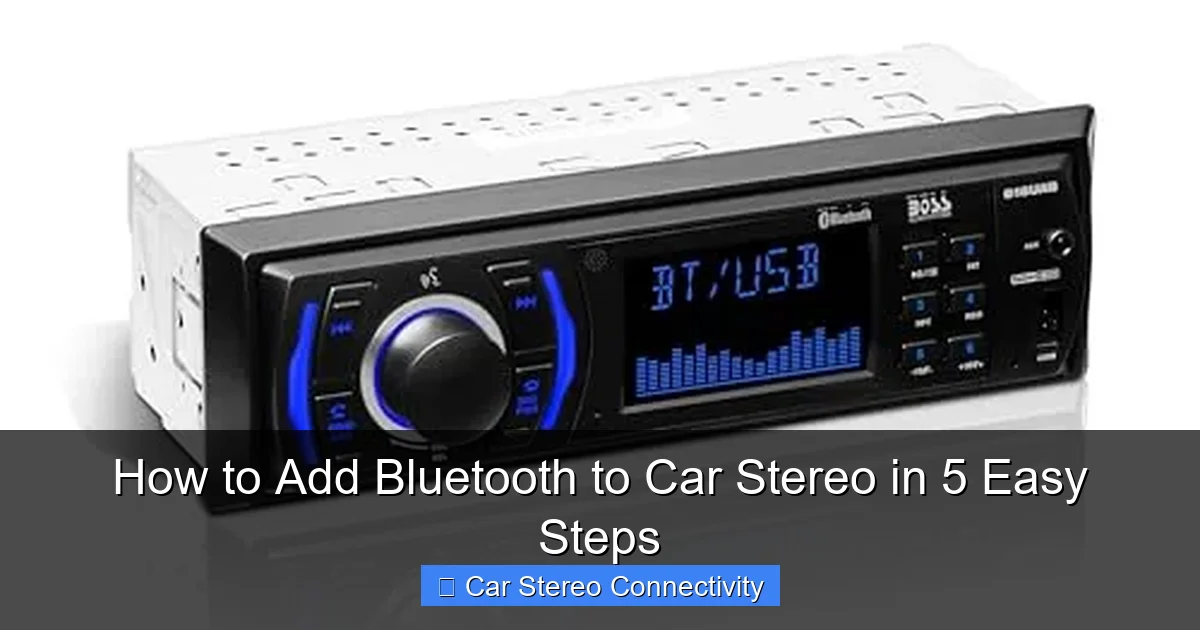
Visual guide about How to Add Bluetooth to Car Stereo in 5 Easy Steps
Image source: m.media-amazon.com
FM Transmitter Adapters
These plug into your car’s 12V power outlet (cigarette lighter) and broadcast audio over an unused FM frequency. Your car radio tunes into that frequency to play the sound.
- Pros: Works with any car that has an FM radio. No wiring needed.
- Cons: Sound quality can be poor due to interference. Limited range and clarity.
- Best for: Older cars without aux or USB ports.
Example: The Nulaxy KM18 is a popular FM transmitter with clear sound and strong signal.
Aux-In Bluetooth Adapters
These connect directly to your car’s 3.5mm aux input. They usually plug into the 12V outlet for power and pair with your phone via Bluetooth.
- Pros: Better sound quality than FM transmitters. Simple plug-and-play setup.
- Cons: Only works if your stereo has an aux port.
- Best for: Cars with aux inputs but no Bluetooth.
Tip: Look for models with built-in microphones for hands-free calling, like the Anker SoundSync Drive.
USB or Hardwired Bluetooth Kits
These connect via USB or integrate directly with your stereo’s wiring. Some even support Apple CarPlay or Android Auto.
- Pros: Best sound quality and features. Often includes charging and voice control.
- Cons: May require professional installation. Higher cost.
- Best for: Drivers who want a seamless, factory-like experience.
Example: The GizmoRX Bluetooth 5.0 USB adapter offers high-fidelity audio and fast pairing.
How to Choose?
Ask yourself:
- Does my car have an aux port or USB input?
- Do I prioritize sound quality or ease of use?
- Do I want hands-free calling?
Once you answer these, picking the right adapter becomes much easier.
Step 2: Gather Your Tools and Prepare Your Car
Before you start, make sure you have everything you need. Most Bluetooth adapters require minimal tools, but preparation saves time.
What You’ll Need
- Bluetooth adapter (FM, aux, or USB type)
- Car’s 12V power outlet or USB port
- Smartphone with Bluetooth enabled
- Optional: Cleaning cloth (to wipe dust from aux port)
Pre-Installation Checklist
- Check your stereo ports: Look for a 3.5mm aux jack, USB port, or confirm FM radio functionality.
- Test the power outlet: Plug in a phone charger to ensure the 12V socket works.
- Clean connections: Use a dry cloth to remove dust from aux or USB ports for a better connection.
- Read the manual: Every adapter is slightly different—review the instructions first.
Spending 5 minutes on prep can prevent frustration later. A clean, working setup means faster pairing and better performance.
Step 3: Install the Bluetooth Adapter
Now it’s time to install your adapter. The process varies slightly by type, but all are designed for quick, user-friendly setup.
Installing an FM Transmitter
- Plug the FM transmitter into your car’s 12V power outlet.
- Turn on your car radio and tune it to an unused FM frequency (e.g., 88.1 or 107.9).
- Set the transmitter to the same frequency using its buttons or dial.
- Power on the transmitter—it should light up or beep.
Tip: Avoid frequencies used by local radio stations to reduce static.
Installing an Aux-In Adapter
- Plug the 3.5mm aux cable into your car stereo’s aux input.
- Connect the adapter to the 12V outlet for power.
- Turn on your car stereo and switch to “AUX” mode.
- The adapter should power on automatically.
Note: Some adapters have a power button—press it if it doesn’t turn on.
Installing a USB or Hardwired Kit
- Plug the USB adapter into your car’s USB port.
- If it’s a hardwired model, you may need to connect it to the stereo’s wiring harness (consult a professional if unsure).
- Turn on the car and stereo—the adapter should initialize.
- Some kits require a firmware update via a computer—check the manual.
Warning: Hardwired installations can void warranties or damage electronics if done incorrectly. When in doubt, visit a car audio shop.
Step 4: Pair Your Phone with the Adapter
Once the adapter is powered, it’s time to connect your phone. This step is usually the easiest—and most satisfying.
How to Pair Your Device
- Enable Bluetooth on your smartphone (go to Settings > Bluetooth).
- Put the adapter in pairing mode—usually by holding a button until a light flashes.
- On your phone, scan for nearby devices.
- Select the adapter’s name (e.g., “CarKit BT” or “Nulaxy KM18”).
- Enter the PIN if prompted (common codes: 0000, 1234, or 1111).
- Wait for “Connected” or a confirmation tone.
Tips for Smooth Pairing
- Stay close to the adapter during pairing—within 3 feet.
- Turn off other Bluetooth devices to avoid interference.
- If pairing fails, restart both the adapter and your phone.
- Some adapters remember paired devices—future connections are automatic.
Once paired, test the connection by playing a song or making a call. You should hear audio through your car speakers.
Step 5: Test and Optimize Your Setup
Don’t skip this step! Testing ensures everything works and helps you fine-tune the experience.
Test Audio Playback
- Play music from your phone—Spotify, Apple Music, or YouTube.
- Check volume levels: Adjust both phone and car stereo for balanced sound.
- Listen for static, lag, or distortion—especially with FM transmitters.
Test Hands-Free Calling
- Make a test call (to a friend or voicemail).
- Speak clearly and check if the other person hears you.
- Use voice commands if supported (e.g., “Call Mom”).
Optimize for Best Performance
- For FM transmitters: Experiment with different frequencies to find the clearest signal.
- For aux adapters: Keep the aux cable secure—loose connections cause audio drops.
- For all adapters: Keep the device charged. Use a dual USB charger if you also need to charge your phone.
- Update firmware: Check the manufacturer’s website for adapter updates that improve performance.
Troubleshooting Common Issues
Even with the best setup, problems can happen. Here’s how to fix the most common ones.
No Sound After Pairing
- Check that the car stereo is set to the correct input (AUX, FM, or USB).
- Ensure the adapter is powered—look for LED lights.
- Restart Bluetooth on your phone and re-pair.
Poor Sound Quality
- FM transmitters: Try a different frequency or move the adapter away from metal objects.
- Aux adapters: Clean the aux port and cable connectors.
- All types: Lower the phone’s volume and raise the car stereo’s volume to reduce distortion.
Adapter Keeps Disconnecting
- Move your phone closer to the adapter.
- Avoid placing the phone in a metal box or glove compartment.
- Update your phone’s Bluetooth drivers or reset network settings.
Microphone Not Working for Calls
- Ensure the adapter has a built-in mic or supports external mics.
- Check call audio settings on your phone—select the adapter as the audio source.
- Speak directly toward the mic (usually on the adapter or visor clip).
Conclusion: Enjoy Wireless Freedom in Your Car
Adding Bluetooth to your car stereo is one of the easiest and most rewarding upgrades you can make. In just five steps—choosing the right adapter, preparing your car, installing, pairing, and testing—you’ve transformed your driving experience.
Whether you’re cruising with your favorite playlist or taking calls safely on the go, Bluetooth connectivity brings modern convenience to any vehicle. And the best part? You did it without breaking the bank or calling a technician.
Now that your system is up and running, enjoy the freedom of wireless audio. Your car stereo just got a whole lot smarter.