Connecting an OBD2 scanner to your Android phone allows you to easily diagnose and monitor your vehicle’s health. This guide walks you through the entire setup process, from selecting the right scanner to troubleshooting common issues, so you can start reading and clearing diagnostic codes in minutes.
Quick Answers to Common Questions
How do I know if my car supports OBD2?
Most cars made after 1996 support OBD2. Check your owner’s manual or look for the OBD2 port under the dashboard.
Can I use any Bluetooth OBD2 scanner with any app?
Many ELM327 Bluetooth scanners work with popular apps, but some apps perform better with specific scanners. Check app compatibility before buying.
Should the car engine be running during diagnostics?
Usually, just turning the ignition to the ON position is enough. Some tests may require the engine running; check your app’s instructions.
What if my phone won’t pair with the scanner?
Restart Bluetooth on your phone, ensure the scanner is powered, and try pairing again. Also, check for interference from other devices.
Can I use the OBD2 scanner without internet?
Yes, most diagnostic apps and scanners work offline once installed. However, internet access helps for code lookups and updates.
How to Connect OBD2 Scanner to Android Phone for Easy Diagnostics
If you own a car, an OBD2 scanner is a powerful tool that helps you understand what’s going on under the hood. Pairing this scanner with your Android phone turns your device into a mini diagnostic center. In this guide, you’ll learn everything you need to connect an OBD2 scanner to your Android phone, so you can check engine codes, monitor sensors, and fix problems quickly.
What You Will Learn
By the end of this guide, you’ll know how to:
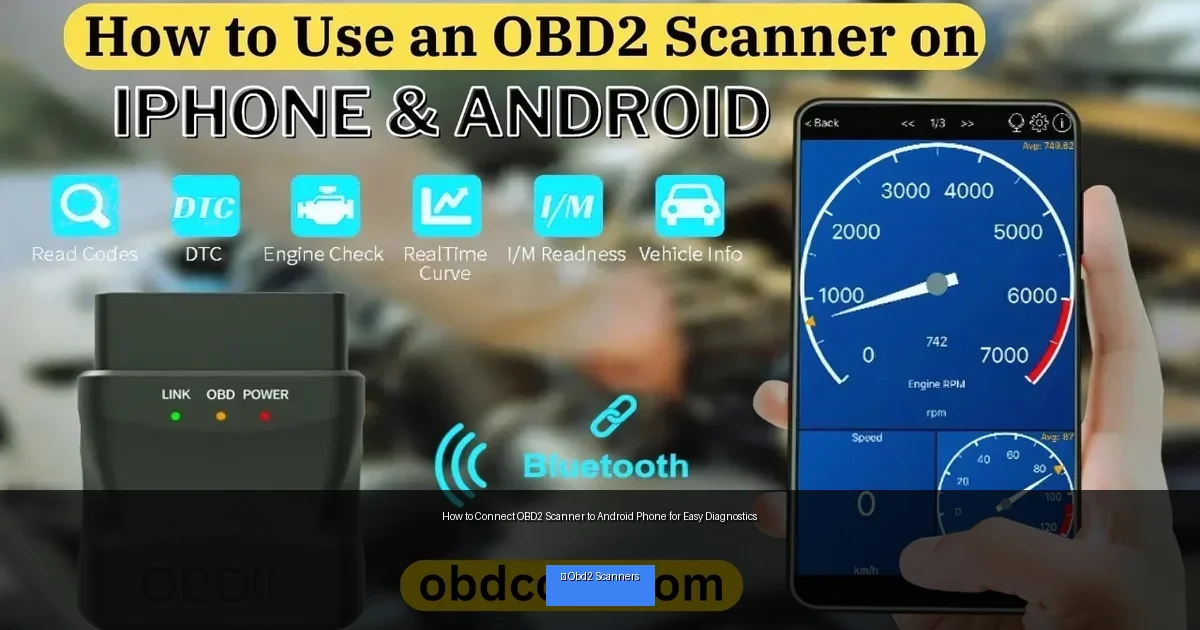
Visual guide about How to Connect OBD2 Scanner to Android Phone for Easy Diagnostics
Image source: obdcore.com
- Choose the right OBD2 scanner compatible with Android phones
- Download and set up the best diagnostic apps
- Connect your scanner to your phone via Bluetooth or Wi-Fi
- Use the app to read and clear fault codes effectively
- Troubleshoot common connection issues
Step 1: Understand What an OBD2 Scanner Does
OBD2 (On-Board Diagnostics, second generation) scanners plug into your vehicle’s diagnostic port and communicate with the engine control unit (ECU). They read error codes, monitor sensor data, and provide real-time information about your car’s health. When connected to an Android phone, they allow you to access this valuable data through apps.
Step 2: Choose the Right OBD2 Scanner for Your Android Phone
Bluetooth vs Wi-Fi Scanners
Most Android phones support Bluetooth connections, making Bluetooth OBD2 scanners the most popular choice. Wi-Fi scanners also work but may require disconnecting your phone from other networks. Choose a Bluetooth scanner for easier setup and compatibility.
Compatibility Check
Make sure the scanner you pick supports your vehicle’s make and model. Also, verify it works with Android devices. Popular options include ELM327-based Bluetooth scanners and brands like BlueDriver, FIXD, and Veepeak.
Budget Considerations
Prices range from $15 to over $100. For basic code reading, an affordable ELM327 Bluetooth scanner is enough. For advanced features, spend more for better accuracy and app support.
Step 3: Download an OBD2 Diagnostic App on Your Android Phone
Popular Apps
- Torque Lite/Pro: User-friendly, real-time data, customizable dashboards.
- OBDLink: Works well with OBDLink scanners, detailed diagnostics.
- Car Scanner ELM OBD2: Free version offers good features, supports many protocols.
- BlueDriver: Best for BlueDriver scanners, detailed reports.
Installing the App
Open Google Play Store on your Android phone, search for the app you want, and tap “Install.” Once installed, open the app to prepare for connection.
Step 4: Locate Your Vehicle’s OBD2 Port
The OBD2 port is usually found under the dashboard near the steering column. It might be hidden behind a cover or panel. Consult your vehicle’s manual if you have trouble locating it.
Step 5: Connect the OBD2 Scanner to Your Android Phone
For Bluetooth Scanners
- Plug the OBD2 scanner into the vehicle’s OBD2 port.
- Turn on your car’s ignition (engine doesn’t need to start, but power must be on).
- Open your Android phone’s Settings and go to Bluetooth.
- Find the scanner’s Bluetooth name (often “OBDII” or similar) and pair with it. You may need a default PIN like “1234” or “0000.”
- Once paired, open your diagnostic app and select the Bluetooth device to connect.
For Wi-Fi Scanners
- Plug the scanner into the OBD2 port and turn on your ignition.
- On your Android phone, open Wi-Fi settings.
- Look for the scanner’s Wi-Fi network name and connect.
- Open the diagnostic app and select the Wi-Fi connection option.
Step 6: Using the Diagnostic App
Reading Trouble Codes
Once connected, navigate to the “Read Codes” or “Diagnostics” section in the app. The app will scan your vehicle’s ECU and display any stored trouble codes. These codes identify issues like engine misfires, sensor failures, or emissions problems.
Interpreting Codes
Most apps provide a brief description of each code. You can also search online for detailed explanations and possible fixes.
Clearing Fault Codes
If you have fixed the issue or want to clear the check engine light, use the “Clear Codes” function in the app. Note that if the problem persists, codes may return.
Monitoring Live Data
Many apps let you view real-time sensor data like engine RPM, coolant temperature, and oxygen sensor readings. This data helps you monitor performance and detect issues early.
Step 7: Practical Tips for Smooth Diagnostics
- Keep your phone’s Bluetooth or Wi-Fi on: Turn it on before starting the connection process.
- Turn ignition to ON position: The scanner needs power to communicate.
- Close other apps: Free up memory to avoid app crashes.
- Update your app and scanner firmware: Check for updates regularly for best performance.
- Use your phone’s battery wisely: Running diagnostics can drain battery quickly.
Troubleshooting Common Issues
Scanner Not Showing Up in Bluetooth List
Make sure the scanner is properly plugged in and the car ignition is on. Try restarting Bluetooth on your phone. If the scanner has a power light, confirm it’s lit.
App Cannot Connect to Scanner
Double-check your app’s connection settings. Ensure you selected the correct Bluetooth device. Restart the app and re-pair the scanner.
App Shows No Data or Errors
Verify that your vehicle supports OBD2 protocols. Some older cars or foreign models may not be fully compatible. Try another app to confirm.
Cleared Codes Return Quickly
This means the underlying problem hasn’t been fixed. Use the code description to diagnose and repair the issue before clearing again.
Conclusion
Connecting an OBD2 scanner to your Android phone is a simple process that puts powerful diagnostic capabilities right in your hands. With the right scanner and app, you can monitor your vehicle’s health, read and clear trouble codes, and even save money on repairs. Follow these steps carefully, and you’ll be ready to diagnose your car anytime, anywhere.
🎥 Related Video: How to setup obd2 scanner on android radio | x series
📺 AudioVisionUSA
This is how to set up obd2 scanner for out x series models. This method will work on similar models as well.

