Reading live data on an OBD2 scanner helps you monitor your vehicle’s real-time performance and diagnose problems accurately. This guide walks you through each step, from connecting your scanner to interpreting data, making car troubleshooting simple and effective.
Quick Answers to Common Questions
How do I know if my OBD2 scanner supports live data?
Check the product specifications or user manual. Most modern scanners list “live data,” “real-time data,” or “data streaming” features.
Can I read live data with the engine off?
Some parameters may display with the engine off, but most live data requires the engine running or at least ignition on.
What if my scanner shows no data or error messages?
Try restarting the scanner and vehicle. Check the connection and ensure the ignition is properly set. If issues persist, your vehicle may not support that data.
Is it safe to use an OBD2 scanner while driving?
Yes, but avoid distractions. It’s best to set up and observe data when the vehicle is stationary or have a passenger help you.
Can live data help me pass emissions tests?
Yes, monitoring oxygen sensors and other emissions-related parameters can indicate if your vehicle is ready for a test.
How to Read Live Data on OBD2 Scanner for Accurate Diagnostics
Modern vehicles are equipped with onboard computers that constantly monitor engine and system performance. An OBD2 (On-Board Diagnostics) scanner lets you tap into this data, providing live readings from sensors and control modules. This guide will teach you how to read live data on your OBD2 scanner, helping you diagnose issues quickly and accurately.
What You Will Learn
- What live data on an OBD2 scanner means
- How to connect your scanner to your vehicle
- How to navigate the scanner interface to access live data
- How to interpret common live data parameters
- Troubleshooting tips if data isn’t showing correctly
Step 1: Understand What Live Data Is
Live data refers to real-time information sent from your vehicle’s sensors to the OBD2 scanner. Unlike trouble codes that only appear when there’s a fault, live data shows current engine conditions like RPM, speed, temperature, and sensor outputs. This allows you to monitor performance and spot problems before they trigger warning lights.
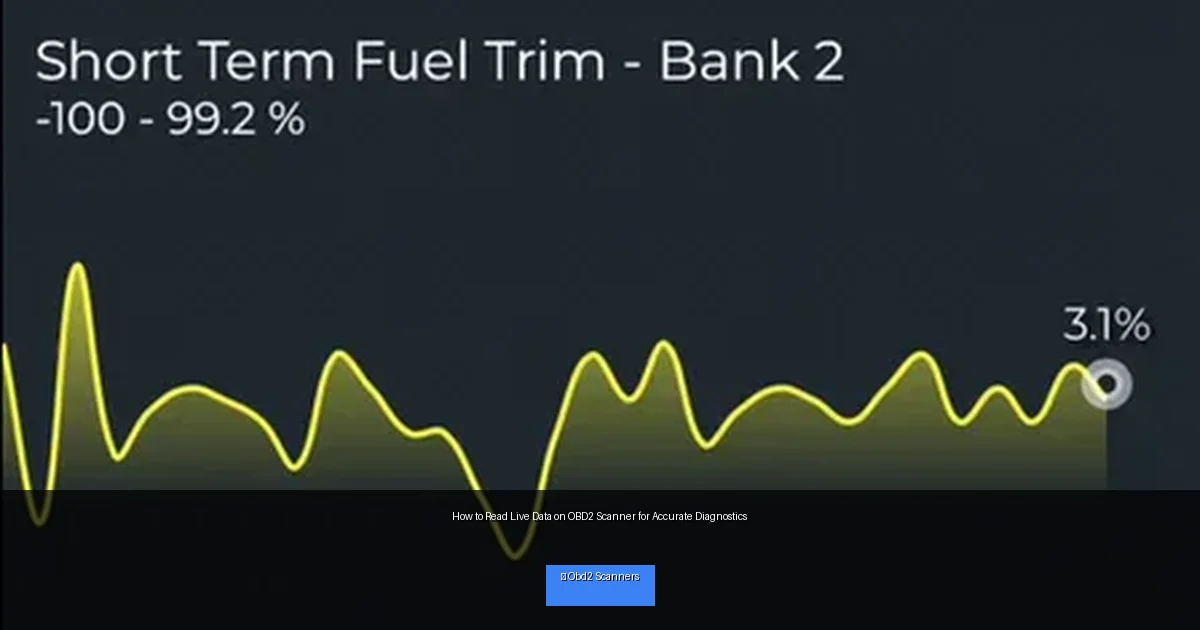
Visual guide about How to Read Live Data on OBD2 Scanner for Accurate Diagnostics
Image source: cdn.shopify.com
Step 2: Locate Your Vehicle’s OBD2 Port
The OBD2 port is usually found under the dashboard on the driver’s side. Look near the steering column or just below it. It’s a 16-pin connector that your scanner’s plug will fit into. If you can’t find it, check your vehicle’s owner manual or search online for your car model’s OBD2 port location.
Step 3: Connect Your OBD2 Scanner
Power Off the Vehicle
Before connecting, turn off the ignition to avoid electrical issues.
Plug in the Scanner
Insert the scanner’s connector firmly into the OBD2 port.
Power On the Vehicle
Turn the ignition to the “On” position without starting the engine. Some scanners require the engine running to read certain parameters.
Turn on the Scanner
Power on your OBD2 scanner. Some models turn on automatically when plugged in.
Step 4: Navigate to the Live Data Section
Every OBD2 scanner interface is slightly different, but the process is similar:
- Use arrow keys or touchscreen to open the main menu
- Select “Live Data,” “Data Stream,” or “Real-Time Data” option
- Choose the sensors or parameters you want to view
Many scanners allow you to select multiple parameters to view at once, or you can scroll through them one by one.
Step 5: Understand Key Live Data Parameters
Here are some common live data parameters and what they tell you:
- RPM (Revolutions Per Minute): Engine speed. High or erratic RPMs can indicate issues.
- Coolant Temperature: Engine temperature. Overheating may cause damage.
- Oxygen Sensor Voltage: Indicates how well your engine burns fuel.
- Throttle Position: Shows how far the throttle is open.
- Vehicle Speed: Real-time speed reading.
- Mass Air Flow (MAF): Amount of air entering the engine.
Step 6: Use Live Data for Diagnostics
Comparing live data with manufacturer specifications can help you spot abnormalities. For example, if the coolant temperature stays low despite engine running, the thermostat might be stuck open. If oxygen sensor voltage fluctuates erratically, the sensor or fuel system might be faulty. Use live data alongside fault codes for precise diagnosis.
Step 7: Record and Analyze Data
Many OBD2 scanners allow you to save live data logs. Recording data while driving or idling helps identify intermittent problems. Some advanced apps connected to Bluetooth scanners provide graphs and trend analysis to make interpretation easier.
Troubleshooting Common Issues
Scanner Not Connecting
Make sure the ignition is in the correct position and the port is not damaged. Try a different scanner if problems persist.
No Live Data Showing
Not all vehicles support live data on every sensor. Also, some scanners only display live data if the engine is running.
Data Is Erratic or Unreadable
Check for loose connections. Interference or a faulty scanner may cause inconsistent readings.
Practical Tips for Using Live Data
- Start with engine off, then ignition on, then engine running to compare values.
- Use live data to verify repairs, like checking sensor output after replacement.
- Pay attention to warm-up values as sensors and engine behave differently when cold.
- Use online resources or your vehicle repair manual to find normal parameter ranges.
- Practice regularly to become familiar with your car’s typical live data patterns.
Conclusion
Reading live data on your OBD2 scanner is a powerful way to understand your vehicle’s health in real time. By following this guide, you can connect your scanner, navigate to live data, and interpret key information effectively. This skill empowers you to catch problems early, save money on repairs, and maintain your vehicle better. Remember, practice and patience will help you become confident in using live data for accurate diagnostics.
🎥 Related Video: The basics on live data obd2 scanner
📺 Good2Boost
Just a general explanation on how to read live data on a cars obd2 scanner click the link at the start of the video for a better …

