Connecting an OBD2 scanner to your computer is a simple process that helps you diagnose and monitor your vehicle’s health. This guide walks you through each step, from choosing the right scanner to troubleshooting common connection issues, so you can start reading your car’s data with ease.
Quick Answers to Common Questions
How do I know if my OBD2 scanner supports computer connection?
Check the product description or manual for USB, Bluetooth, or Wi-Fi compatibility with computers. Look for mentions of PC software or drivers.
Can I use a wireless OBD2 scanner with any computer?
Most wireless scanners require your computer to have Bluetooth or Wi-Fi capability and compatible software installed.
What if my computer doesn’t recognize the scanner?
Try installing or updating the scanner’s drivers, use a different USB port, or restart your computer. Also, check cable quality.
Is it safe to connect the scanner while the engine is running?
Usually, it’s best to keep the engine off and ignition on during initial connection. Running engine data can be accessed once connected.
Can I clear error codes using my computer-connected OBD2 scanner?
Yes, many scanners and software allow you to clear Diagnostic Trouble Codes and reset the check engine light.
How to Connect OBD2 Scanner to Computer Step by Step Guide
If you want to dive deeper into your vehicle’s health and performance, connecting an OBD2 scanner to your computer is a fantastic way to do it. Whether you’re a car enthusiast or just want to save money on diagnostics, this guide will teach you everything you need to know about linking your OBD2 scanner to your PC or laptop. From picking the right tools to troubleshooting connection issues, you’ll be equipped to read and understand your car’s data in no time.
What is an OBD2 Scanner and Why Connect It to a Computer?
OBD2 scanners are devices that plug into your vehicle’s onboard diagnostics port. They retrieve information about engine performance, emissions, and fault codes. While many scanners have their own screen, connecting one to a computer lets you access advanced software with detailed data, graphs, and even live monitoring. This connection helps you diagnose problems more accurately and keep your vehicle running smoothly.
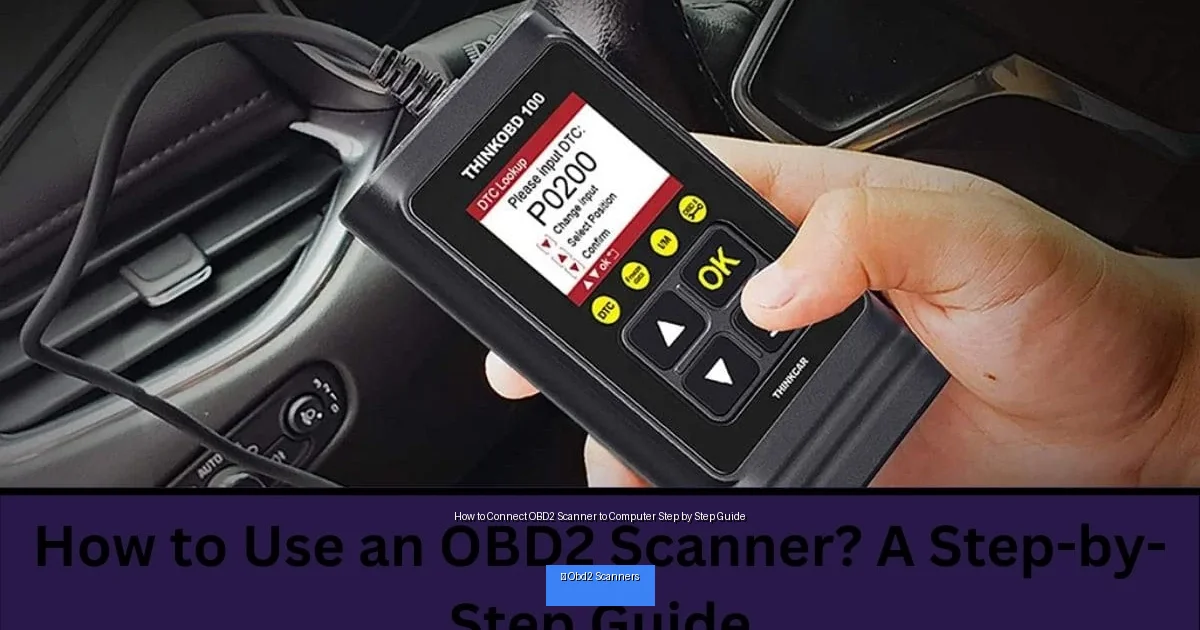
Visual guide about How to Connect OBD2 Scanner to Computer Step by Step Guide
Image source: automadesimply.com
Step 1: Choose the Right OBD2 Scanner and Software
Pick a compatible scanner
Not all OBD2 scanners connect to computers. Look for scanners with USB, Bluetooth, or Wi-Fi connectivity designed for PC use. Popular brands include ELM327, Autel, and BlueDriver. USB scanners plug directly into your computer, while Bluetooth and Wi-Fi models connect wirelessly.
Select appropriate software
Once you have a scanner, choose software that works with it. Some popular options are ScanMaster, OBDwiz, and Torque Pro (for Android devices connected via PC). Many scanners come with their own software, but third-party apps often offer more features. Ensure the software supports your vehicle make and model for best results.
Step 2: Locate Your Vehicle’s OBD2 Port
The OBD2 port is usually found under the dashboard, near the steering column. It’s a 16-pin connector shaped like a trapezoid. If you can’t find it, check your vehicle’s manual or search online for your specific model. The port must be accessible to plug in your scanner.
Step 3: Connect the OBD2 Scanner to Your Vehicle
Turn off your vehicle
Before plugging in the scanner, ensure the ignition is off to avoid electrical issues.
Plug in the scanner
Insert the scanner’s connector firmly into the OBD2 port. If using a wired USB scanner, connect the other end to your computer’s USB port.
Power on your vehicle
Turn the ignition key to the “On” position without starting the engine. This powers the scanner and allows it to communicate with your car’s computer.
Step 4: Connect the Scanner to Your Computer
USB connection
If your scanner uses a USB cable, it should be recognized automatically by your computer. You may need to install drivers, which usually come with the software or can be downloaded from the manufacturer’s website.
Bluetooth connection
For Bluetooth models, open your computer’s Bluetooth settings and pair with the scanner. Enter any required passcodes (often “1234” or “0000”). Once paired, open your OBD2 software and select the appropriate COM port.
Wi-Fi connection
Wi-Fi scanners create a hotspot. Connect your computer to the scanner’s Wi-Fi network, then launch the software. Ensure you follow the scanner’s instructions for IP address settings if needed.
Step 5: Launch the OBD2 Software and Establish Communication
Open your chosen software and select the correct communication port (USB, COM port, or Wi-Fi). Click “Connect” or “Start” to begin communication between the scanner and your vehicle. The software will retrieve data like vehicle speed, RPM, engine codes, and sensor readings.
Step 6: Read and Interpret Vehicle Data
Once connected, you can view Diagnostic Trouble Codes (DTCs), live sensor data, and other vehicle information. Many programs allow you to clear error codes or run advanced tests. Remember, each code corresponds to specific issues, so consult your software’s code list or an online database to understand what repairs might be needed.
Practical Tips for a Smooth Connection
- Keep your software updated: Updates often include better compatibility and bug fixes.
- Use the right USB port: Avoid USB hubs; plug directly into your computer’s port.
- Check vehicle ignition: The ignition must usually be in the “On” position but not running.
- Read the manual: Your scanner or software may have specific setup instructions.
- Use quality cables: Cheap cables can cause connection drops or data errors.
Troubleshooting Common Issues
Scanner not detected by computer
- Ensure drivers are installed correctly.
- Try a different USB port or cable.
- Restart your computer and reconnect the scanner.
Cannot connect to vehicle
- Confirm the ignition is on.
- Check that the scanner is properly plugged in.
- Verify software settings, including correct COM port or IP address.
- Try another vehicle to rule out scanner issues.
Software crashes or freezes
- Close other applications to free system resources.
- Reinstall the software or update to the latest version.
Conclusion
Connecting an OBD2 scanner to your computer opens up a world of vehicle diagnostics and monitoring. By following this step-by-step guide, you can easily set up your scanner, troubleshoot common issues, and gain valuable insights into your car’s performance. Whether you want to fix problems yourself or just keep an eye on your vehicle’s health, a connected OBD2 scanner is a powerful tool that puts control in your hands.
🎥 Related Video: How to Use an OBD-II Scan Tool
📺 Car and Driver
With car computers doing so much heavy lifting these days, knowing how to use a hand-held scanning tool to communicate with it …

