To connect an OBD2 scanner, locate the 16-pin OBD2 port under the driver-side dashboard, plug the scanner in firmly, turn the key to ON, and follow the scanner screen or app to read codes. Most vehicles sold in the USA from 1996 and newer use the standard OBD2 port.
Connecting an OBD2 scanner sounds easy until you are upside down under the dash, the scanner will not power on, or your phone refuses to pair. I’m Ryan Carter, and I test car tools in real driving conditions so I can explain them simply. In this guide, I’ll show you how to connect an OBD2 scanner the right way and how to fix the common problems that stop it from working.
What an OBD2 Scanner Is and Why It Matters
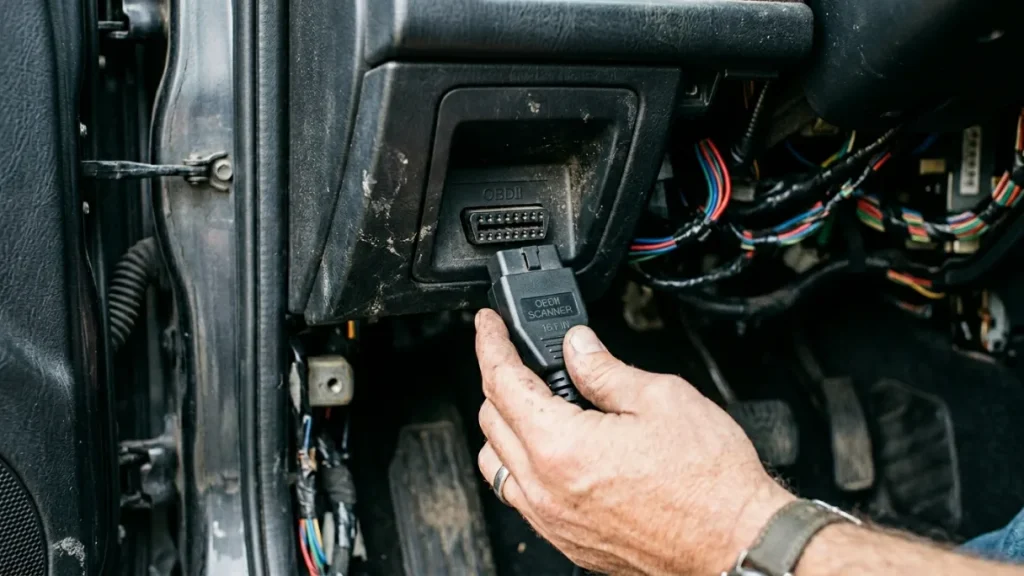
What OBD2 means on USA vehicles
OBD2 stands for On-Board Diagnostics, second generation. In the USA, most gas and diesel vehicles from model year 1996 and newer have a standard 16-pin OBD2 port. That standard makes it possible to plug in a code reader or scan tool and talk to the car’s computer.
If your vehicle is older than 1996, it may use OBD1 instead, which is not standardized. That is a big reason some drivers buy a scanner and then wonder why it will not connect.
Why drivers use scanners for maintenance, warning lights, and emergency checks
I use OBD2 scanners for three main reasons: checking a warning light, tracking vehicle health, and getting fast information before a repair. For daily driving, a scanner can point you toward a misfire, EVAP leak, oxygen sensor issue, or battery voltage problem. On long trips, it can help you decide whether a check engine light is likely minor or something that needs immediate attention.
For broader maintenance advice, I sometimes compare symptoms with resources from Consumer Reports and Edmunds maintenance guides.
What a scanner can and cannot diagnose
An OBD2 scanner can read trouble codes, live data, readiness monitors, and sometimes freeze-frame information. Advanced scanners can also access ABS, airbag, transmission, and manufacturer-specific modules.
What it cannot do is magically fix the car. A scanner gives you data. You still need to interpret the data correctly. A code for a lean condition, for example, does not always mean the oxygen sensor itself is bad. It could point to a vacuum leak, weak fuel delivery, or unmetered air.
How OBD2 Scanner Connections Work
Where the OBD2 port is usually located
On most vehicles, the OBD2 port is under the dashboard on the driver side, usually near the steering column, lower knee panel, fuse box area, or center console edge. I usually start by looking just above the brake pedal area and then sweep left to right with a flashlight.
The connector is trapezoid-shaped, so the scanner only fits one way. If it feels wrong, do not force it.
How the 16-pin connector gets power and communicates
The OBD2 port has 16 pins. Pin 16 typically supplies 12-volt battery power, and pins 4 and 5 are grounds. That is why a handheld scanner usually powers on as soon as you plug it in. Communication with the vehicle happens through protocol pins that vary by vehicle year and manufacturer.
From my testing, connection issues often come down to one of four things: no power at the port, the wrong ignition position, a weak Bluetooth adapter, or a compatibility problem between the scanner, the app, and the vehicle.
Handheld scanner vs Bluetooth adapter vs Wi-Fi scanner
A handheld scanner is the most straightforward option. You plug it in and use the built-in screen. A Bluetooth adapter plugs into the same port but sends data to a phone app. Wi-Fi scanners do something similar, though they can be a little less convenient because they take over the phone’s Wi-Fi connection while in use.
For beginners, I usually recommend a reliable handheld unit or a well-reviewed Bluetooth adapter with a stable app. Cheap no-name adapters often look the same but can have weak internal chips, poor durability, and spotty connections.
Vehicle compatibility by model year and phone type
In general, USA vehicles from 1996 and newer support OBD2. That does not mean every scanner works equally well on every vehicle. Some basic code readers only access generic engine codes. Some advanced tools read manufacturer-specific data, transmission data, ABS, and SRS modules.
Phone compatibility matters too. In my experience, iPhone users usually get better results with Bluetooth Low Energy or approved Wi-Fi adapters, while Android users have more Bluetooth adapter choices. If you want a deeper technical overview, Car and Driver has useful automotive explainers.
| Scanner Type | Best For | Power Source | App Needed | Pros | Cons |
|---|---|---|---|---|---|
| Basic Handheld Scanner | Beginners, quick code checks | OBD2 port 12V | No | Simple, reliable, no pairing | Limited features |
| Bluetooth OBD2 Adapter | Daily driving, live data, travel | OBD2 port 12V | Yes | Compact, flexible, good data views | Pairing issues possible |
| Wi-Fi OBD2 Adapter | Some iPhone setups | OBD2 port 12V | Yes | Works where Bluetooth options are limited | Takes over Wi-Fi connection |
| Advanced Scan Tool | DIY repair, shop-level diagnosis | OBD2 port or internal battery | Sometimes | More modules, more tests, better data | Higher price, steeper learning curve |
How to Connect an OBD2 Scanner Step-by-Step (Beginner Friendly)
Before you start
Before I connect any scanner, I do three simple checks. First, I park safely and set the parking brake. Second, I make sure the connector and port look clean and undamaged. Third, I confirm the scanner is compatible with the vehicle and, if it uses an app, that the app is already installed.
If the battery is weak, I also keep a charger nearby. Low battery voltage can cause communication problems, random warning lights, or unstable Bluetooth pairing.
Step 1: Find the OBD2 port
Sit in the driver seat and look under the lower dash. Most ports are visible without removing any trim. If you do not see it immediately, check near the fuse panel cover, under a small flap, or along the lower edge of the center stack.
The port is usually easy to recognize because it has a 16-pin trapezoid shape. If your car has a lot of aftermarket accessories or under-dash wiring, use a flashlight so you do not confuse it with another connector.
Step 2: Turn the key to the right position
This is where many people get stuck. On most vehicles, I turn the key to the ON position without starting the engine. On push-button vehicles, I usually press the button once or twice without pressing the brake pedal. That powers up the vehicle electronics so the scanner can communicate.
Some scanners can pull stored codes with the engine off but ignition on. Some live data functions work better with the engine idling. If the scanner says there is no communication, change the ignition position before assuming the tool is bad.
Step 3: Plug in the scanner correctly
Align the scanner connector with the port and push it in firmly. It should seat snugly without force. If it does not slide in smoothly, stop and check the orientation. Forcing the connector can bend pins or crack the scanner housing.
A handheld scanner should usually power up right away. If it stays dark, that points to a power issue at the OBD2 port, a blown fuse, or a problem with the scanner itself.
Step 4: Pair the adapter if it is Bluetooth or Wi-Fi
If you are using a Bluetooth OBD2 scanner, open the app recommended by the adapter maker. Some adapters pair through the phone’s Bluetooth settings first. Others pair from inside the app. I always read that part carefully because the setup flow can differ.
For iPhone users, compatibility is especially important. Some cheap Bluetooth adapters that work on Android do not work correctly on iOS. If you are using a Wi-Fi adapter, join its network in your phone settings and then open the app.
Step 5: Read trouble codes and live data
Once connected, choose Read Codes, Scan, or Diagnostics. Start with stored and pending trouble codes. Then look at basic live data such as engine RPM, coolant temperature, fuel trims, and battery voltage. That gives you context instead of just a code number.
For example, if I see a lean code and high positive fuel trims, I start thinking about vacuum leaks, intake issues, or fuel delivery problems. If I see low system voltage, I start checking the battery and charging system.
Step 6: Clear codes only if it makes sense
I do not recommend clearing codes until you have written them down or saved a report. Clearing a code wipes valuable information and can reset readiness monitors. That matters if you are preparing for an emissions test.
If you fixed the problem and want to confirm the repair, clear the codes, drive the car through a normal cycle, and recheck. If the light comes back quickly, the root cause is probably still there.
Bluetooth OBD2 Adapter vs Handheld Scanner: Full Comparison
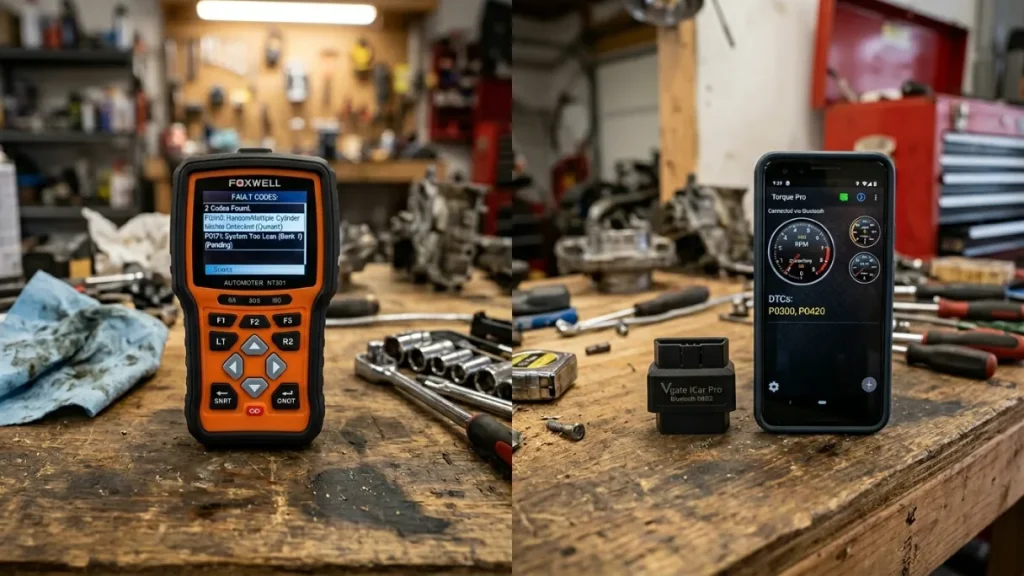
I test both types regularly, and each one has a clear use case. For quick reliability, a handheld scanner is hard to beat. For live data, road-trip monitoring, and phone-based convenience, a Bluetooth adapter usually gives you more value.
| Feature | Bluetooth Adapter | Handheld Scanner |
|---|---|---|
| Typical Cost | Low to medium | Low to medium |
| Ease of Use | Moderate | Easy |
| Reliability | Depends on adapter quality and app | Usually very consistent |
| Live Data Display | Often excellent on phone apps | Good, but smaller screens on budget models |
| Compatibility | Must match app and phone OS | Usually simpler |
| Best Use Case | Daily driving, travel, advanced DIY data | Beginners, quick code reads, glovebox tool |
Why Your OBD2 Scanner Is Not Connecting (Real Causes)
No power at the OBD2 port
If the scanner does not turn on at all, I check port power first. A blown fuse is a common cause. On some cars, the OBD2 port shares a fuse with the cigarette lighter or accessory power outlet. If that outlet is dead too, the fuse is a likely suspect.
Wrong ignition setting
If the scanner powers on but says no communication, try the ignition in ON instead of ACC. Many vehicles need the control modules awake before the scanner can link to them.
Phone pairing or app issue
With Bluetooth adapters, the app matters as much as the hardware. I have seen adapters that technically connect to the phone but never communicate properly with the vehicle because the wrong app was selected, the protocol was set incorrectly, or the adapter was a poor-quality clone.
Vehicle protocol or model-year mismatch
Most USA cars from 1996 onward support OBD2, but feature support can vary. Some cheap tools only read generic powertrain data. If you are trying to read ABS, airbag, transmission, or enhanced manufacturer data, a basic code reader may seem like it is failing when it simply does not support that module.
Dirty, loose, or damaged connector pins
If the scanner feels loose or drops connection while driving, inspect the port and scanner plug. I have seen bent pins, debris, and worn connectors cause intermittent failures. A loose fit can also happen if the adapter housing is poorly made.
| Problem | Likely Cause | Quick Fix |
|---|---|---|
| Scanner will not power on | No 12V at port, blown fuse, bad scanner | Check accessory fuse and port power |
| Scanner powers on but no communication | Ignition not in ON position | Turn key to ON or wake modules on push-button car |
| Bluetooth adapter not pairing | Wrong app, phone compatibility issue, bad adapter | Install correct app and verify iPhone or Android support |
| Codes read but live data missing | Basic reader limitation | Use a scanner with live data support |
| Connection drops randomly | Loose port fit, weak adapter, low voltage | Check connector fit and battery condition |
Most Common Problems and Solutions
The most common issue I see is simple: the scanner is plugged in, but the ignition is in the wrong mode. The second most common is a dead OBD2 port caused by a blown fuse. After that, it is usually cheap Bluetooth hardware or app confusion.
If your car recently had battery work done, low system voltage can also cause weird scan behavior. On long trips, I have seen weak batteries trigger communication errors before they triggered a no-start. That is why I always glance at battery voltage in live data.
Another real-world problem is expecting a basic scanner to do everything. Many drivers want to read ABS or airbag faults, but a simple engine code reader cannot access those systems. In that case, the tool is not broken. It is just too limited for the job.
Common Mistakes to Avoid
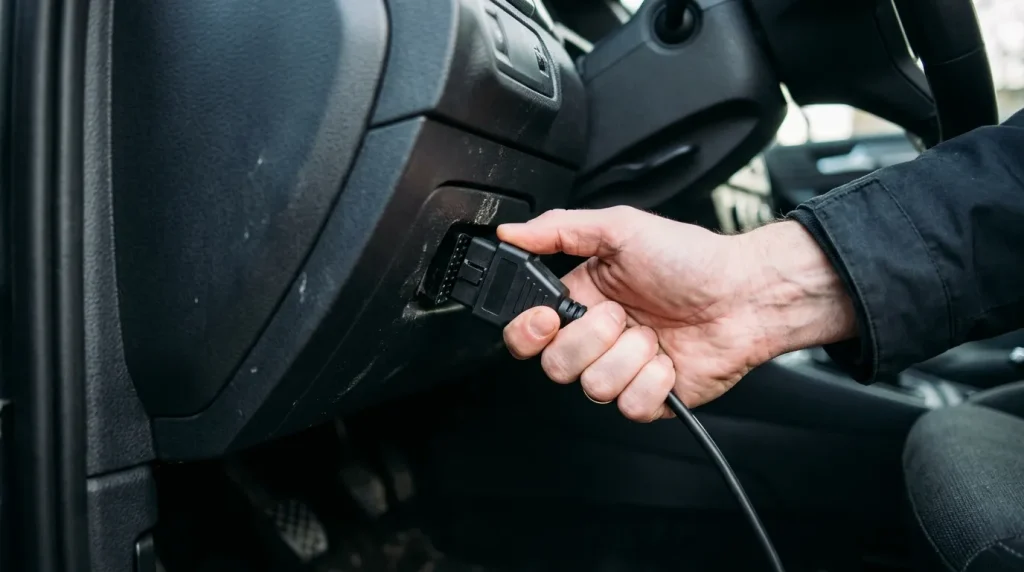
- Do not force the connector into the port.
- Do not clear codes before saving them.
- Do not assume every scanner works with every app.
- Do not leave a questionable Bluetooth adapter plugged in for months.
- Do not expect a basic code reader to access ABS, SRS, and transmission modules.
- Do not ignore low battery voltage when troubleshooting connection issues.
- Do not buy solely on price if durability and reliable pairing matter to you.
Practical Tips and Best Practices
Best practices for daily driving and regular maintenance
If you only want to check the occasional check engine light, keep a simple handheld scanner in the glovebox. It is fast, durable, and does not depend on your phone battery or app updates.
I also recommend checking pending codes before they become bigger problems. That can help you catch small EVAP leaks, sensor faults, or misfires early.
Best practices for road trips and emergency use
For long drives, I like a compact Bluetooth adapter and a reliable app because it gives quick access to codes, live data, coolant temperature, and voltage. That extra information can help you decide whether to keep driving or stop before a roadside breakdown gets worse.
If you leave an adapter plugged in during a trip, make sure it has low standby draw and a solid reputation. Some adapters can slowly drain the battery if the port stays powered after shutoff.
Best practices for advanced DIY diagnostics
If you work on your own car regularly, buy a scanner that supports live data graphing, freeze-frame data, readiness monitors, and enhanced modules. That gives you much better diagnostic efficiency than just reading generic trouble codes.
I also recommend taking screenshots or notes before clearing anything. Comparing before-and-after data saves time and prevents guesswork.
Best Option for Daily Driving, Travel, and DIY Performance Checks
| Use Case | Best Scanner Type | Why |
|---|---|---|
| Daily driving | Basic handheld scanner | Simple, reliable, fast for check engine lights |
| Long trips and travel | Quality Bluetooth adapter | Compact and useful for live data and quick roadside checks |
| DIY maintenance | Mid-level scan tool | Better data, better module access, more accurate diagnosis |
| Performance monitoring | Bluetooth adapter with strong app support | Good for live gauges, fuel trims, and temperature tracking |
| Used car inspection | Scanner with readiness monitor and freeze-frame support | Helps spot recently cleared codes and hidden issues |
Optional Tools and Products That Make Connection Easier
Bluetooth OBD2 Adapter for App-Based Scanning
Good for live data, road-trip monitoring, and checking codes from your phone without carrying a larger tool.
Basic Handheld OBD2 Code Reader
Best if you want quick setup, no app pairing, and a reliable tool for the glovebox or garage.
FAQ
Where is the OBD2 port usually located?
It is usually under the driver-side dashboard near the steering column, lower knee panel, fuse box area, or center console side. Most are easy to reach without removing trim.
Do I need the engine running to connect an OBD2 scanner?
No. In most cases, the ignition just needs to be in the ON position. Some live data functions work better with the engine idling, but reading stored codes usually does not require the engine to be running.
Why is my OBD2 scanner not powering on?
The most common reasons are no power at the port, a blown fuse, or a faulty scanner. I check the accessory outlet fuse first because many cars share that circuit with the OBD2 port.
Can I use an OBD2 scanner on any car?
Most vehicles sold in the USA from 1996 and newer support OBD2. Older vehicles may use OBD1. Also, not every scanner supports every system, so engine codes may work even if ABS or airbag access does not.
Is it safe to clear check engine codes?
Yes, but only after you save the codes and understand why the light came on. Clearing codes too early can erase useful diagnostic information and reset emissions readiness monitors.
Does an OBD2 scanner drain the battery if left plugged in?
It can, depending on the vehicle and the scanner. Some OBD2 ports stay powered after the car is off. If you are unsure, unplug the scanner when you are done.
Can I use my phone as an OBD2 scanner?
Yes, if you use a compatible Bluetooth or Wi-Fi OBD2 adapter and the right app. This setup is popular because it gives easy access to live data and code descriptions.
Conclusion
Connecting an OBD2 scanner is usually simple once you know the order: find the port, use the right ignition position, plug in carefully, and confirm the scanner or app is compatible with your vehicle. If it will not connect, start with power, ignition mode, and pairing. If you want, I can also help you choose the best scanner type for your car and budget.

