How to Reset TPMS with OBD2 Scanner for Easy Tire Pressure Fix

Resetting your TPMS with an OBD2 scanner is a simple and effective way to fix tire pressure warning lights. This guide walks you through each step, helping you save time and avoid costly visits to the mechanic. With easy-to-follow instructions and troubleshooting tips, you’ll have your TPMS system up and running in no time.
Quick Answers to Common Questions
How do I know if my OBD2 scanner supports TPMS reset?
Check the product specifications or user manual. TPMS reset is usually listed as a supported feature for specific vehicle makes.
Can I reset TPMS without driving the car?
Some vehicles require driving to complete the sensor relearn process. Check your owner’s manual for exact procedures.
What if the TPMS light stays on after reset?
It could indicate a faulty sensor, dead sensor battery, or low tire pressure. Double-check pressures and consider sensor inspection.
How often should I reset my TPMS?
Reset TPMS after tire rotations, changes, or sensor replacements to ensure accurate monitoring.
Will resetting TPMS affect other vehicle systems?
No, resetting TPMS only affects the tire pressure monitoring system, not other vehicle functions.
How to Reset TPMS with OBD2 Scanner for Easy Tire Pressure Fix
Welcome! In this guide, you’ll learn how to reset your Tire Pressure Monitoring System (TPMS) using an OBD2 scanner. If your TPMS warning light is on after a tire change or repair, resetting the system is the key to turning that light off and ensuring your tires are safe and properly monitored.
Resetting the TPMS with an OBD2 scanner is a quick, do-it-yourself fix that anyone can follow. We’ll cover everything from what TPMS is, why resetting it matters, and a detailed, step-by-step reset process. Plus, you’ll find practical tips and troubleshooting advice to handle common issues.
What is TPMS and Why Reset It?
The Tire Pressure Monitoring System (TPMS) alerts you when your tire pressure is too low. This system helps keep you safe and improves your car’s fuel efficiency. Sometimes, after tire maintenance like rotation or replacement, the TPMS warning light stays on. That’s because the system needs to relearn the tire sensors.
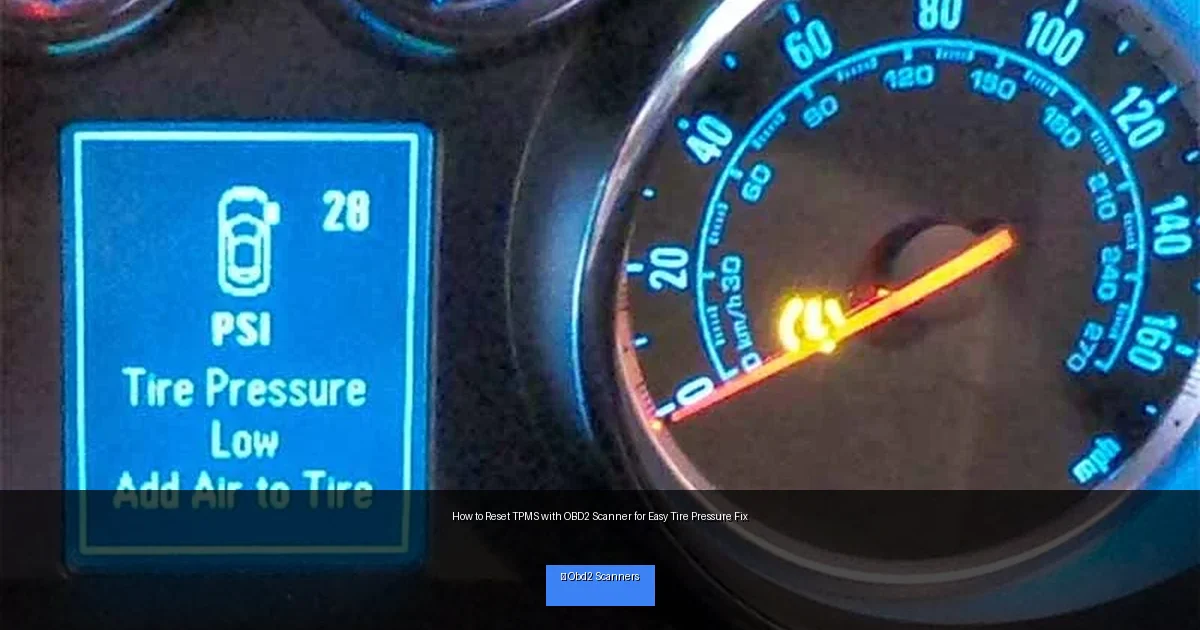
Visual guide about How to Reset TPMS with OBD2 Scanner for Easy Tire Pressure Fix
Image source: tiregrades.com
Resetting the TPMS clears old data and allows the system to recognize new or repositioned sensors. An OBD2 scanner simplifies this process by connecting directly to your car’s computer.
Tools You’ll Need
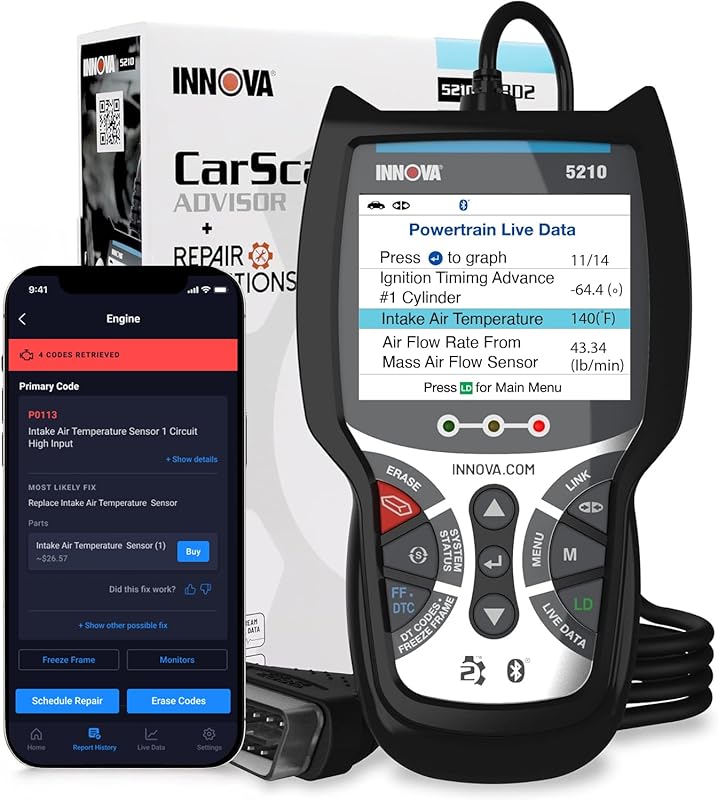
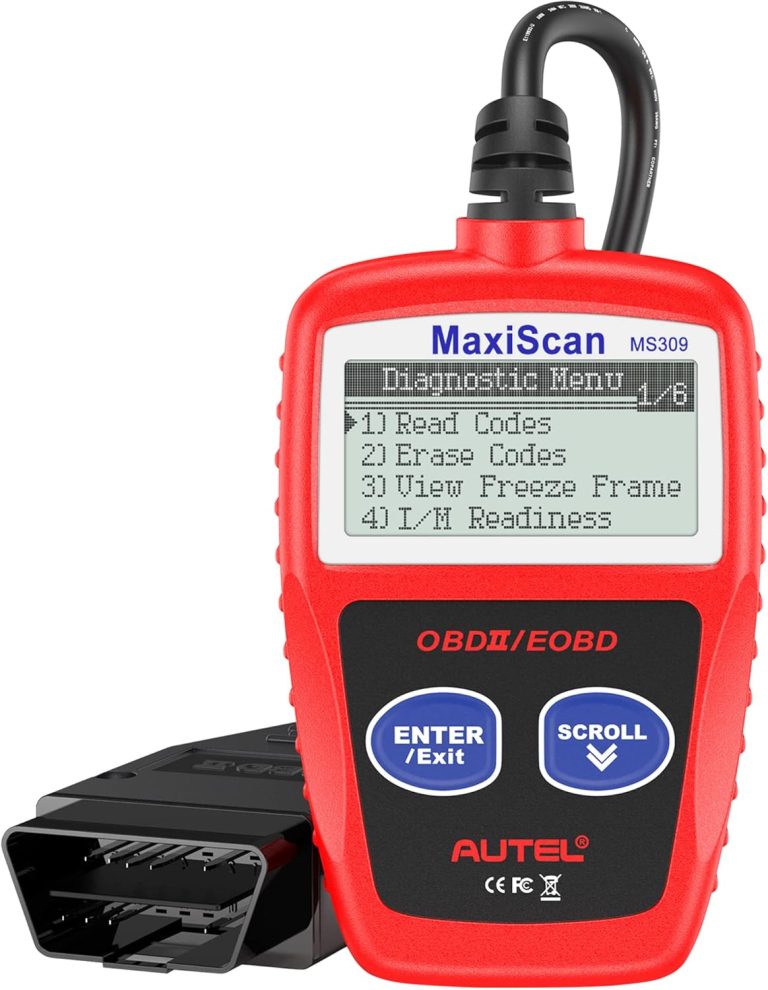
- An OBD2 scanner with TPMS reset capability (check your model’s compatibility)
- Your vehicle’s owner manual (for specific TPMS info)
- A safe place to park your car
Step-by-Step Guide to Reset TPMS Using an OBD2 Scanner
Step 1: Connect the OBD2 Scanner
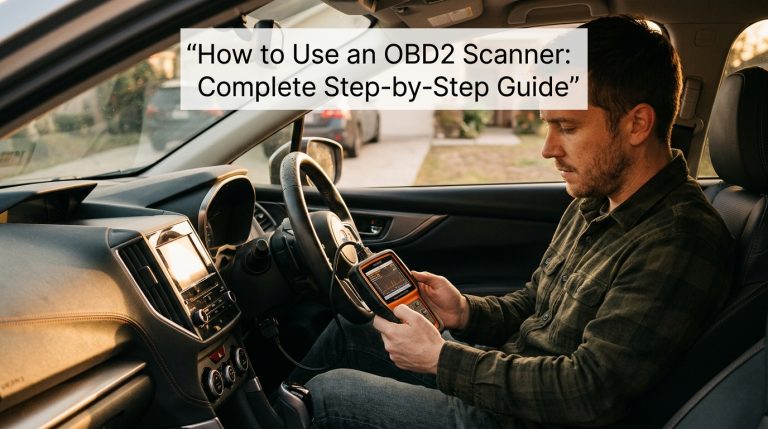
Park your car on a flat surface and turn off the engine. Locate the OBD2 port, usually under the dashboard near the steering wheel. Plug the OBD2 scanner into this port securely.
Step 2: Turn on the Vehicle Ignition
Without starting the engine, turn the key to the “ON” position or press the start button once (depending on your car). This powers the vehicle’s computer and allows communication with the scanner.
Step 3: Power On and Navigate the Scanner
Turn on your OBD2 scanner. Using the menu, select your vehicle’s make, model, and year if required. Navigate to the “TPMS” or “Tire Pressure” section on the scanner’s menu. Not all scanners have this option, so check your model first.
Step 4: Read and Clear TPMS Codes
Scan the vehicle for any TPMS-related trouble codes. The scanner will show you any errors or codes stored in the system. Select the option to clear or reset these codes. This step removes old sensor data that may be causing the warning light.
Step 5: Relearn or Reset the TPMS Sensors
After clearing the codes, initiate the TPMS sensor relearn or reset program via the scanner. This process varies by vehicle but usually involves following on-screen prompts or driving the car for a short distance. The system will recognize the current tire sensors in their positions.
Step 6: Verify the Reset
Turn off the ignition, unplug the scanner, and start the engine. The TPMS warning light should turn off within a few seconds. If it stays on, repeat the reset process or check for sensor issues.
Practical Tips and Examples
- Tip: Always check your tire pressures manually before resetting TPMS to ensure they are at the recommended levels.
- Example: After rotating your tires, the sensors shift positions. The relearn process tells your car which sensor is on which wheel.
- Tip: Use a scanner with a clear display and easy navigation to simplify the reset steps.
- Example: Some vehicles require driving at a certain speed for several minutes to complete sensor relearning.
Troubleshooting Common TPMS Reset Issues
If the warning light doesn’t turn off after resetting, consider these troubleshooting tips:
- Check sensor batteries: TPMS sensors have batteries that can die and need replacing.
- Inspect for sensor damage: Sensors can be damaged during tire changes.
- Ensure scanner compatibility: Not all OBD2 scanners support TPMS functions for every vehicle.
- Consult your owner’s manual: Some cars require manual relearn procedures or professional tools.
- Verify tire pressures: Low or uneven tire pressure can trigger the sensor light.
Conclusion
Resetting your TPMS with an OBD2 scanner is a straightforward way to fix tire pressure warnings and maintain vehicle safety. With the right tool and this step-by-step guide, you can reset your TPMS at home quickly and confidently. Remember to check your tire pressures regularly and keep sensors in good condition for the best results. If problems persist, seek professional help to avoid safety risks.
🎥 Related Video: Can Any OBD2 Scanner Reset TPMS ?
📺 WeeklyTools
Can ANY OBD2 Scanner Reset TPMS? � “Confused about TPMS reset? Wondering if your OBD2 scanner can do the job?