How to Use Aux in Car Stereo for Better Sound

Using an aux input in your car stereo is one of the simplest ways to enjoy high-quality audio from your phone, MP3 player, or other devices. This guide walks you through setup, connection, and troubleshooting to ensure crisp, clear sound every time you drive.
How to Use Aux in Car Stereo for Better Sound
If you’ve ever wanted to play your favorite playlist, podcast, or audiobook through your car’s speakers without dealing with poor Bluetooth quality or radio static, using an aux input is your best bet. The aux (short for auxiliary) connection is a simple, reliable way to send audio from your phone, tablet, or MP3 player directly into your car stereo. And the best part? It’s easy to set up—even if you’re not tech-savvy.
In this guide, you’ll learn exactly how to use aux in car stereo systems, from identifying the right port to troubleshooting common problems. Whether you drive an older model or a newer vehicle with advanced infotainment, this step-by-step walkthrough will help you get the best possible sound from your music and audio content.
What Is an Aux Input and Why Use It?

Visual guide about How to Use Aux in Car Stereo for Better Sound
Image source: cdn7.slideserve.com
An aux input is a 3.5mm audio jack—the same size as a standard headphone plug—that allows you to connect external audio devices to your car stereo. It’s often labeled “AUX,” “AUX IN,” or shown with a headphone icon. Unlike Bluetooth, which compresses audio signals, an aux cable sends a direct analog signal, resulting in clearer, more consistent sound.
Many drivers prefer aux over Bluetooth because it:
– Delivers higher audio fidelity
– Doesn’t suffer from pairing delays or dropouts
– Works with devices that don’t support Bluetooth
– Uses less battery than wireless streaming
Even though newer cars are moving toward wireless and USB-C connections, the aux port remains a go-to for reliable, high-quality sound.
Step 1: Locate the Aux Port in Your Car
The first step to using aux in your car stereo is finding the aux port. It’s usually easy to spot, but its location can vary depending on your vehicle.
Common Locations for Aux Ports
- Front dashboard: Often near the stereo unit, below the CD slot, or beside the USB port.
- Glove compartment: Some cars hide the aux port inside the glove box to keep the dashboard clean.
- Center console: Look between the front seats, especially near the gear shift or armrest.
- Inside the armrest storage: Lift the armrest to reveal hidden ports.
If you can’t find it, check your car’s owner’s manual. Most manufacturers include a diagram of the stereo and input locations. You can also search online using your car’s make, model, and year—many forums and YouTube videos show exactly where the aux port is located.
What If My Car Doesn’t Have an Aux Port?
Don’t worry—just because your car lacks a built-in aux port doesn’t mean you can’t use one. Here are a few alternatives:
– FM transmitter: Plugs into your cigarette lighter and broadcasts audio from your phone to your car radio via FM frequency.
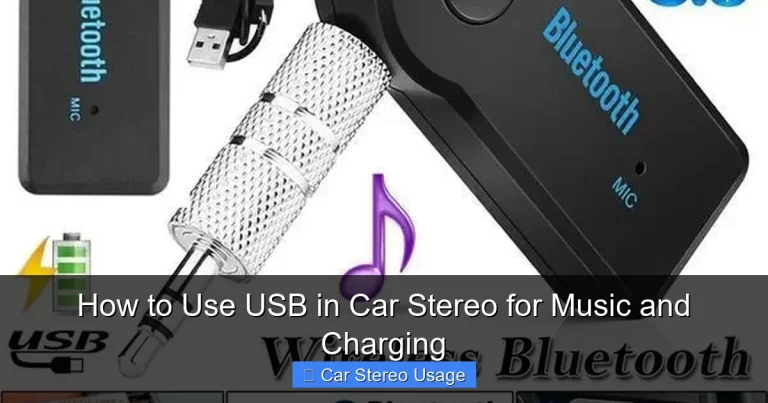
– Bluetooth adapter with aux output: Connects to your stereo’s existing aux port (if available) or replaces the head unit.
– Aftermarket stereo upgrade: Install a new head unit with modern inputs, including aux, USB, and Bluetooth.
For most people, though, the built-in aux port is the simplest and most effective solution.
Step 2: Gather the Right Equipment
To use aux in your car stereo, you’ll need just a few things:
– A 3.5mm aux cable (also called a stereo audio cable)
– A compatible audio device (phone, tablet, MP3 player, etc.)
– Optional: A car charger or power bank
Choosing the Right Aux Cable
Not all aux cables are created equal. A cheap or damaged cable can cause static, low volume, or no sound at all. Here’s what to look for:
– Length: 3 to 6 feet is ideal—long enough to reach, short enough to avoid tangling.
– Durability: Look for braided or reinforced cables with gold-plated connectors for better conductivity.
– Compatibility: Make sure both ends are 3.5mm (standard headphone jack size).
Avoid ultra-cheap cables from gas stations or discount stores. Investing in a quality cable—like those from brands such as Anker, Belkin, or Amazon Basics—can make a big difference in sound quality and longevity.
Preparing Your Audio Device
Before connecting, make sure your phone or MP3 player is:
– Charged or connected to a car charger
– Unlocked and ready to play audio
– Set to a music app (Spotify, Apple Music, YouTube, etc.)
If you’re using a newer iPhone without a headphone jack, you’ll need a Lightning-to-3.5mm adapter. Android users with USB-C ports may need a USB-C-to-3.5mm adapter. These are widely available and usually inexpensive.
Step 3: Connect the Aux Cable
Now it’s time to plug in and play.
Plug One End into Your Device
Insert the 3.5mm jack into the headphone or audio output port on your phone, tablet, or MP3 player. Make sure it’s fully seated—don’t force it, but ensure it clicks in securely.
Plug the Other End into the Car Stereo
Insert the other end of the cable into the aux port on your car stereo. Again, push it in gently until it’s snug. Avoid wiggling or bending the cable, as this can damage the port or cable over time.
Secure the Cable
To prevent the cable from falling out or getting tangled, route it neatly. You can use a phone mount, tuck it under the dashboard, or use a small clip to keep it in place. A loose cable can disconnect while driving, interrupting your music.
Step 4: Switch to Aux Mode on the Stereo
Once connected, your car stereo won’t automatically switch to the aux input. You need to manually select it.
Using the Source or Mode Button
Most car stereos have a “Source,” “Mode,” or “Input” button. Press it repeatedly until you see “AUX,” “AUX IN,” or a headphone icon on the display.
Using the Touchscreen (if applicable)
In newer cars with touchscreen stereos, tap the “Source” or “Audio” menu, then select “AUX” from the list of inputs.
No Display? Listen for the Change
If your stereo doesn’t have a screen, listen for a change in audio. When you switch to aux, the radio or CD should stop, and you should hear silence or your device’s audio.
Step 5: Play and Adjust the Audio
Now that everything is connected and set to aux mode, it’s time to enjoy your music.
Start Playing Music on Your Device
Open your music app and press play. You should hear sound through your car speakers within a few seconds.
Adjust the Volume
For the best sound quality:
– Set your phone’s volume to about 75–80%. This prevents distortion while leaving room for the car stereo to amplify the signal.
– Use the car stereo’s volume knob or buttons to adjust the overall loudness.
Avoid maxing out your phone’s volume—this can cause clipping and reduce audio quality. Let the car stereo do the heavy lifting.
Fine-Tune the Sound
Many car stereos have equalizer (EQ) settings. Try adjusting the bass, treble, and balance to suit your music and driving environment. For example, boost the bass for hip-hop or reduce treble if vocals sound harsh.
Tips for Better Sound Quality
Using aux in your car stereo is simple, but a few tweaks can make a big difference in audio performance.
Use High-Quality Audio Files
Streaming services like Spotify, Apple Music, and Tidal offer high-bitrate streaming. If you’re playing downloaded music, choose files with higher bitrates (320 kbps MP3 or lossless formats like FLAC) for clearer sound.
Keep Your Device Charged
Playing music through aux uses your device’s battery. Use a car charger or USB cable to keep it powered during long drives.
Minimize Cable Movement
A loose or vibrating cable can cause intermittent sound. Secure the cable and avoid placing heavy objects on it.
Clean the Aux Port
Dust and debris can build up in the aux port, causing poor connections. Use a can of compressed air or a soft brush to clean it gently.
Troubleshooting Common Aux Issues
Even with the best setup, problems can happen. Here’s how to fix the most common issues.
No Sound After Connecting
– Double-check that the cable is fully inserted on both ends.
– Confirm the stereo is set to “AUX” mode.
– Test the cable with another device to rule out a faulty cable.
– Restart your phone or MP3 player.
Low Volume or Weak Sound
– Increase the volume on your device (but not to 100%).
– Check if your phone has a “media volume” setting—adjust it separately from call volume.
– Try a different aux cable—some cables degrade over time.
Static, Crackling, or Intermittent Sound
– Wiggle the cable gently—if sound changes, the cable or port may be damaged.
– Clean the aux port and cable connectors with compressed air.
– Avoid placing the cable near power sources or motors, which can cause interference.
Sound Only in One Speaker
– This usually indicates a broken or unbalanced cable. Replace the aux cable.
– Check if your stereo’s balance setting is centered.
Device Not Recognized
– Some older stereos don’t support digital signals from smartphones. Try playing a local audio file instead of streaming.
– Restart both the device and the stereo.
When to Consider Alternatives to Aux
While aux is great, it’s not perfect for every situation.
Bluetooth for Hands-Free Convenience
If you prioritize convenience over sound quality, Bluetooth is a solid choice. It allows wireless streaming and hands-free calling. Modern Bluetooth codecs (like aptX) also offer near-CD quality.
USB for Charging and Audio
USB connections can deliver digital audio and charge your device simultaneously. Some stereos even support USB media playback from flash drives.
CarPlay and Android Auto
For the best integration, consider upgrading to a stereo with Apple CarPlay or Android Auto. These systems mirror your phone’s interface and support high-quality audio with voice control.
But for pure sound quality and reliability, aux remains a top pick.
Conclusion
Using aux in your car stereo is a simple, effective way to enjoy better sound from your favorite devices. With just a cable and a few quick steps, you can bypass poor radio signals and Bluetooth compression for clear, consistent audio.
From locating the aux port to troubleshooting common issues, this guide covers everything you need to get started. Remember to use a quality cable, adjust your volume wisely, and keep your connections clean. Whether you’re commuting, road-tripping, or just running errands, aux gives you control over your soundtrack—without the hassle.
So plug in, power up, and enjoy the ride with music that sounds as good as it should.
🎥 Related Video: How To – DEH-X2700UI – Use AUX Input
📺 pioneer electronics
Learn how to use the AUX Input on the Pioneer DEH-X2700UI.