Is your car stereo touch screen acting up? This guide walks you through quick fixes like restarting, recalibrating, and cleaning the screen. You’ll also learn when it’s time to call a pro—so you can get back to enjoying your tunes safely.
How to Fix Car Stereo Touch Screen Issues Fast
Nothing’s more frustrating than tapping your car stereo’s touch screen and getting no response—especially when you’re trying to change the song or adjust the climate. Whether it’s lagging, unresponsive, or completely frozen, touch screen problems are common but often fixable with a few smart steps.
In this guide, you’ll learn how to diagnose and resolve the most frequent causes of car stereo touch screen issues—from simple software hiccups to hardware concerns. We’ll walk you through easy fixes you can do yourself, plus tips to prevent future problems. By the end, you’ll know exactly what to try first and when it’s time to consult a technician.
Step 1: Restart Your Car Stereo
The very first thing you should do when your touch screen acts up is give it a fresh start. Just like your phone or laptop, car stereos run on software that can freeze or glitch.
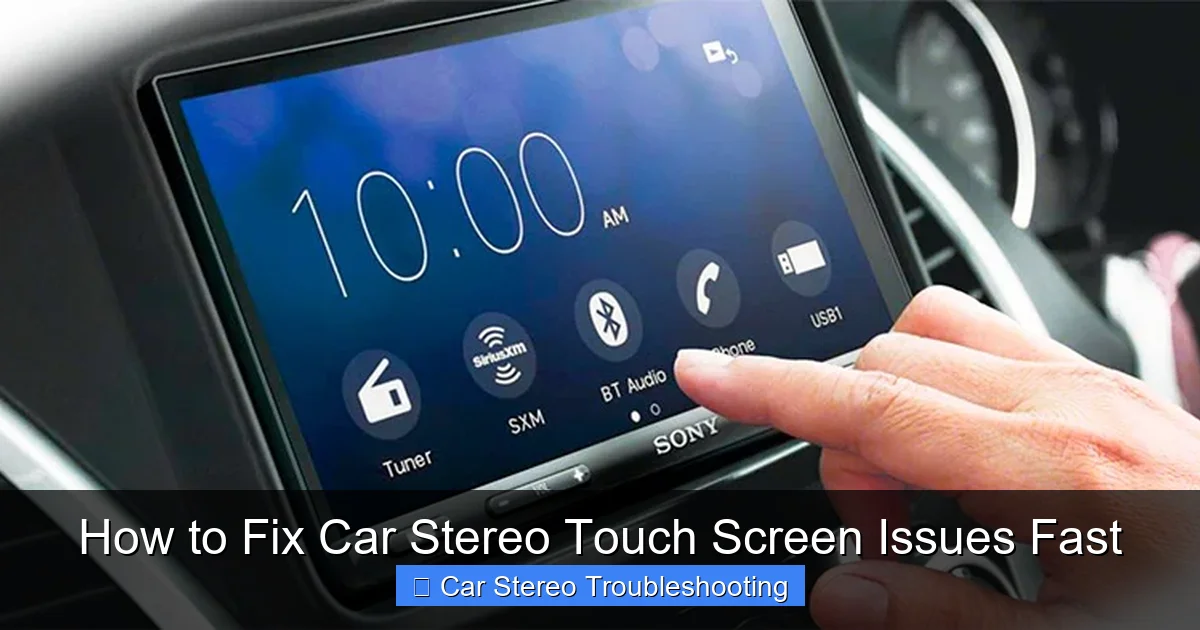
Visual guide about How to Fix Car Stereo Touch Screen Issues Fast
Image source: walkermcguire.com
How to do a soft restart
- Turn off your car’s ignition and wait 30 seconds.
- Turn the ignition back on and let the stereo boot up fully.
- Test the touch screen—does it respond now?
Try a hard reset (if available)
Some stereos have a physical reset button—usually a tiny pinhole on the front panel. Use a paperclip to press and hold it for 5–10 seconds. This forces a full system reboot and often clears minor software bugs.
Pro tip: If your stereo has a removable faceplate, try detaching and reattaching it. Loose connections here can cause intermittent touch issues.
Step 2: Clean the Touch Screen Properly
Smudges, dust, and oils from your fingers can interfere with touch sensitivity. Even a slightly dirty screen might cause missed taps or false inputs.
What you’ll need
- Microfiber cloth (lint-free)
- Isopropyl alcohol (70% or less) or a screen-safe cleaner
- Distilled water (optional, for dilution)
Cleaning steps
- Turn off the stereo to avoid accidental inputs.
- Dampen a corner of the microfiber cloth—never spray liquid directly on the screen.
- Gently wipe the screen in circular motions, focusing on high-touch areas like volume and navigation buttons.
- Let it air dry completely before testing.
Warning: Avoid ammonia-based cleaners (like Windex) or paper towels—they can scratch or damage the anti-glare coating.
Step 3: Recalibrate the Touch Screen
If your taps register in the wrong spot—or not at all—the touch screen may need recalibration. This realigns the touch sensors with the display.
How to access calibration mode
- Go to Settings > Display or Touch Screen.
- Look for an option like “Calibrate Touch” or “Touch Alignment.”
- Follow the on-screen prompts—usually involving tapping crosshairs at specific points.
Not all stereos have this feature. If you can’t find it, check your owner’s manual or the manufacturer’s support page. Some models require a specific button combo during startup to enter calibration mode.
Example: On many Pioneer units, hold the Volume Down button while turning on the ignition to enter service mode, then select calibration.
Step 4: Update the Stereo’s Software
Outdated firmware is a hidden culprit behind touch screen lag and bugs. Manufacturers release updates to fix performance issues, improve compatibility, and patch security flaws.
Steps to check for updates
- Visit the manufacturer’s website (e.g., Kenwood, Sony, Alpine).
- Enter your stereo’s model number—usually found on the front panel or in the manual.
- Download the latest firmware file to a USB drive (formatted as FAT32).
- Insert the USB into your car stereo and follow the update prompts.
Important: Don’t turn off the car or unplug the USB during the update—it could brick the system. The process usually takes 5–15 minutes.
If your stereo supports over-the-air (OTA) updates, enable them in settings to stay current automatically.
Step 5: Check Wiring and Connections
If the touch screen works intermittently or only in certain areas, the issue might be physical—not digital. Loose, corroded, or damaged wiring behind the head unit can disrupt power and data signals.
What to inspect
- Power harness: Ensure it’s firmly plugged in. A weak connection can cause reboots or unresponsiveness.
- Ground wire: Check that it’s securely attached to bare metal. Poor grounding leads to erratic behavior.
- Antenna and USB cables: While not directly related to touch, loose aux inputs can sometimes interfere with system stability.
Safety first
Before removing your stereo, disconnect the car battery to avoid short circuits. Use a trim removal tool to gently pry off the dashboard panel—don’t force it.
If you’re not comfortable working inside your dashboard, take it to a car audio shop. They can test connections with a multimeter and spot issues you might miss.
Step 6: Perform a Factory Reset
When all else fails, a factory reset wipes the stereo back to its original state—erasing custom settings but often fixing deep software corruption.
How to reset
- Go to Settings > System > Factory Reset or Restore Defaults.
- Confirm the action—you may need to enter a security code (often 0000 or 1234).
- Wait for the system to reboot and reconfigure.
Before you reset: Note down your radio presets, Bluetooth pairings, and EQ settings—they’ll be lost. Some stereos let you back up settings to a USB drive.
A factory reset won’t fix hardware problems, but it’s a powerful tool for software-related touch issues.
Troubleshooting Common Scenarios
Not all touch screen problems are the same. Here’s how to handle specific symptoms:
Screen works but lags
This often points to low system resources or background apps. Close unused features (like navigation or video playback) and avoid running too many apps at once. Updating firmware can also improve performance.
Only part of the screen responds
Dead zones usually mean hardware damage—like a cracked digitizer or worn sensor layer. Try recalibrating first, but if the issue persists, professional repair or replacement is likely needed.
Touch screen freezes after phone connection
Bluetooth or USB conflicts can overload the system. Disconnect your phone, restart the stereo, and reconnect one device at a time to isolate the problem. Update your phone’s OS and the stereo’s firmware for better compatibility.
Screen goes black but sound works
If audio plays but the display is off, the issue may be with the screen backlight or video output—not the touch layer. Check brightness settings or try connecting an external monitor (if supported).
When to Call a Professional
Despite your best efforts, some problems require expert help. Seek a certified car audio technician if:
- The screen is physically cracked or has visible damage.
- Touch issues persist after a factory reset and firmware update.
- You notice burning smells, sparks, or frequent reboots—these could signal electrical faults.
- The stereo is under warranty—DIY repairs might void it.
A professional can run diagnostic tests, replace internal components, or recommend a suitable upgrade if your unit is outdated.
Preventing Future Touch Screen Problems
An ounce of prevention is worth a pound of cure. Keep your stereo running smoothly with these habits:
- Clean the screen weekly with a microfiber cloth.
- Avoid exposing the stereo to extreme heat or cold (e.g., don’t leave it in a hot car).
- Use only manufacturer-approved accessories and cables.
- Install a surge protector if your car has frequent electrical fluctuations.
- Schedule regular software updates—set a reminder every 6 months.
Taking care of your stereo extends its life and keeps your drives enjoyable.
Conclusion
Fixing a car stereo touch screen doesn’t have to be stressful. Start with the basics—restart, clean, and recalibrate—then move on to software updates and wiring checks. Most issues are solvable at home with a little patience.
But remember: if the problem seems hardware-related or you’re unsure about disassembling your dashboard, don’t hesitate to get professional help. Your safety and the longevity of your stereo are worth it.
With these steps, you’re equipped to tackle touch screen troubles fast—and get back to enjoying your favorite music, podcasts, and navigation without missing a beat.

