How to Mirror Phone to Car Stereo Easily and Safely

Mirroring your phone to your car stereo lets you access apps, navigation, music, and calls safely while driving. This guide covers both wired and wireless methods for Android and iPhone users, ensuring a smooth, legal, and distraction-free experience.
How to Mirror Phone to Car Stereo Easily and Safely
Imagine driving with your favorite playlist, GPS navigation, and hands-free calls all displayed clearly on your car’s stereo screen. That’s the power of mirroring your phone to your car stereo. Whether you’re using an Android or iPhone, connecting your device can make every trip more convenient and enjoyable.
But it’s not just about convenience—safety matters too. The goal is to mirror your phone in a way that minimizes distraction and keeps your eyes on the road. In this guide, we’ll walk you through the best methods to mirror your phone to your car stereo, step by step. You’ll learn about wired and wireless options, compatibility tips, and how to stay safe while using your devices on the go.
By the end of this guide, you’ll know exactly how to connect your phone, troubleshoot common issues, and choose the safest setup for your vehicle.
What Is Phone Mirroring?
Phone mirroring means displaying your smartphone’s screen directly on your car’s stereo display. This lets you see apps, maps, music controls, and more on a larger screen. It’s especially useful for navigation apps like Google Maps or Waze, which are easier to read on a dashboard screen.
However, not all car stereos support full screen mirroring. Some only allow audio streaming or basic phone integration. That’s why it’s important to understand your car’s capabilities before you begin.
Check Your Car Stereo Compatibility
Before trying to mirror your phone, check if your car stereo supports it. Here’s how:
Look for Built-in Features
Check your car’s manual or the stereo’s display for labels like “Apple CarPlay,” “Android Auto,” “Screen Mirroring,” or “Mirroring.” These indicate built-in support.
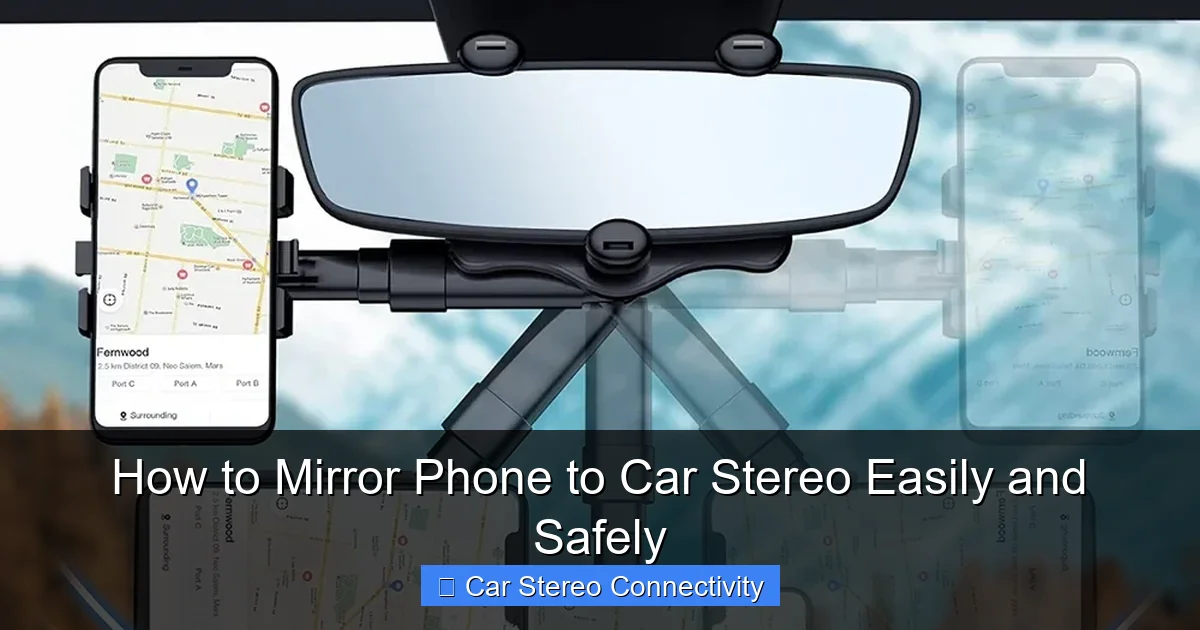
Visual guide about How to Mirror Phone to Car Stereo Easily and Safely
Image source: 5.imimg.com
Check the Ports
Look for a USB port near the stereo. A USB-A or USB-C port often supports data transfer, which is needed for mirroring. If there’s only an auxiliary (AUX) port, you may be limited to audio-only connections.
Research Your Model
Search online for your car make, model, and year plus “screen mirroring support.” Forums and manufacturer websites often list compatible features.
Method 1: Use Android Auto or Apple CarPlay (Recommended)
Instead of full screen mirroring, we recommend using Android Auto (for Android phones) or Apple CarPlay (for iPhones). These systems are designed for safe in-car use and offer a simplified, driver-friendly interface.
Why Use Android Auto or CarPlay?
- They limit distracting apps and show only essential functions.
- They support voice commands via Google Assistant or Siri.
- They’re widely supported in modern vehicles and aftermarket stereos.
How to Set Up Android Auto
- Download the Android Auto app from the Google Play Store.
- Connect your Android phone to the car stereo using a USB cable.
- Follow the on-screen prompts on both your phone and the car display.
- Grant necessary permissions (like access to contacts and messages).
- Once connected, your phone’s interface will appear on the stereo screen.
How to Set Up Apple CarPlay
- Ensure your iPhone is running iOS 7.1 or later.
- Connect your iPhone to the car stereo using a Lightning or USB-C cable.
- On your iPhone, go to Settings > General > CarPlay and select your vehicle.
- Follow the prompts to complete the setup.
- Your iPhone screen will now appear on the car display with CarPlay’s simplified layout.
Method 2: Wireless Screen Mirroring (Miracast or AirPlay)
If your car stereo supports wireless mirroring, you can mirror your phone without cables. This method works best with compatible aftermarket head units.
For Android Phones (Using Miracast)
Miracast is a wireless standard that lets Android devices mirror screens to compatible displays.
- Make sure your car stereo supports Miracast. Look for “Screen Mirroring” or “Wireless Display” in the settings.
- On your Android phone, swipe down from the top to open the quick settings panel.
- Tap Smart View, Cast, or Screen Mirroring (the name varies by brand).
- Select your car stereo from the list of available devices.
- Accept the connection prompt on the car screen if needed.
- Your phone screen will now appear on the stereo display.
For iPhones (Using AirPlay)
AirPlay allows iPhone users to stream content wirelessly, but full screen mirroring requires a compatible receiver.
- Ensure your car stereo or an aftermarket adapter (like an AirPlay receiver) supports AirPlay.
- Connect your iPhone and car stereo to the same Wi-Fi network (if using a receiver).
- Swipe down from the top-right corner of your iPhone to open Control Center.
- Tap the Screen Mirroring icon (looks like two overlapping rectangles).
- Select your car stereo or AirPlay receiver from the list.
- Enter the passcode if prompted.
- Your iPhone screen will now mirror on the car display.
Method 3: Wired Screen Mirroring (USB Connection)
If wireless isn’t an option, a USB cable can still mirror your screen—especially on Android devices.
Steps for Wired Android Mirroring
- Use a high-quality USB cable (preferably the original one that came with your phone).
- Connect your Android phone to the car stereo’s USB port.
- On your phone, swipe down and tap the USB notification.
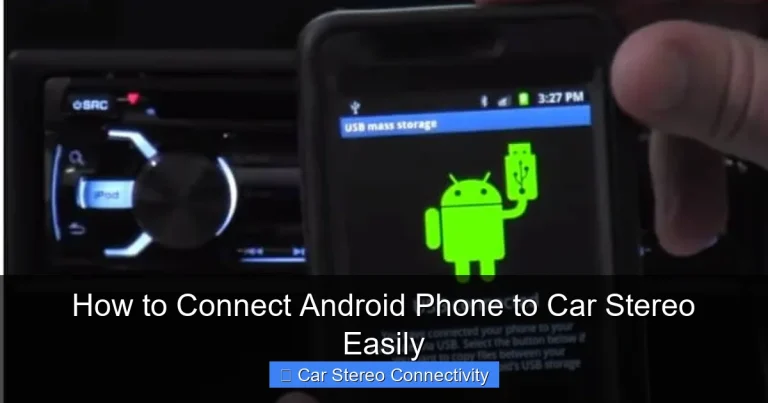
- Select File Transfer or MTP mode (not “Charging only”).
- Open the car stereo’s source menu and select “USB” or “Phone.”
- If supported, your phone screen will appear on the stereo.
Note for iPhone Users
iPhones do not support full screen mirroring over USB unless using CarPlay. A standard USB connection will only charge the phone or play music via iTunes.
Method 4: Use a Third-Party Adapter
If your car stereo doesn’t support mirroring natively, you can use an aftermarket adapter.
Popular Options
- Carlinkit or Ottocast: These devices plug into your car’s USB or HDMI port and enable wireless Android Auto or CarPlay.
- AirPlay Receivers: Devices like the Belkin SoundForm Connect let you mirror your iPhone wirelessly.
- HDMI Adapters: For iPhones, a Lightning to HDMI adapter can mirror your screen to a stereo with HDMI input.
How to Use an Adapter
- Plug the adapter into your car’s USB or HDMI port.
- Connect the adapter to power (if required).
- Pair your phone with the adapter via Bluetooth or Wi-Fi.
- Follow the adapter’s app or on-screen instructions to start mirroring.
Safety Tips for Phone Mirroring
While mirroring can be helpful, it’s important to use it responsibly.
Never Touch Your Phone While Driving
Only interact with your phone when the car is parked. Use voice commands, steering wheel controls, or the stereo’s touchscreen instead.
Use Simplified Interfaces
Stick to Android Auto or CarPlay when possible. They’re designed to reduce distraction with larger buttons and voice support.
Mount Your Phone Securely
If your stereo doesn’t support mirroring, use a dashboard or vent mount to keep your phone in view without holding it.
Follow Local Laws
In many places, it’s illegal to hold a phone while driving. Mirroring to a fixed screen helps you stay compliant.
Troubleshooting Common Issues
If mirroring isn’t working, try these fixes:
Phone Not Detected
- Try a different USB cable or port.
- Restart both your phone and car stereo.
- Check if the stereo is set to the correct input source.
Screen Freezes or Lags
- Close unused apps on your phone.
- Ensure a strong Wi-Fi or Bluetooth connection (for wireless methods).
- Update your phone and stereo firmware.
Audio Plays But No Video
- Your stereo may only support audio streaming.
- Check if screen mirroring is enabled in your phone’s settings.
- Try a different app or method (e.g., switch from wireless to wired).
Connection Drops Frequently
- Move your phone closer to the stereo.
- Turn off other Bluetooth or Wi-Fi devices that may interfere.
- Reset network settings on your phone (Settings > General > Reset > Reset Network Settings on iPhone; Settings > System > Reset > Reset Wi-Fi, mobile & Bluetooth on Android).
Conclusion
Mirroring your phone to your car stereo can transform your driving experience—making navigation, music, and calls more accessible and safer. Whether you use Android Auto, Apple CarPlay, wireless mirroring, or a third-party adapter, the key is choosing a method that works with your car and prioritizes safety.
Always start by checking your stereo’s compatibility, then follow the step-by-step instructions for your device. And remember: the best setup is one that lets you keep your hands on the wheel and your eyes on the road.
With the right tools and a little patience, you can enjoy a smarter, safer, and more connected drive.