How to Play Video in Car Stereo Safely and Easily

This guide shows you how to play video in car stereo systems using USB, Bluetooth, or video-compatible head units. You’ll learn safe methods that keep drivers focused and passengers entertained.
Introduction: Why Playing Video in Your Car Stereo Matters
Long drives, traffic jams, or waiting in the school pickup line can feel endless—especially for kids. That’s why many drivers want to know how to play video in car stereo systems. Whether it’s a movie during a road trip or a cartoon to calm a fussy toddler, video entertainment can make time in the car more enjoyable.
But here’s the catch: not all car stereos support video, and even fewer allow safe, easy playback. Plus, safety is non-negotiable. You never want the driver distracted by a screen. The good news? With the right setup, you can enjoy videos safely and legally—usually for passengers only.
In this guide, we’ll walk you through every step: checking your stereo’s capabilities, choosing the right video format, connecting devices, and troubleshooting common issues. By the end, you’ll know exactly how to play video in your car stereo without risking safety or damaging your system.
Step 1: Check If Your Car Stereo Supports Video Playback

Visual guide about How to Play Video in Car Stereo Safely and Easily
Image source: 5.imimg.com
Before buying adapters or converting files, confirm your stereo can actually play video. Many older or basic models only handle audio.
Look for a Video Screen
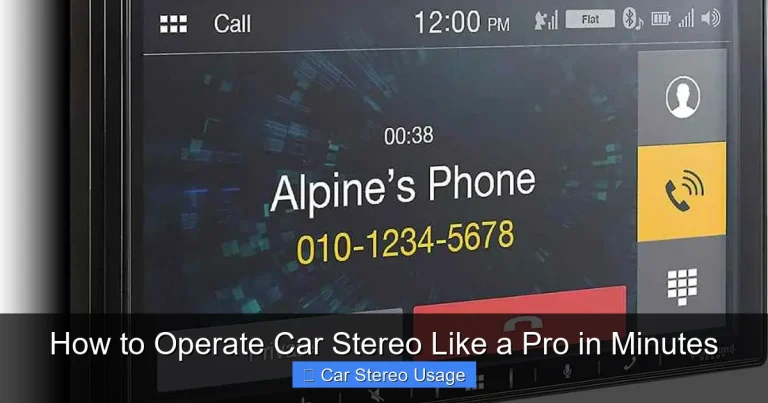
The easiest clue? A built-in display. If your stereo has a screen (usually 3–7 inches), it likely supports video. Check the manual or look for labels like “DVD,” “Video In,” or “AV.”
Check the Manual or Model Number
Search online for your stereo’s model number (found on the front or back). Look for terms like “video playback,” “USB video,” or “MP4 support.” Brands like Pioneer, Kenwood, and Sony often list compatible formats.
Test with a Known File
Try playing a short MP4 video via USB. If it works, you’re good to go. If not, your stereo may only support audio—or need a firmware update.
Step 2: Choose the Right Video Format
Even if your stereo supports video, it won’t play every file type. Using the wrong format is the #1 reason videos fail to load.
Common Supported Formats
Most video-compatible stereos accept:
- MP4 (H.264 codec): The safest bet—widely supported and high quality.
- AVI: Older but still common; may require specific codecs.
- MOV: Apple’s format; works on many units but not all.
Avoid formats like MKV, FLV, or WMV—they’re rarely supported.
Convert Videos If Needed
Use free tools like HandBrake (handbrake.fr) or VLC Media Player to convert files. Set output to MP4 with H.264 video and AAC audio. Keep resolution under 720p—most car screens are small, and high-res files may lag.
Step 3: Use a USB Drive for Reliable Playback
USB is the most reliable way to play video in car stereo systems. It’s fast, simple, and doesn’t drain your phone’s battery.
Prepare Your USB Drive
- Use a USB 2.0 or 3.0 flash drive (8GB–32GB works best).
- Format it to FAT32 (most stereos don’t read NTFS or exFAT).
- Create a folder named “VIDEO” or “MOVIES” for easy navigation.
Transfer and Play
Copy your converted videos to the USB drive. Plug it into the stereo’s USB port (usually labeled “USB” or “Media”). Use the stereo’s menu to browse and play files.
Pro Tip: Label your USB drive “CAR VIDEOS” so you don’t accidentally plug in work files!
Step 4: Try Bluetooth (But Know the Limits)
Bluetooth is great for music, but video? Not so much.
Audio-Only Streaming
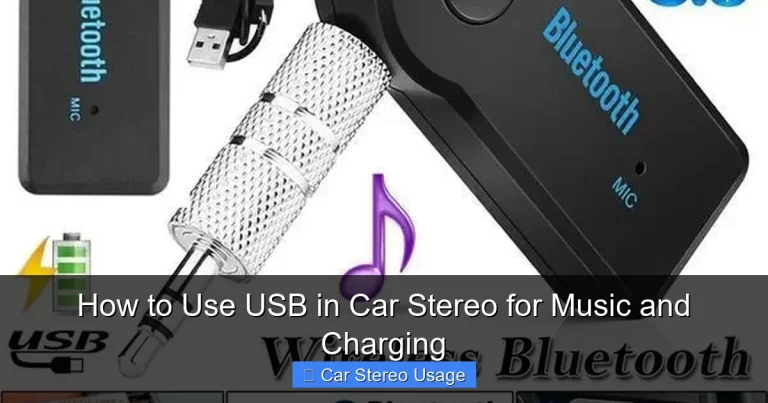
Most car stereos only stream audio via Bluetooth. Even if your phone shows video, the stereo won’t display it. You’ll hear sound but see nothing—or get an error.
Exceptions: Advanced Systems
Some newer stereos (like Apple CarPlay or Android Auto) support video mirroring—but only when parked. These systems often require a wired connection (HDMI or USB) and may disable video while driving for safety.
Bottom line: Don’t rely on Bluetooth for video. Use USB or aux-in with a phone mount instead.
Step 5: Connect Your Phone or Tablet (Wired Method)
If your stereo lacks USB video support, connect your phone directly.
Use an Aux Cable + Phone Mount
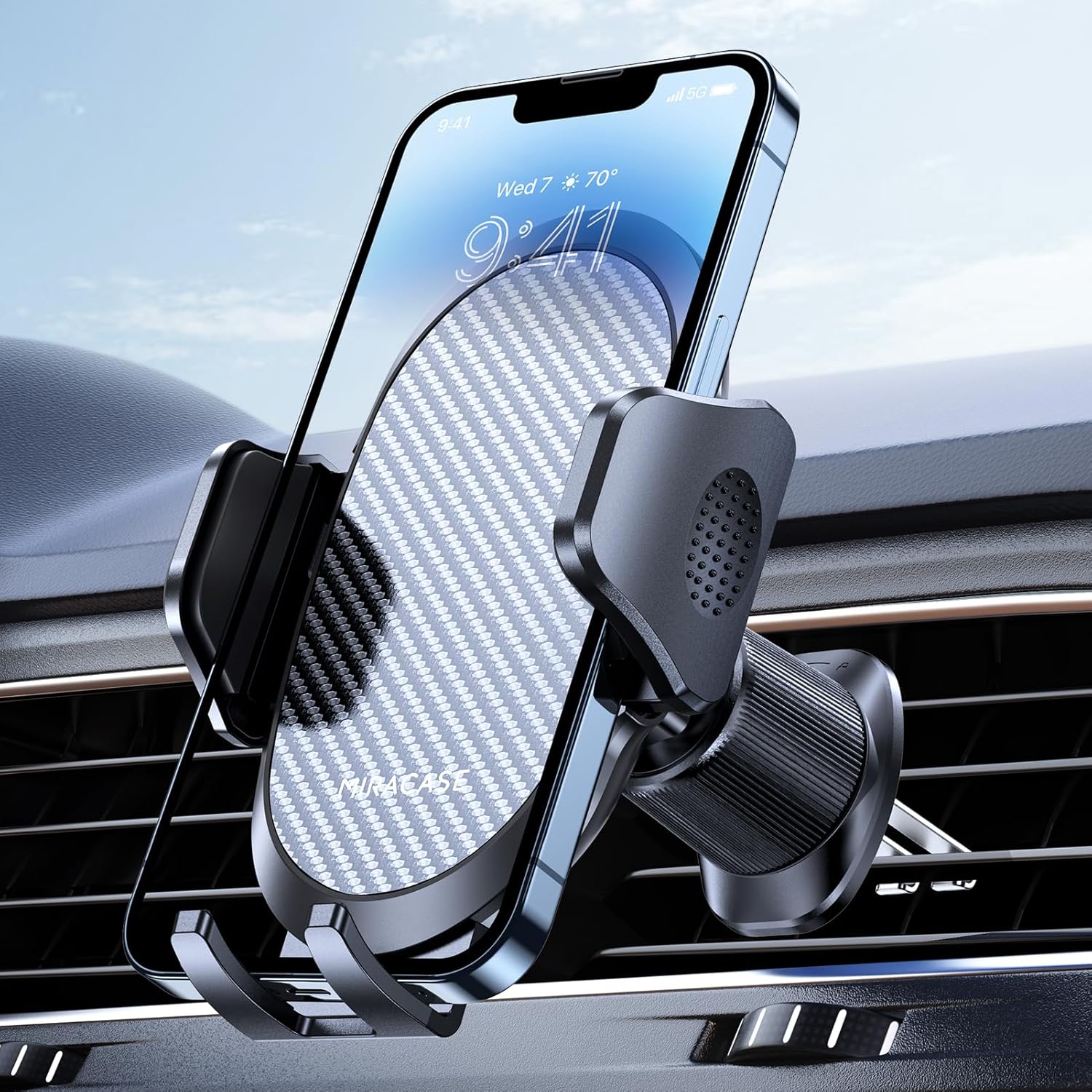
Plug a 3.5mm aux cable from your phone to the stereo’s AUX input. Play video on your phone—audio will come through the speakers. Mount your phone on the dashboard or windshield (legally and securely) for passenger viewing.
HDMI or USB-C to AV Adapter (Advanced)
For stereos with AV inputs, use an adapter (like Lightning to AV or USB-C to HDMI). This sends both video and audio. Note: Many stereos disable video input while driving.
Step 6: Add Rear-Seat Entertainment (For Long Trips)
If you frequently travel with kids, consider a dedicated rear-seat system.
Portable DVD Players or Tablets
Mount a tablet or portable DVD player on the headrest. Stream videos via Wi-Fi or load them onto a microSD card. Use Bluetooth headphones so the driver isn’t distracted.
Factory or Aftermarket Rear Screens
Some cars come with built-in rear screens. Others can be upgraded with aftermarket kits that connect to the stereo’s video output. These often include dual screens and remote controls.
Step 7: Ensure Safety and Legal Compliance
Never compromise safety for entertainment.
Driver Distraction Laws
In most U.S. states and countries, it’s illegal for the driver to view video while the car is in motion. Screens must be off or show only navigation.
Best Practices
- Only play videos when parked or for passengers.
- Use headphones for rear passengers.
- Keep volume low so the driver can hear traffic.
- Never mount screens in the driver’s line of sight.
Remember: The goal is fun, not fines or accidents.
Troubleshooting Common Issues
Even with the right setup, problems can happen. Here’s how to fix them.
Video Won’t Play
- Check file format—convert to MP4 if needed.
- Ensure USB is FAT32 formatted.
- Try a different USB port or drive.
No Sound
- Verify audio codec (use AAC, not AC3).
- Check stereo volume and mute settings.
- Test with a known-working audio file.
Screen Freezes or Lags
- Lower video resolution (480p–720p).
- Use a faster USB drive (Class 10 or higher).
- Restart the stereo.
“Unsupported File” Error
Your stereo doesn’t recognize the format. Reconvert the video using HandBrake with standard settings.
Conclusion: Enjoy Videos Safely and Smartly
Learning how to play video in car stereo systems opens up new ways to enjoy time on the road. Whether you’re using a USB drive, connecting your phone, or adding rear screens, the key is preparation and safety.
Always prioritize the driver’s focus and follow local laws. With the right format, compatible hardware, and smart habits, you can turn long drives into fun adventures—without risking safety or your stereo’s health.
Now grab your USB drive, load up some family-friendly videos, and hit the road with confidence!
🎥 Related Video: How Do You Play YouTube Videos On Car Stereo???
📺 Quality Mobile Video
Find out practical ways to play YouTube onto your car stereo. Leave any questions below!!! Mirroring Adapter iPhone …