
Reading oxygen sensor data on an OBD2 scanner is essential for diagnosing your vehicle’s engine performance and emissions. This guide will teach you how to access, interpret, and use oxygen sensor data to identify issues and maintain optimal engine health.
Quick Answers to Common Questions
How do I know if my OBD2 scanner supports oxygen sensor data?
Check the scanner’s specifications or user manual for live data support and oxygen sensor parameters. Popular apps often list supported PIDs (parameter IDs).
Can I read oxygen sensor data with the engine off?
No, oxygen sensors require the engine to be running and warmed up to provide valid data, as they measure exhaust gases.
What does a stable oxygen sensor voltage mean?
A steady voltage usually indicates a faulty sensor or wiring issue since a healthy sensor voltage should fluctuate rapidly.
How many oxygen sensors does my car have?
Most modern vehicles have at least two sensors per bank – one before and one after the catalytic converter. Check your vehicle manual for exact numbers.
Should I replace oxygen sensors proactively?
Yes, replacing sensors every 60,000 to 100,000 miles can prevent performance issues and maintain accurate diagnostics.
How to Read Oxygen Sensor Data on OBD2 Scanner for Accurate Diagnostics
If you’re looking to keep your vehicle running smoothly and efficiently, understanding your oxygen sensor data is key. Oxygen sensors play a critical role in monitoring your engine’s air-fuel mixture, impacting fuel economy and emissions. This guide will walk you through reading oxygen sensor data on your OBD2 scanner, step by step, to help you perform accurate diagnostics and maintain engine performance.
Introduction to Oxygen Sensors and OBD2 Scanners
Oxygen sensors, also known as O2 sensors, measure the amount of oxygen in your vehicle’s exhaust gases. This data helps the engine control module (ECM) adjust fuel delivery for optimal combustion. Faulty oxygen sensors can cause poor fuel economy, increased emissions, and engine performance problems.
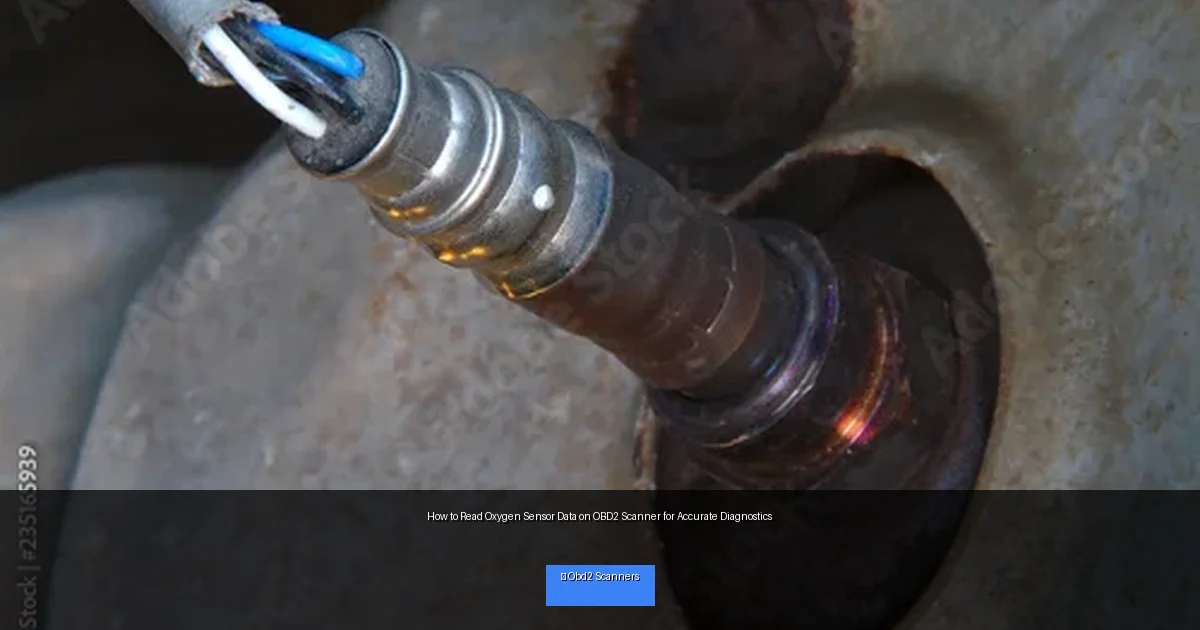
Visual guide about How to Read Oxygen Sensor Data on OBD2 Scanner for Accurate Diagnostics
Image source: as2.ftcdn.net
An OBD2 scanner is a diagnostic tool that connects to your vehicle’s onboard computer. It retrieves trouble codes and real-time sensor data, including oxygen sensor readings. By reading this data, you can better understand how your engine is performing and identify issues early.
Step 1: Gather the Necessary Tools
Choose a Compatible OBD2 Scanner
Not all OBD2 scanners provide live sensor data. Select a scanner that supports live data streaming and specifically shows oxygen sensor data (sometimes listed as O2 sensor voltage or oxygen sensor current). Examples include Bluetooth-enabled scanners with smartphone apps or handheld devices with live data capabilities.
Prepare Your Vehicle
Ensure your vehicle is parked in a safe area with the engine at normal operating temperature. Oxygen sensors only provide accurate data once warmed up. Turn off the engine before connecting the scanner.
Step 2: Connect Your OBD2 Scanner to Your Vehicle
Locate the OBD2 Port
The OBD2 port is usually under the dashboard on the driver’s side. It is a 16-pin connector shaped like a trapezoid. Consult your vehicle’s owner manual if you have trouble finding it.
Plug In and Power On the Scanner
Connect your scanner’s cable or Bluetooth adapter to the port. Turn on the ignition (engine running or key in the ON position, depending on scanner instructions) to power the scanner.
Step 3: Navigate the Scanner Menu to Access Oxygen Sensor Data
Enter Live Data or Data Stream Mode
Use your scanner’s menu to find the option labeled “Live Data,” “Data Stream,” or “Sensor Data.” This mode displays real-time sensor readings from your vehicle.
Select Oxygen Sensor Parameters
Look for parameters labeled as O2 Sensor Voltage, O2 Sensor Current, or by sensor location (e.g., Bank 1 Sensor 1). Your scanner may show multiple oxygen sensors if your vehicle has more than one.
Step 4: Understand and Interpret Oxygen Sensor Readings
Normal Voltage Range
Typical oxygen sensor voltage fluctuates between 0.1 volts (lean mixture) and 0.9 volts (rich mixture). A healthy sensor rapidly switches between these values as the ECM adjusts fuel delivery.
Analyze Sensor Response Time
A good oxygen sensor cycles 5-10 times per second. Slow or no fluctuations may indicate sensor failure or wiring issues.
Check Sensor Location Data
Bank 1 sensors monitor the side of the engine with cylinder #1; Bank 2 sensors monitor the opposite side. Sensors before and after the catalytic converter have different expected behaviors.
Step 5: Use Oxygen Sensor Data for Diagnostics
Identify Faulty Sensors
If an oxygen sensor shows a constant voltage (stuck rich or lean), slow response, or no voltage change, it may be defective. Your scanner may also display trouble codes like P0130-P0167 related to oxygen sensors.
Check for Engine Issues
Erratic oxygen sensor data can indicate problems such as vacuum leaks, fuel injector issues, or exhaust leaks. Use sensor data combined with other diagnostic tools to pinpoint problems.
Step 6: Troubleshooting Common Problems
Sensor Not Showing Data
- Ensure the scanner is compatible and fully connected.
- Check vehicle ignition is ON or engine running.
- Verify the sensor and wiring are intact.
Unusual Sensor Readings
- Inspect for exhaust leaks before the sensor.
- Look for wiring damage or poor connections.
- Consider sensor replacement if readings remain abnormal.
Practical Tips for Accurate Oxygen Sensor Readings
- Warm up your vehicle: Oxygen sensors need to reach operating temperature to give accurate readings.
- Use a quality scanner: Not all scanners provide detailed O2 sensor data.
- Interpret data in context: Combine oxygen sensor readings with other sensor data and trouble codes.
- Regular maintenance: Replace oxygen sensors per manufacturer recommendations for reliable diagnostics.
Conclusion
Reading oxygen sensor data on an OBD2 scanner is a valuable skill for accurate vehicle diagnostics. By understanding how to access and interpret this data, you can detect engine problems early, improve fuel efficiency, and reduce emissions. Follow the steps outlined above and practice regularly to become proficient at monitoring your vehicle’s oxygen sensors and keeping your engine in top shape.
🎥 Related Video: Using O2 Sensor Data in Diagnostics
📺 Hunter Automotive