
In this guide, you will learn how to connect a Bluetooth OBD2 scanner to your iPhone with simple, easy-to-follow steps. Whether you’re a car enthusiast or just want to monitor your vehicle’s health, this guide covers everything from pairing the device to using diagnostic apps effectively.
Quick Answers to Common Questions
Which Bluetooth version does my OBD2 scanner need for iPhone?
Your OBD2 scanner must support Bluetooth Low Energy (BLE) or Bluetooth 4.0 and above to connect with iPhones.
Can I use any diagnostic app with my Bluetooth OBD2 scanner?
No, not all apps support every scanner. Choose apps recommended by your scanner’s manufacturer or popular iOS apps like OBDLink or Car Scanner.
How do I know if my scanner is properly plugged in?
Look for indicator lights on the scanner. A steady or blinking light usually means it’s powered and ready to connect.
Is it safe to drive while using an OBD2 scanner?
It’s best to use the scanner while parked. Monitoring data while driving can be distracting and unsafe.
What should I do if my iPhone can’t find the scanner?
Restart your iPhone and scanner, ensure Bluetooth is enabled, and try reconnecting through your diagnostic app.
How to Connect Bluetooth OBD2 Scanner to iPhone Easy Steps Guide
Have you ever wanted to check your car’s health without visiting a mechanic? A Bluetooth OBD2 scanner does just that by connecting to your iPhone and giving you real-time data about your vehicle. In this guide, you will learn how to connect your Bluetooth OBD2 scanner to your iPhone with easy steps, so you can start diagnosing your car like a pro.
What is a Bluetooth OBD2 Scanner?
An OBD2 (On-Board Diagnostics II) scanner is a device that plugs into your car’s OBD2 port—usually under the dashboard—and reads data from your car’s computer. A Bluetooth OBD2 scanner sends this data wirelessly to your iPhone via Bluetooth. This lets you monitor engine performance, read error codes, and even clear them using your phone.
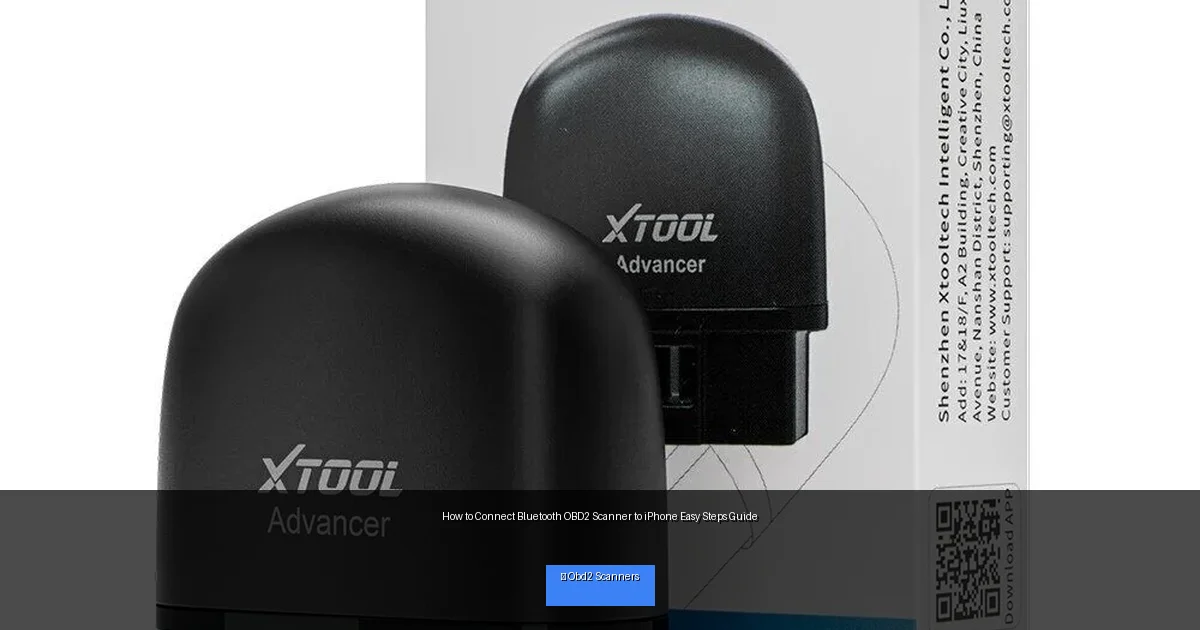
Visual guide about How to Connect Bluetooth OBD2 Scanner to iPhone Easy Steps Guide
Image source: content.propertyroom.com
Step 1: Check Compatibility
Before you start, make sure your Bluetooth OBD2 scanner is compatible with your iPhone. Some scanners use Bluetooth Classic, which iPhones do not support. You need a Bluetooth Low Energy (BLE) scanner, commonly called Bluetooth 4.0 or later. Check the product description or manual to confirm compatibility.
Tip:
Look for scanners labeled “iOS compatible” or “Bluetooth Low Energy” to ensure smooth connection with your iPhone.
Step 2: Locate the OBD2 Port in Your Car
The OBD2 port is a 16-pin connector usually found under the dashboard or near the driver’s side footwell. It may be hidden behind a panel or cover. Consult your vehicle’s manual or search online for your car model’s OBD2 port location.
Tip:
Turn on your car’s ignition to the “on” position (engine off) before plugging in the scanner. This powers the OBD2 port and scanner.
Step 3: Plug in the Bluetooth OBD2 Scanner
Insert the scanner firmly into the OBD2 port. Make sure it fits snugly and the scanner’s indicator lights turn on. The light usually indicates power and Bluetooth status.
Step 4: Pair the Scanner with Your iPhone
Unlike some Bluetooth devices, most Bluetooth OBD2 scanners do not require pairing via the iPhone’s Bluetooth settings. Instead, you will pair within the diagnostic app you install. However, some scanners may prompt you for Bluetooth pairing. Follow these steps to pair:
Open iPhone Bluetooth Settings
- Go to Settings > Bluetooth.
- Ensure Bluetooth is turned on.
- Look for your OBD2 scanner name in the list of available devices.
- If it appears, tap to connect. If it asks for a PIN/code, try “0000” or “1234.”
Use a Compatible Diagnostic App
Most OBD2 scanners connect through apps like OBDLink, DashCommand, Car Scanner ELM OBD2, or Torque (if available on iOS). Download one of these from the App Store.
Connect via the App
- Open the app and go to the settings or connection menu.
- Select Bluetooth as the connection type.
- Choose your scanner from the list of available devices.
- Follow any on-screen prompts to complete the connection.
Step 5: Start Scanning Your Vehicle
Once connected, you can start scanning your vehicle for diagnostic trouble codes, live sensor data, and more. Use the app to:
- Read and clear error codes.
- Monitor engine RPM, speed, coolant temperature, and other parameters.
- View real-time graphs and history logs.
Step 6: Save and Share Reports
Many apps allow you to save diagnostic reports and share them with your mechanic. This can speed up repairs and help you understand your car’s issues better.
Troubleshooting Common Issues
Scanner Not Connecting to iPhone
- Restart your iPhone and scanner.
- Ensure the scanner is firmly plugged in and powered.
- Check app permissions and Bluetooth settings.
- Try reinstalling the app or using a different compatible app.
No Data or Incomplete Data
- Make sure your car ignition is on.
- Try a different app to verify if the problem is app-related.
- Verify scanner compatibility with your vehicle model.
Bluetooth Device Not Showing Up
- Turn Bluetooth off and on again on your iPhone.
- Move closer to the scanner to improve signal.
- Reset the scanner by unplugging and plugging it back in.
Safety Tips When Using Bluetooth OBD2 Scanners
- Use the scanner while parked to avoid distractions.
- Do not attempt repairs based solely on app information without professional advice.
- Keep your scanner and app updated for the best performance.
Conclusion
Connecting a Bluetooth OBD2 scanner to your iPhone is a simple and powerful way to take control of your vehicle’s health. By following the steps in this guide, you can easily set up your scanner, diagnose issues, and save time and money on repairs. Remember to choose a compatible scanner and app, and always prioritize safety while using the device. Happy scanning!
🎥 Related Video: How to set up & use FIXD Bluetooth OBD2 Scanner | Step-by-Step Tutorial
📺 Ardently Tech
The FIXD Sensor is a very useful tool that seems simple enough, but if you’re having trouble setting it up, here’s a simplified …