
Checking mileage on an OBD2 scanner is a great way to access your vehicle’s accurate odometer reading quickly. This guide walks you through each step, from connecting the scanner to interpreting data, making it simple even for beginners.
Quick Answers to Common Questions
How do I know if my OBD2 scanner supports mileage reading?
Check the scanner’s specifications or user manual. Look for terms like “odometer reading,” “vehicle info,” or “mileage data.” You can also contact the manufacturer.
Can I check mileage on all vehicles using OBD2 scanners?
Most vehicles manufactured after 1996 have OBD2 ports, but not all store mileage in accessible modules. Some brands or older models may not support mileage reading.
Is it necessary to turn on the engine to read mileage?
Usually, turning the ignition to the accessory position is enough, but some vehicles require the engine running. Refer to your scanner or vehicle manual.
What if the mileage reading doesn’t match the dashboard odometer?
Minor differences can occur due to data format, but large discrepancies may indicate odometer tampering or scanner errors. Get professional help if needed.
Should I update my OBD2 scanner’s firmware?
Yes, updating firmware ensures better compatibility and access to new features like mileage reading. Check the manufacturer’s website regularly.
How to Check Mileage on OBD2 Scanner for Accurate Vehicle Data
Are you curious about how to check your car’s mileage using an OBD2 scanner? Whether you’re a car enthusiast, a mechanic, or just someone who wants to verify their vehicle’s odometer reading, this guide will walk you through the process. Here, you’ll learn how to connect your OBD2 scanner, select the right options, interpret the data, and troubleshoot common issues.
What Is an OBD2 Scanner and Why Check Mileage This Way?
An OBD2 (On-Board Diagnostics, version 2) scanner is a device that connects to your car’s computer system. It pulls diagnostic information, including engine codes, emissions data, and sometimes mileage or odometer readings. Checking mileage through an OBD2 scanner can provide an accurate and tamper-proof reading that’s especially useful if you suspect discrepancies in your car’s dashboard odometer.
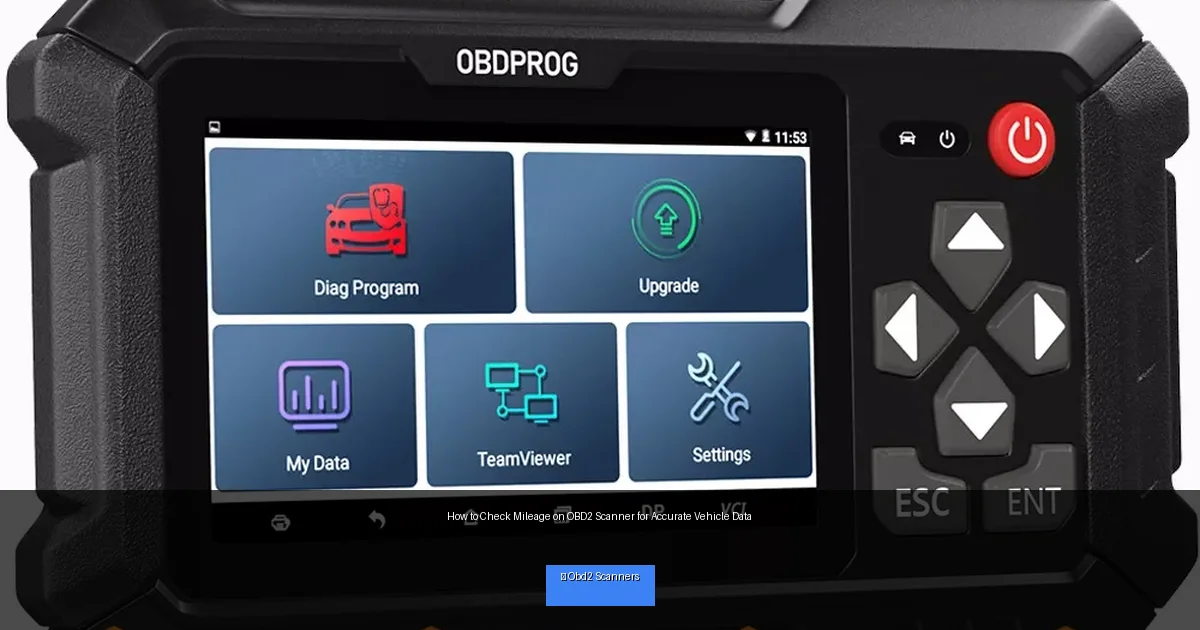
Visual guide about How to Check Mileage on OBD2 Scanner for Accurate Vehicle Data
Image source: i5.walmartimages.com
However, not all scanners can read mileage because it depends on the vehicle model and the scanner’s capabilities. This guide assumes you have an OBD2 scanner that supports mileage reading.
Step 1: Gather Your Tools
Choose the Right OBD2 Scanner
Ensure your scanner supports mileage or odometer readings. Popular brands like BlueDriver, FIXD, or professional-level devices often include this feature. Check the product specs before buying or using your current scanner.
Prepare Your Vehicle
Your vehicle should be parked with the engine off or in accessory mode (ignition on but engine off). Have your car keys and scanner ready.
Step 2: Locate the OBD2 Port
The OBD2 port is usually found under the dashboard on the driver’s side. It looks like a trapezoid-shaped connector with 16 pins. Common locations include:
- Underneath the steering column
- Near the center console
- Behind a removable panel or cover
If you have trouble finding it, check your vehicle’s owner manual or search online for your car’s make and model.
Step 3: Connect the OBD2 Scanner
Plug In the Scanner
Firmly insert the OBD2 scanner connector into the port. It should fit snugly without forcing.
Power On the Scanner
Turn on your vehicle’s ignition to the accessory position (usually the first click when turning the key). This powers the car’s systems and the scanner.
Wait for Initialization
Most scanners take a few seconds to initialize and establish communication with the vehicle’s ECU (Engine Control Unit).
Step 4: Navigate to Mileage or Odometer Data
Use the Scanner Menu
On your scanner’s display, navigate through the menu options. Look for sections like:
- Vehicle Information
- Live Data
- Odometer
- Mileage
Each scanner has a unique interface, so refer to your scanner’s manual if needed.
Select and Read Mileage
Once you find the mileage or odometer option, select it to display the current reading. This number reflects the total distance your vehicle has traveled.
Step 5: Interpret the Mileage Data
The mileage reading may be displayed in kilometers or miles based on your vehicle’s settings. Double-check units to avoid confusion. Some scanners might show raw data codes that need conversion; consult your scanner manual for details.
Remember, mileage displayed via OBD2 is often more reliable than dashboard readings, especially if the odometer has been tampered with or replaced.
Practical Tips for Accurate Mileage Reading
- Use a compatible scanner: Not all scanners read mileage; check before use.
- Update scanner software: Keep your device’s firmware updated for better vehicle compatibility.
- Check vehicle compatibility: Some older or specialty vehicles may not support mileage reading via OBD2.
- Perform readings in a stable environment: Avoid scanning in extreme temperatures or with a weak vehicle battery.
- Save or export the data: Many scanners allow you to save or print mileage data for record keeping.
Troubleshooting Common Issues
The Scanner Doesn’t Connect
- Check connection: Ensure the plug is fully inserted.
- Try a different ignition position: Some vehicles require the engine running.
- Test with another device: Confirm if the scanner or vehicle port is faulty.
No Mileage Data Displayed
- Verify scanner capability: Not all OBD2 scanners support mileage.
- Check vehicle support: Some cars don’t store mileage in accessible modules.
- Update scanner firmware: Software updates may add mileage reading functions.
Inaccurate or Strange Mileage Values
- Confirm units: Check if the reading is in miles or kilometers.
- Cross-check with dashboard odometer: Differences may suggest tampering or errors.
- Consult a professional: If in doubt, get a mechanic’s help.
Conclusion
Checking mileage on an OBD2 scanner is a straightforward process that can provide you with accurate and trustworthy vehicle data. By following the steps outlined here—selecting the right scanner, connecting properly, navigating menus, and interpreting data—you can confidently verify your car’s odometer reading. This is especially useful for routine maintenance, buying or selling a vehicle, or diagnosing issues related to mileage. Remember to keep your scanner updated and troubleshoot common problems as needed.
With this guide, you now have the knowledge to check mileage on your OBD2 scanner like a pro. Happy scanning!
🎥 Related Video: How to check REAL car mileage using OBD-II scanner
📺 @Iamcarhacker – OBD2 scanners
Thinkdiag2: https://amzn.to/4gYzFOe Similiar without subscription: https://amzn.to/42iseNm ➡️ OBD2 Buyers guide PDF: …