How to Use Laptop as OBD2 Scanner for Easy Car Diagnostics

Using a laptop as an OBD2 scanner is a cost-effective and convenient way to diagnose your car’s issues. This guide will walk you through the tools you need, connecting your laptop to your vehicle, and interpreting diagnostic data with ease.
Quick Answers to Common Questions
Can I use any laptop for OBD2 diagnostics?
Yes, most modern laptops running Windows, MacOS, or Linux will work as long as they have USB ports or Bluetooth/Wi-Fi capabilities and meet the software requirements.
Is a wireless OBD2 adapter better than a USB cable?
Wireless adapters offer convenience and mobility, but USB cables usually provide a more stable and faster connection, especially for laptops.
Do I need internet access to use OBD2 software?
Most OBD2 software works offline once installed, but internet access may be needed for updates or additional features like code lookups.
What if my car doesn’t have an OBD2 port?
Vehicles made before 1996 often lack OBD2 ports. For these cars, specialized diagnostic tools or adapters may be required.
How often should I scan my car?
Scanning monthly or whenever the check engine light appears is a good practice to catch problems early and maintain vehicle health.
How to Use Laptop as OBD2 Scanner for Easy Car Diagnostics
If your car’s check engine light has ever come on, you know how confusing it can be. Instead of paying for expensive diagnostics at a shop, you can easily use your laptop as an OBD2 scanner to check your vehicle’s health. This guide will show you how to turn your laptop into a powerful diagnostic tool using simple equipment and software.
What You Will Learn
By the end of this guide, you will know how to identify and connect the necessary tools, install the right software, connect to your car’s OBD2 port, read diagnostic trouble codes, and troubleshoot common issues. This knowledge will empower you to monitor and maintain your vehicle with confidence.
Visual guide about How to Use Laptop as OBD2 Scanner for Easy Car Diagnostics
Image source: backyardmechanic.org
Step 1: Understand What OBD2 Is
OBD2 stands for On-Board Diagnostics, version two. It is a standardized system in most cars built after 1996 that monitors vehicle performance and emissions. The OBD2 port is typically located under the dashboard and allows external devices to communicate with your car’s computer. An OBD2 scanner reads this data, revealing fault codes and system information.
Step 2: Gather the Required Equipment
Before you start, you will need a few things:
- Laptop: Any modern laptop with Windows, Mac, or Linux will work.
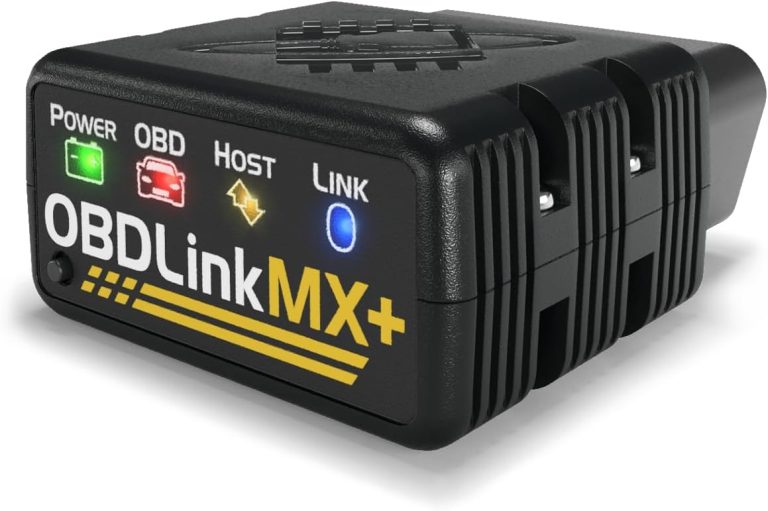
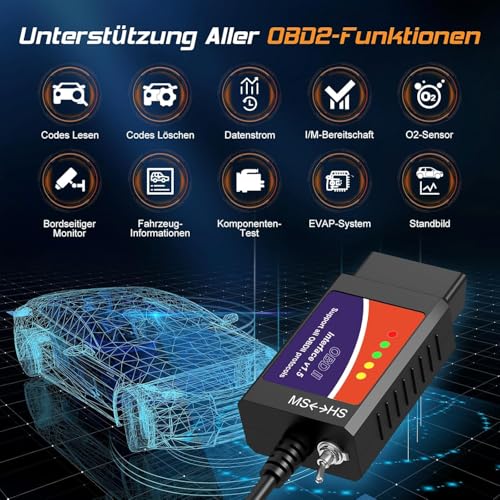
- OBD2 Interface Device: This is the bridge between your laptop and car. Common options include USB OBD2 cables or Bluetooth/Wi-Fi OBD2 adapters.
- OBD2 Software: Programs that interpret data from your car’s computer. Popular choices include OBD Auto Doctor, ScanMaster-ELM, or free software like OBDwiz.
Choosing an OBD2 Interface Device
For simplicity, a USB OBD2 cable is usually the best option for laptops. Bluetooth or Wi-Fi adapters offer wireless convenience but may require additional setup and compatibility checks.
Step 3: Locate Your Car’s OBD2 Port
The OBD2 port is a 16-pin connector usually found beneath the dashboard near the steering column. Common locations include:
- Under the driver’s side dashboard
- Near the center console
- Behind a removable panel or cover
If you have trouble finding it, consult your vehicle’s manual or search online for your car model’s OBD2 port location.
Step 4: Connect the OBD2 Device to Your Laptop and Car
Wired USB Connection
- Plug one end of the USB OBD2 cable into your laptop’s USB port.
- Connect the other end to the car’s OBD2 port.
Wireless Connection (Bluetooth/Wi-Fi)
- Plug the wireless OBD2 adapter into your car’s OBD2 port.
- Enable Bluetooth or Wi-Fi on your laptop and pair it with the device according to the manufacturer’s instructions.
Step 5: Install and Configure OBD2 Software
Download and install your chosen OBD2 software on your laptop.
Software Setup Tips
- Follow installation prompts carefully.
- Select the correct communication port (COM port) on your laptop if using a USB cable.
- Configure connection settings matching your interface device (e.g., baud rate).
- Test the connection to ensure your laptop can communicate with the car.
Step 6: Scan Your Vehicle and Read Codes
With everything connected and software running, you can now:
- Turn the car ignition to the “ON” position without starting the engine.
- Use the software’s interface to start a scan or read diagnostic trouble codes (DTCs).
- View live sensor data such as engine RPM, coolant temperature, and more.
- Save or export data for later review.
Interpreting Trouble Codes
Each DTC consists of a letter and numbers (e.g., P0301). The letter indicates the system (P=Powertrain, B=Body, C=Chassis, U=Network). The numbers specify the exact fault. Many OBD2 software programs provide built-in explanations of what each code means.
Step 7: Clear Codes and Reset the Check Engine Light
After repairs, you can use your laptop to clear error codes and reset the check engine light. Most OBD2 software includes this feature. Just be sure the issue is fixed before clearing codes.
Troubleshooting Common Issues
1. Laptop Does Not Detect OBD2 Device
- Check USB connection and try different ports.
- Ensure the car ignition is in the “ON” position.
- Verify drivers for your OBD2 device are installed.
- Try restarting the software and laptop.
2. Bluetooth or Wi-Fi Connection Fails
- Confirm the adapter is powered by the car’s OBD2 port.
- Re-pair the device with your laptop.
- Check for interference or range issues.
3. Software Shows No Data or Error Codes
- Ensure your vehicle supports OBD2 protocols.
- Try a different software option.
- Consult your vehicle’s manual for any special diagnostic modes.
Practical Tips for Using Your Laptop as OBD2 Scanner
- Regular Scans: Perform scans regularly to catch issues early.
- Save Reports: Keep diagnostic reports for future reference or mechanics.
- Battery Management: Use the laptop on battery power or ensure the car battery is healthy during diagnostics.
- Update Software: Keep your OBD2 software up-to-date for the latest features and vehicle support.
Conclusion
Using your laptop as an OBD2 scanner is an excellent way to take control of your vehicle’s maintenance and save money on diagnostics. With the right tools and a bit of setup, you can easily read and clear trouble codes, monitor live data, and keep your car running smoothly. This guide provided all the steps you need to get started—now it’s time to try it yourself!
🎥 Related Video: How to use laptop as OBD2 Scanner
📺 @Iamcarhacker – OBD2 scanners
Best laptop software: https://www.iamcarhacker.com/best-laptop-obd2-software/ ➡️ OBD2 Buyers guide PDF: …