
Connecting your iPhone to your car stereo is simpler than you think. Whether you use Bluetooth, USB, or an AUX cable, this guide walks you through each method with clear, easy steps so you can enjoy music, podcasts, and calls hands-free in no time.
How to Connect iPhone to Car Stereo Easily in Minutes
Whether you’re cruising down the highway or stuck in traffic, having your iPhone connected to your car stereo makes every drive more enjoyable. You can stream your favorite playlists, listen to audiobooks, get turn-by-turn directions, or take hands-free calls—all from your iPhone. The good news? Connecting your iPhone to your car stereo is quick, easy, and doesn’t require technical expertise.
In this guide, we’ll walk you through the most common and effective ways to connect your iPhone to your car stereo. We’ll cover Bluetooth pairing, USB connections, AUX cables, and Apple CarPlay. By the end, you’ll know exactly which method works best for your vehicle and how to set it up in just a few minutes.
Method 1: Connect via Bluetooth (Wireless)
Bluetooth is the most popular way to connect your iPhone to a car stereo because it’s wireless and works with most modern vehicles. Once paired, your phone automatically connects when you start the car.
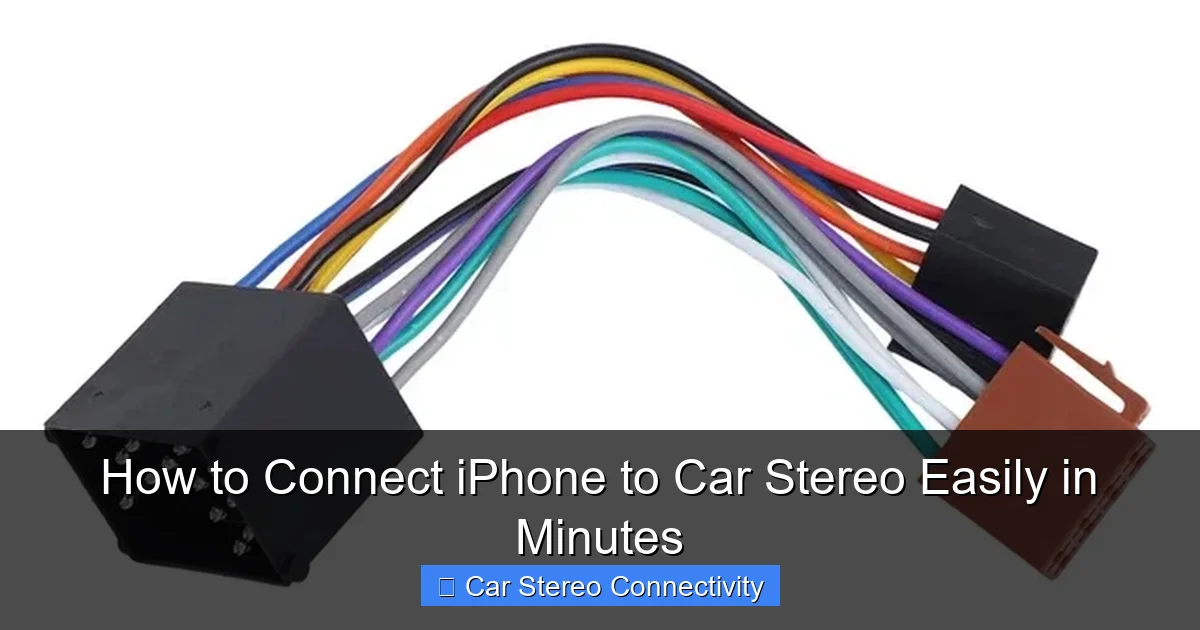
Visual guide about How to Connect iPhone to Car Stereo Easily in Minutes
Image source: picclickimg.com
Step 1: Turn on Bluetooth on Your iPhone
Open the Settings app on your iPhone, tap Bluetooth, and make sure it’s turned on. You’ll see a toggle switch—slide it to the right so it turns green.
Step 2: Put Your Car Stereo in Pairing Mode
Turn on your car and navigate to the stereo’s Bluetooth settings. This is usually found in the Menu or Settings section of your head unit. Look for an option like “Pair Device,” “Add New Device,” or “Bluetooth Search.” Some cars automatically enter pairing mode when Bluetooth is activated.
Step 3: Select Your iPhone from the Car’s List
Your car stereo will scan for nearby devices. When it finds your iPhone, it will appear on the screen (e.g., “iPhone” or your device name). Tap or select it to begin pairing.
Step 4: Confirm the Pairing Code
A four-digit code may appear on both your car screen and iPhone. Make sure they match, then tap Pair or Connect on your iPhone. If no code appears, the devices may pair automatically.
Step 5: Test the Connection
Play a song or make a test call to confirm audio is coming through your car speakers. You should also see your iPhone listed as “Connected” in the car’s Bluetooth menu.
Pro Tip: If your car supports it, enable “Auto-Connect” so your iPhone pairs automatically every time you start the car.
Method 2: Connect via USB Cable (Wired)
Using a USB cable is ideal if you want high-quality audio, fast charging, and access to Apple CarPlay. This method works best with newer vehicles that have USB ports compatible with iOS devices.
Step 1: Use the Right Cable
Make sure you have a certified Lightning-to-USB cable (for iPhones with Lightning ports) or a USB-C cable (for iPhone 15 and newer). Avoid cheap, uncertified cables—they may not work properly or could damage your device.
Step 2: Plug Into the Car’s USB Port
Locate the USB port in your car—usually in the center console, glove box, or dashboard. Plug one end of the cable into your iPhone and the other into the USB port.
Step 3: Trust the Device (If Prompted)
The first time you connect, your iPhone may ask, “Trust This Computer?” Tap Trust to allow the car stereo to access your media. This step is essential for CarPlay and music playback.
Step 4: Select USB Mode on Your Car Stereo
Use your car’s touchscreen or buttons to switch the audio source to “USB” or “iPod.” Your iPhone should appear as a media device, and you can now browse music, podcasts, or use CarPlay.
Pro Tip: Keep your iPhone charged during long trips—USB connections often charge your phone while playing audio.
Method 3: Connect via AUX Cable (3.5mm Jack)
If your car doesn’t support Bluetooth or USB, an AUX cable is a reliable backup. It’s simple, works with almost any stereo, and doesn’t require power or pairing.
Step 1: Get an AUX Cable and Adapter (If Needed)
You’ll need a 3.5mm male-to-male audio cable. If your iPhone doesn’t have a headphone jack (iPhone 7 and later), you’ll also need a Lightning-to-3.5mm adapter.
Step 2: Plug Into Your iPhone and Car
Connect one end of the AUX cable to your iPhone (using the adapter if necessary) and the other end to the car’s AUX input—usually labeled “AUX IN” and located on the dashboard or center console.
Step 3: Switch to AUX Mode
On your car stereo, press the Source or Mode button until you see “AUX” or “Auxiliary” on the display.
Step 4: Play Audio from Your iPhone
Open your music app (like Apple Music or Spotify) and start playing a song. Adjust the volume on both your iPhone and car stereo for the best sound.
Pro Tip: Keep the AUX cable in your glove box so it’s always handy. It’s also great for passengers who want to play music from their phones.
Method 4: Use Apple CarPlay (Smart Integration)
Apple CarPlay turns your car stereo into a smart display for your iPhone. It’s available in many newer vehicles and offers a safer, more intuitive way to use your phone while driving.
Step 1: Check CarPlay Compatibility
Visit Apple’s official CarPlay website to see if your car model supports it. Most vehicles from 2016 and later with compatible infotainment systems work with CarPlay.
Step 2: Connect via USB or Wireless
For wired CarPlay, use a USB cable as described earlier. For wireless CarPlay, ensure both your car and iPhone support it, then pair via Bluetooth first.
Step 3: Launch CarPlay
Once connected, CarPlay should launch automatically on your car screen. If not, look for the CarPlay icon in your stereo’s menu.
Step 4: Use Siri and Apps Safely
Use Siri to send messages, make calls, or get directions without touching your phone. CarPlay supports Apple Maps, Spotify, WhatsApp, and more.
Pro Tip: Customize your CarPlay home screen by rearranging apps in the iPhone’s CarPlay settings under Settings > General > CarPlay.
Troubleshooting Common Connection Issues
Even with the best setup, you might run into problems. Here’s how to fix the most common issues when connecting your iPhone to your car stereo.
iPhone Won’t Pair via Bluetooth
- Restart both devices: Turn off your iPhone and car, wait 30 seconds, then turn them back on.
- Forget and re-pair: Go to Settings > Bluetooth, tap the “i” next to your car, and select “Forget This Device.” Then pair again.
- Check for interference: Other Bluetooth devices (like smartwatches) can interfere. Turn them off temporarily.
No Sound Through Car Speakers
- Check volume levels: Make sure both your iPhone and car stereo are turned up.
- Verify audio source: Ensure the car is set to the correct input (Bluetooth, USB, or AUX).
- Test with another app: Try playing a video or using a different music app to rule out app-specific issues.
USB Connection Not Recognized
- Try a different cable: Faulty or uncertified cables are a common cause.
- Clean the ports: Dust in the USB or Lightning port can block connection. Use a soft brush or compressed air.
- Update software: Make sure your iPhone and car stereo have the latest software updates.
CarPlay Not Working
- Enable CarPlay in settings: Go to Settings > General > CarPlay and ensure your car is listed.
- Check USB port compatibility: Some USB ports only charge—use one labeled for data or media.
- Reset network settings: As a last resort, go to Settings > General > Reset > Reset Network Settings (this will erase saved Wi-Fi passwords).
Tips for a Better In-Car Experience
- Use voice commands: Activate Siri by holding the voice button on your steering wheel or saying “Hey Siri” to control music, navigation, and messages safely.
- Organize your playlists: Create driving-specific playlists in Apple Music or Spotify for quick access.
- Keep your phone secure: Use a phone mount to keep your iPhone visible and within reach without distracting you.
- Update regularly: Software updates often improve connectivity and add new features—keep your iPhone and car system up to date.
Conclusion
Connecting your iPhone to your car stereo doesn’t have to be complicated. With Bluetooth, USB, AUX, or CarPlay, you have multiple easy options to enjoy your favorite audio content on the go. Whether you prefer the convenience of wireless pairing or the reliability of a wired connection, setting it up takes just minutes.
Choose the method that best fits your car and lifestyle, follow the steps above, and you’ll be streaming music, navigating with ease, and staying connected—safely and seamlessly—on every drive.