
Bleeding your brakes with an OBD2 scanner is a smart and efficient way to maintain your vehicle’s braking system. This guide will walk you through the entire process, from preparing your tools to using the scanner for automated brake bleeding, ensuring safer driving and smoother brake performance.
Quick Answers to Common Questions
Can any OBD2 scanner bleed brakes?
No. Only advanced OBD2 scanners with brake bleeding or ABS service functions support this feature. Check your scanner’s specifications before attempting.
How often should I bleed my brakes?
Brake bleeding is usually done every 1-2 years or when you notice spongy brakes or after brake line repairs.
What type of brake fluid should I use?
Use the brake fluid type specified in your vehicle’s owner manual, typically DOT 3, DOT 4, or DOT 5.1.
Is it necessary to bleed brakes after replacing brake pads?
Not always, but it’s a good idea to bleed brakes if air has entered the system during the replacement.
Can I bleed brakes without an OBD2 scanner?
Yes, manual bleeding is possible but requires a helper and more effort. The scanner automates the process for ABS-equipped vehicles.
How to Bleed Brakes with OBD2 Scanner for Easy Brake Maintenance
Keeping your brakes in top condition is crucial for safe driving. One key maintenance task is bleeding the brakes, which means removing air bubbles from the brake lines. Air in the system can cause a spongy brake pedal and reduce braking efficiency. Traditionally, brake bleeding can be a messy and time-consuming process. Thankfully, with modern technology like an OBD2 scanner, you can make brake bleeding easier and more precise.
In this guide, you will learn how to bleed brakes with an OBD2 scanner step-by-step. We’ll cover everything from preparation to troubleshooting so you can confidently handle this brake maintenance task at home.
What You’ll Need Before Starting
- OBD2 scanner with brake bleeding function (ensure compatibility with your car model)
- Brake fluid (check your vehicle’s manual for the correct type)
- Basic wrench set
- Clear tubing and a container (if manual bleeding is needed)
- Gloves and safety glasses
- Clean rags or paper towels
- Car jack and jack stands (if needed to access bleeder valves)
Step 1: Prepare Your Vehicle and Work Area
Park Safely and Secure the Vehicle
Make sure your vehicle is parked on a flat surface. Engage the parking brake. If necessary, jack up the car and securely place jack stands under the frame. Safety first!
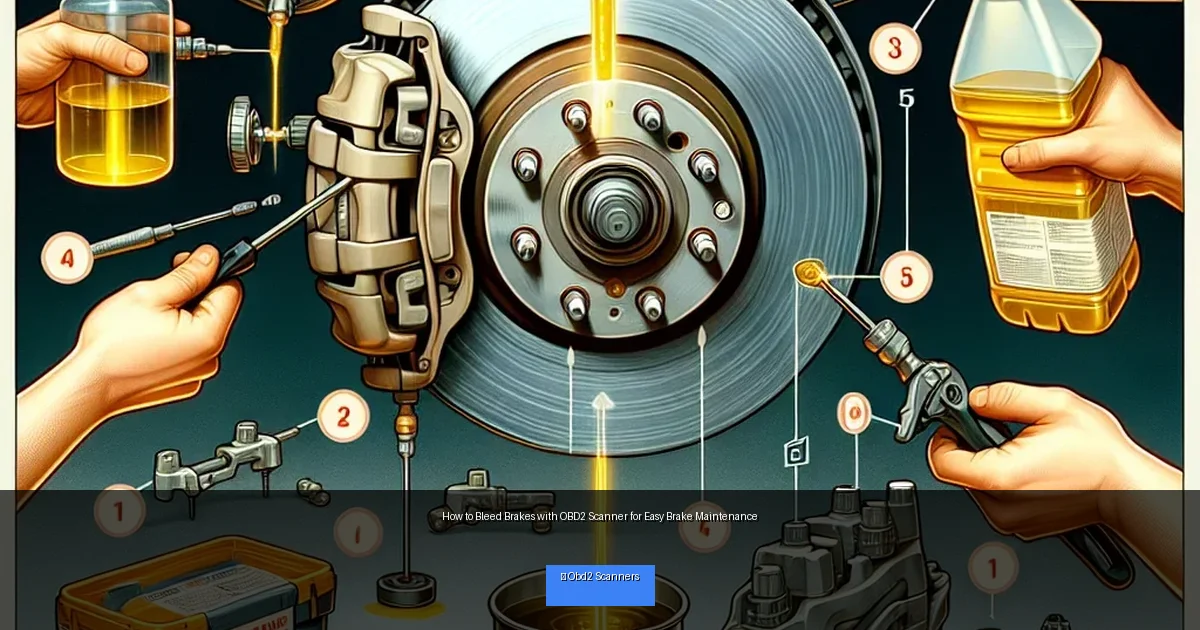
Visual guide about How to Bleed Brakes with OBD2 Scanner for Easy Brake Maintenance
Image source: croauto.net
Check Brake Fluid Level
Open the brake fluid reservoir under the hood and check the level. It should be near the “full” mark. If low, add fresh brake fluid. Keeping the fluid topped up is crucial to avoid introducing air during bleeding.
Gather Your Tools
Have your OBD2 scanner, brake fluid, and other tools within easy reach. Wear gloves and eye protection to avoid brake fluid contact, which can be harmful.
Step 2: Connect the OBD2 Scanner
Locate the OBD2 Port
The OBD2 port is usually under the dashboard near the steering column. Consult your car’s manual if you have trouble finding it.
Plug in the Scanner
Connect your OBD2 scanner to the port and turn on your vehicle’s ignition (engine off mode is usually sufficient). Power on the scanner and navigate to the brake bleeding function.
Step 3: Start the Brake Bleeding Process
Follow the Scanner Prompts
The scanner will communicate with the vehicle’s ABS system and guide you through the brake bleeding sequence. Some scanners activate the ABS pump and valves automatically to push out trapped air.
Bleeding Each Brake Caliper
You might be prompted to bleed brakes in a specific order (usually starting from the farthest wheel). Open the bleeder valve on the wheel, and allow the fluid and air to escape as the ABS pump cycles. Close the valve when finished.
Monitor Brake Fluid Level
Keep an eye on the brake fluid reservoir during the process. Refill as needed to prevent air from re-entering the system.
Step 4: Complete and Test
Finish the Bleeding Process
Once all brakes have been bled as per the scanner’s instructions, close all bleeder valves tightly. Turn off the ignition and disconnect the scanner.
Test Your Brakes
Press the brake pedal several times. It should feel firm and responsive. If it feels spongy, you may need to repeat the bleeding process or check for leaks.
Practical Tips for Successful Brake Bleeding
- Use high-quality brake fluid: Old or contaminated fluid can damage your brake system.
- Follow the scanner’s instructions: Each vehicle may have specific bleeding protocols.
- Work patiently: Rushing can introduce more air and cause errors.
- Keep tools clean: Dirt or moisture can contaminate brake fluid.
- Dispose of old brake fluid properly: It’s hazardous waste.
Troubleshooting Common Issues
OBD2 Scanner Not Connecting
Check that your scanner supports your car model and that the ignition is in the correct position. Try restarting the scanner and reconnecting.
Brake Pedal Still Spongy After Bleeding
There may still be air trapped or a leak in the system. Inspect brake lines and calipers for leaks. Repeat bleeding if necessary.
ABS Pump Not Activating
Some scanners require the engine to be running or specific settings enabled. Consult your scanner’s manual or vehicle guide.
Conclusion
Bleeding brakes with an OBD2 scanner is a handy way to maintain your vehicle’s braking system with precision and less hassle. By following this step-by-step guide, you can ensure the air is fully removed from your brake lines, improving brake response and safety. Always take safety precautions and consult your vehicle’s manual for model-specific instructions. Regular brake maintenance keeps you and your loved ones safe on the road.
🎥 Related Video: How to perform ABS Brake Bleed with Innova 5610
📺 Innova Electronics
Learn more about us: https://www.innova.com/pages/scanners …