
Updating your OBD2 scanner is essential for accurate vehicle diagnostics and to ensure compatibility with the latest car models. This guide walks you through simple steps to update your scanner’s software, helping you maintain reliable performance and troubleshoot issues effectively.
Quick Answers to Common Questions
How often should I update my OBD2 scanner?
Check for updates every 3-6 months or whenever you notice compatibility issues with newer vehicles.
Can I update my scanner without a computer?
Some scanners support updates via smartphone apps over Bluetooth or Wi-Fi, eliminating the need for a computer.
What if my scanner loses power during an update?
This can cause serious problems. Always ensure your device is fully charged or connected to power before updating.
Do all OBD2 scanners support software updates?
Most modern scanners do, but some basic models may not. Check your device’s manual for update options.
Will updating my scanner erase saved diagnostic data?
Typically no, but it’s a good idea to backup any important data before starting the update.
How to Update OBD2 Scanner for Accurate Vehicle Diagnostics
If you own an OBD2 scanner, you know how handy it is to diagnose your vehicle’s health quickly. But to get the most accurate readings, your scanner’s software needs to be up to date. This guide will show you how to update your OBD2 scanner step-by-step, helping you maintain peak performance and accurate diagnostics for your vehicle.
Why You Should Update Your OBD2 Scanner
Vehicle technology changes fast. Manufacturers release new car models with updated protocols and diagnostic codes. Your OBD2 scanner needs the latest software updates to understand these changes. Without updates, your scanner might miss errors or show incorrect data. Updating also fixes bugs and can add new features.
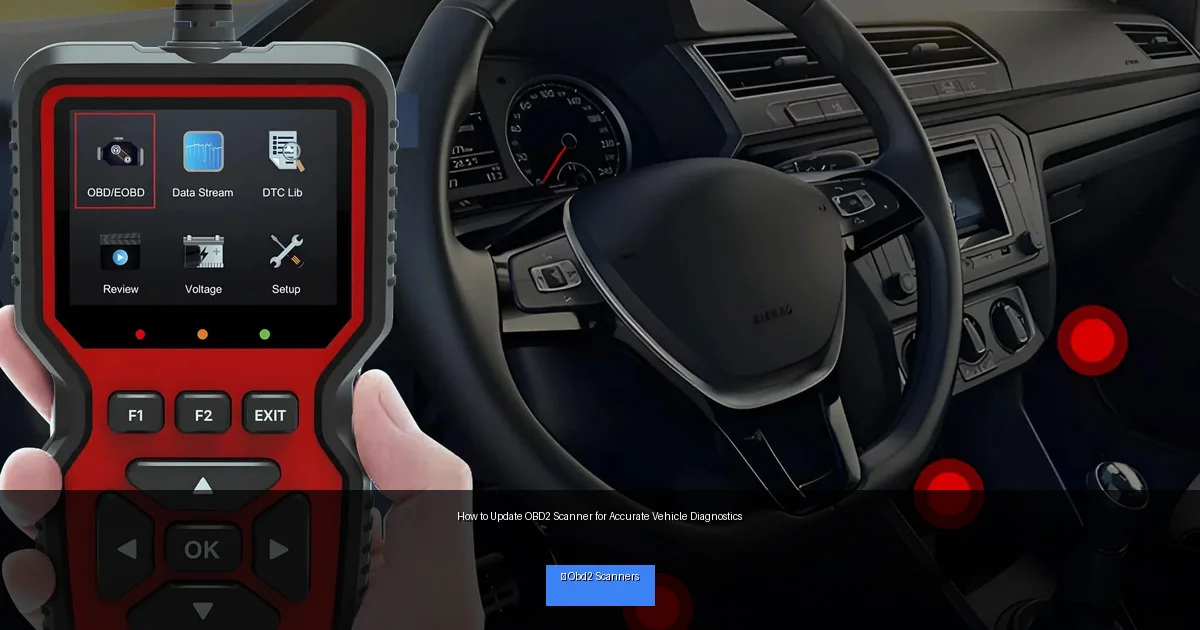
Visual guide about How to Update OBD2 Scanner for Accurate Vehicle Diagnostics
Image source: primereviewpro.com
Step 1: Identify Your OBD2 Scanner Model and Software Version
Locate Model and Version Info
Check your scanner’s manual or the device’s settings menu to find the model number and current software version. Knowing this helps you download the correct update files.
Why This Matters
Different scanner models have unique update processes and software. Using the wrong update can cause your scanner to malfunction.
Step 2: Visit the Manufacturer’s Official Website or App
Find the Support or Downloads Section
Go to the official website of your scanner’s brand. Look for sections named “Support,” “Downloads,” or “Software Updates.” Many brands now offer mobile apps that can update your scanner directly.
Beware of Third-Party Sites
Only download updates from official sources to avoid malware or corrupted files that could damage your device.
Step 3: Connect Your OBD2 Scanner to a Computer or Smartphone
Using USB Cable
Most scanners update via USB connection to a PC. Use the original cable to avoid connection issues.
Using Bluetooth or Wi-Fi
Some modern scanners update via Bluetooth or Wi-Fi through a smartphone app. Make sure your phone is paired and within range.
Step 4: Download and Install the Update Software
Install Any Required Update Managers
Some brands require you to install a special program on your computer. Follow the instructions carefully.
Download the Latest Firmware
Select your scanner model and download the latest firmware or software update file.
Step 5: Perform the Update
Run the Update Program
Open the update software on your PC or app on your smartphone. Follow on-screen prompts to upload the update to your OBD2 scanner.
Keep the Device Connected
Do not disconnect your scanner or turn off your computer during the update. Interruptions can brick the device.
Step 6: Verify the Update Was Successful
Check Software Version
After updating, check your scanner’s settings to confirm the new software version is installed.
Run a Test Scan
Plug the scanner into your vehicle and run a quick diagnostic to make sure it reads data correctly.
Practical Tips for a Smooth Update
- Use a fully charged device: Ensure your scanner and computer or smartphone have enough battery to avoid interruption.
- Close other programs: Free your computer’s resources to avoid slow downloads or crashes.
- Read update notes: Check what changes or fixes the update includes to understand improvements.
- Keep your vehicle off: Updates are done on the scanner, not the car, so keep the ignition off unless otherwise instructed.
Troubleshooting Common Update Issues
Update Fails or Freezes
Try restarting the update process. Make sure your internet connection is stable. If problems persist, use a different USB cable or update via a smartphone app if available.
Scanner Not Recognized by Computer
Check drivers or software required for the scanner. Reinstall drivers or restart your computer, then reconnect the scanner.
Corrupted Update Files
Delete downloaded files and download again from the official website. Use a reliable internet connection.
Conclusion
Keeping your OBD2 scanner up to date is key to accurate vehicle diagnostics. With regular updates, your scanner stays compatible with new cars and provides reliable data. Follow these simple steps to update your scanner safely and effectively. Doing so will save you time, money, and frustration in the long run. Happy diagnosing!
🎥 Related Video: How to Update Your ANCEL OBD2 Scanner #obd2 #obd2scanner #vehiclediagnostics #update #upgrade
📺 ANCEL
Welcome to our video guide on how to update your ANCEL OBD2 scanner! In this video, we explain the different ways to update …