
Setting up an OBD2 scanner at home is simple and straightforward. This guide walks you through every step, from locating the port to reading diagnostic codes. Get your scanner up and running quickly and start troubleshooting your vehicle with ease.
Quick Answers to Common Questions
How do I know if my car supports OBD2?
Most vehicles made after 1996 support OBD2. Check your owner’s manual or look for the 16-pin port under the dashboard.
Can I use any OBD2 scanner on my car?
Generally yes, but ensure the scanner supports your vehicle’s make and model for full functionality.
Should I keep the engine running while scanning?
Usually, you only need to turn the ignition to “On” without starting the engine unless your scanner or app instructs otherwise.
What if the scanner shows no codes but the check engine light is on?
Try rescanning or use a more advanced scanner. Some pending codes might not show immediately.
Is it safe to clear codes myself?
Yes, if you have fixed the problem. Otherwise, clearing codes may hide issues that need attention.
How to Set Up OBD2 Scanner Quickly and Easily at Home
If you want to understand what’s going on with your vehicle without spending a fortune at the mechanic, an OBD2 scanner is a fantastic tool. In this guide, you’ll learn how to set up your OBD2 scanner quickly and easily at home. From locating the port to reading diagnostic codes, we’ll cover everything you need to get started. Let’s dive in!
What Is an OBD2 Scanner and Why Use One?
An OBD2 scanner is a device that connects to your car’s onboard computer system. It reads trouble codes and data that help you diagnose engine and other system problems. Using an OBD2 scanner saves time and money by giving you insight into your vehicle’s health, so you can decide if a repair is urgent or minor.
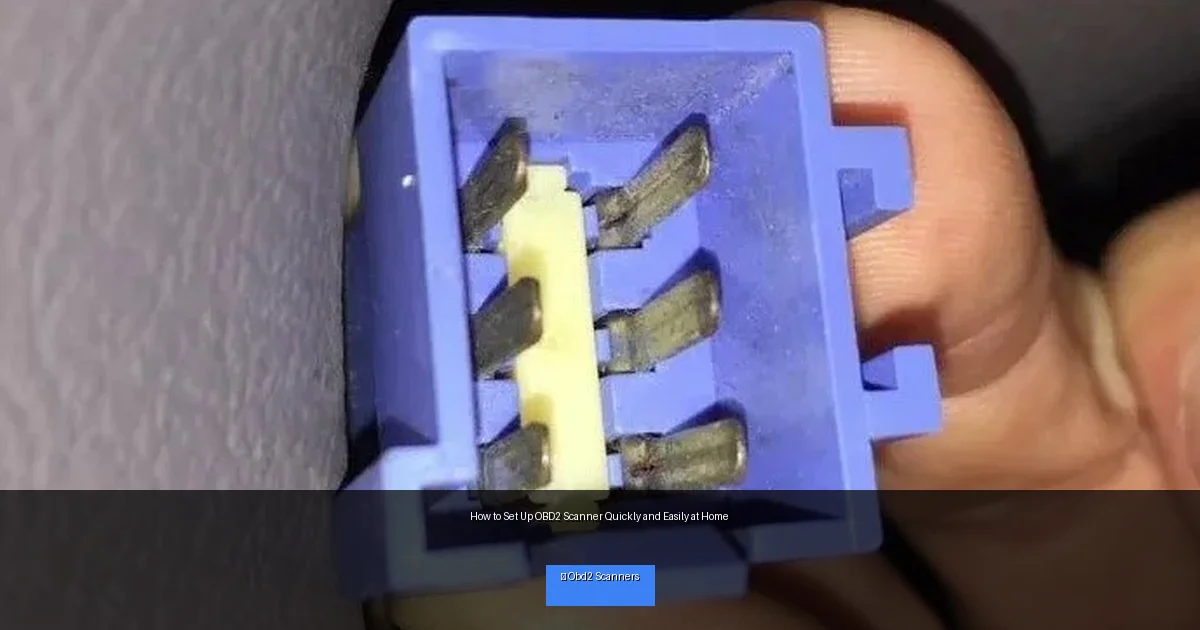
Visual guide about How to Set Up OBD2 Scanner Quickly and Easily at Home
Image source: 2carpros.com
Step 1: Locate the OBD2 Port in Your Vehicle
Where to Find the Port
The OBD2 port is usually found under the dashboard on the driver’s side. Common locations include:
- Below the steering wheel column
- Near the fuse box
- Underneath the dashboard near the pedals
Tips for Finding the Port
If you can’t see it easily, use a flashlight to peer under the dash. The port will be a 16-pin connector, trapezoid-shaped. Your vehicle’s manual may also indicate its location.
Step 2: Prepare Your Vehicle and Scanner
Turn Off Your Engine
Start with your engine off. This makes it safer to connect the scanner and prevents any electrical issues.
Check Your Scanner
Ensure your OBD2 scanner is compatible with your car. Most scanners work on vehicles made after 1996. Also, check if your device requires batteries or charging.
Gather Necessary Tools
Usually, you don’t need extra tools to connect the scanner. But having a flashlight and your car manual nearby can help.
Step 3: Connect the OBD2 Scanner
Plug in the Scanner
Firmly insert the scanner’s connector into the OBD2 port. It should fit snugly without forcing.
Power On Your Vehicle
Turn the ignition to the “On” position without starting the engine. This powers the car’s computer so the scanner can communicate.
Turn On the Scanner
Some scanners power on automatically; others have a power button. Follow your device instructions.
Step 4: Navigate the Scanner Interface
Access the Menu
Use the buttons or touchscreen to access the scanner’s menu. Look for options like “Read Codes,” “Live Data,” or “Scan.”
Run a Diagnostic Scan
Select “Read Codes” to let the scanner check your car’s systems. The process usually takes a minute or two.
View and Save Codes
After scanning, the device will display any diagnostic trouble codes (DTCs) found. Write them down or save them if your scanner has storage.
Step 5: Understand Diagnostic Trouble Codes (DTCs)
What Are DTCs?
DTCs are codes that indicate specific problems detected by your car’s onboard computer. For example, P0301 means “Cylinder 1 Misfire.”
Use a Code Lookup
Your scanner may provide code definitions. Otherwise, use online resources or your car manual to interpret the codes.
Decide Your Next Steps
Some codes indicate minor issues you can fix yourself, like a loose gas cap. Others may require professional help.
Step 6: Clear Codes (Optional)
When to Clear Codes
After repairs, you can clear the codes to reset the check engine light. Use the “Clear Codes” or “Erase” function on your scanner.
Warning About Clearing Codes
Don’t clear codes unless you’ve fixed the issue. Clearing without repairs may cause the check engine light to return.
Troubleshooting Common Setup Issues
Scanner Not Powering On
- Check if the scanner has batteries or is charged.
- Ensure the ignition is in the “On” position.
- Try a different vehicle port if available.
Scanner Not Communicating With Vehicle
- Verify compatibility with your vehicle make and model.
- Restart your car and scanner.
- Inspect the port and connector for damage or debris.
No Codes Found but Check Engine Light Is On
- Some issues may be pending and not stored as codes yet.
- Try scanning with a more advanced scanner or visit a mechanic.
Practical Tips for Using Your OBD2 Scanner
- Scan regularly: Check your car every few months to catch issues early.
- Keep your scanner updated: Firmware updates improve compatibility and features.
- Use a smartphone app: Bluetooth OBD2 scanners work with apps that provide detailed data and code definitions.
- Record your scans: Keep a log of previous scans to track recurring problems.
- Don’t panic: Many codes are warnings, not immediate threats.
Conclusion
Setting up an OBD2 scanner at home is easier than you might think. With a few simple steps, you can connect your scanner, read diagnostic codes, and better understand your vehicle’s health. This knowledge empowers you to save money and maintain your car confidently. Remember to use your scanner regularly and keep it updated for the best results. Happy diagnosing!
🎥 Related Video: How to Use an OBD2 Scan Tool
📺 EasyAutoFix
OBD2 Scanner: https://amzn.to/4jdzrUc ▶︎ Check Out ALLDATA Manuals: …