
Want to play YouTube music or podcasts in your car? This guide shows you safe, legal ways to stream YouTube audio to your car stereo using Bluetooth, USB, AUX cables, or Android Auto. No jailbreaking or risky hacks—just simple, reliable methods.
How to Play YouTube on Car Stereo Easily
Driving doesn’t have to mean giving up your favorite YouTube playlists, podcasts, or music videos. Whether you’re commuting, road-tripping, or just running errands, playing YouTube audio through your car stereo can make the journey more enjoyable. But how do you do it safely and effectively?
In this guide, we’ll walk you through several easy, legal, and safe methods to play YouTube audio on your car stereo. You’ll learn how to use Bluetooth, AUX cables, USB connections, and even Android Auto—without risking distracted driving or violating YouTube’s terms of service.
We’ll also cover tips for better sound quality, troubleshooting common issues, and how to prepare your content before hitting the road. Let’s get started!
Method 1: Stream via Bluetooth
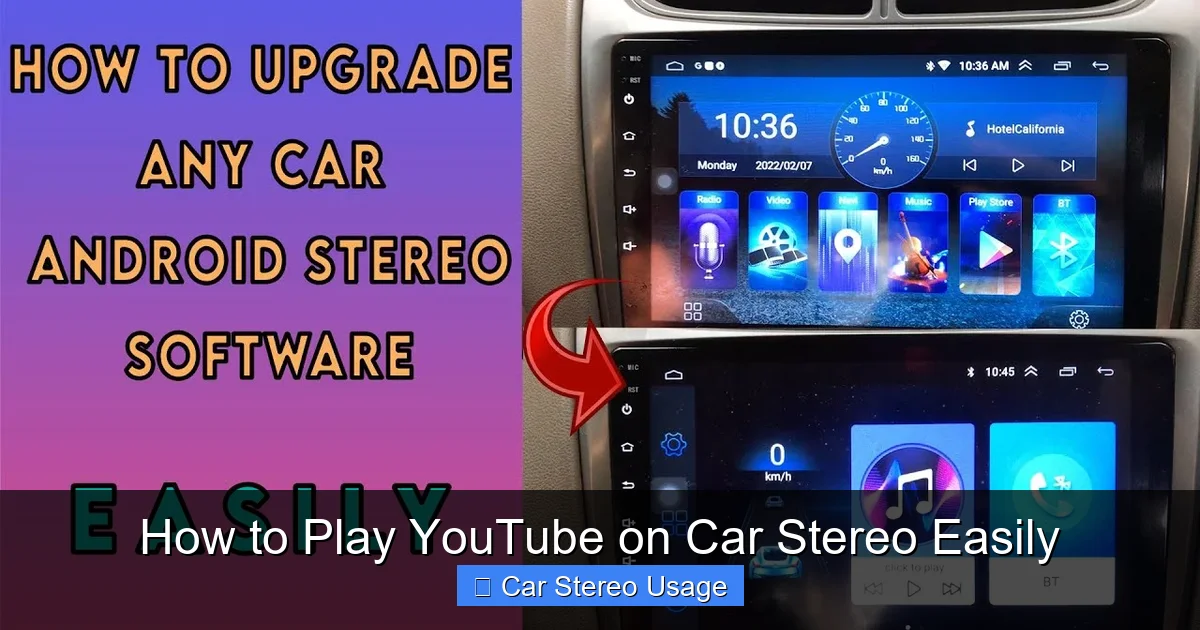
Visual guide about How to Play YouTube on Car Stereo Easily
Image source: i.ytimg.com
Bluetooth is one of the most popular and convenient ways to play YouTube audio in your car. Most modern smartphones and car stereos support Bluetooth connectivity, making it a wireless, hands-free solution.
Step 1: Enable Bluetooth on Your Phone
Go to your phone’s settings and turn on Bluetooth. Make sure your device is discoverable so your car stereo can find it.
Step 2: Pair with Your Car Stereo
Turn on your car and access the stereo’s Bluetooth menu. Select “Add Device” or “Pair New Device.” Your phone should appear in the list—tap it to connect. You may need to enter a PIN (usually 0000 or 1234).
Step 3: Open YouTube and Play Audio
Once paired, open the YouTube app on your phone. Start playing a video—your car stereo should automatically switch to Bluetooth audio. Use your phone or the car’s controls to adjust volume and skip tracks.
Pro Tip: Use voice assistants like Google Assistant or Siri to play specific playlists or channels without touching your phone. Say, “Hey Google, play my workout playlist on YouTube.”
Method 2: Use an AUX Cable
If your car stereo has a 3.5mm AUX input, this method offers reliable, high-quality audio without needing Wi-Fi or data. It’s especially useful in older vehicles or areas with poor signal.
Step 1: Get the Right Cable
You’ll need a 3.5mm male-to-male audio cable (also called a stereo cable). One end plugs into your phone’s headphone jack, the other into the car’s AUX port.
Note: If your phone doesn’t have a headphone jack (like newer iPhones or Androids), use a Lightning-to-3.5mm or USB-C-to-3.5mm adapter.
Step 2: Connect and Switch Input
Plug the cable into both devices. On your car stereo, press the “Source” or “Input” button until it shows “AUX” or “External.”
Step 3: Play YouTube Audio
Open YouTube on your phone and start playing a video. The sound will now come through your car speakers. Keep your phone nearby to control playback.
Pro Tip: To avoid draining your battery, plug your phone into a car charger while using the AUX cable.
Method 3: USB Connection
Some car stereos support USB audio playback. This method works best if your stereo recognizes your phone as a media device or if you transfer audio files to a USB drive.
Step 1: Check Stereo Compatibility
Look in your car stereo’s manual to see if it supports USB audio from smartphones. Many newer models do, but older ones may only read MP3 files from flash drives.
Step 2: Connect via USB Cable
Use a USB cable (Lightning, USB-C, or Micro-USB) to connect your phone to the car’s USB port. Your stereo should detect the device and switch to USB mode.
Step 3: Play YouTube Audio
Open YouTube and start playing a video. If your stereo supports it, the audio will stream directly. If not, you may need to download the audio first (see “Downloading Content” below).
Pro Tip: Some stereos only play audio when the phone is in “File Transfer” or “Media” mode. Check your phone’s USB settings if nothing happens.
Method 4: Use Android Auto (for Android Users)
Android Auto creates a simplified, driver-friendly interface on your car stereo. It supports YouTube Music (but not the standard YouTube app) and integrates with Google Assistant for voice control.
Step 1: Install Android Auto
Download the Android Auto app from the Google Play Store. Make sure your phone runs Android 6.0 or higher.
Step 2: Connect Your Phone
Use a USB cable to connect your phone to the car’s USB port. Follow the on-screen prompts to set up Android Auto.
Step 3: Use YouTube Music
Android Auto doesn’t support the regular YouTube app due to safety policies. Instead, use YouTube Music, which is fully compatible. Play your favorite songs, albums, or playlists with large, easy-to-tap buttons.
Pro Tip: Say “Hey Google, play lo-fi beats on YouTube Music” to start playback without touching your phone.
Downloading YouTube Content for Offline Playback
Streaming YouTube requires a strong internet connection, which isn’t always available on the road. To avoid buffering, download your content ahead of time.
Step 1: Use YouTube Premium
Subscribe to YouTube Premium to legally download videos and music for offline playback. Open the YouTube app, find a video, and tap the download icon.
Step 2: Convert to Audio (Optional)
If your car stereo only plays audio files, use a legal converter (like YouTube Music or a trusted app) to save videos as MP3s. Always respect copyright and only download content you have rights to use.
Step 3: Transfer to USB or Phone
Copy the downloaded files to a USB drive or your phone’s music library. Plug into your car stereo and play through USB or AUX.
Pro Tip: Create playlists of your favorite YouTube content before long trips to ensure smooth playback.
Safety and Legal Considerations
Playing YouTube in the car is only safe and legal when done correctly.
Never Watch Videos While Driving
Watching YouTube videos while driving is dangerous and illegal in most places. It distracts you from the road and can result in fines or accidents.
Use Audio-Only Mode
Always play YouTube in audio-only mode—turn off the screen or use voice commands. Many phones have a “background play” feature that lets audio continue when the screen is off.
Follow Local Laws
Check your local regulations. Some areas ban any phone use while driving, even with hands-free systems. When in doubt, pull over to adjust settings.
Troubleshooting Common Issues
No Sound After Connecting
- Check volume levels on both your phone and car stereo.
- Ensure the correct input source is selected (Bluetooth, AUX, USB).
- Restart both devices and reconnect.
Bluetooth Keeps Disconnecting
- Move your phone closer to the stereo.
- Forget the device and re-pair it.
- Update your phone’s software and stereo firmware.
USB Not Recognized
- Try a different USB cable or port.
- Ensure your phone is unlocked and set to “File Transfer” mode.
- Check if the stereo supports your phone’s file format.
YouTube Audio Stutters or Buffers
- Download content ahead of time.
- Switch to a stronger Wi-Fi or mobile data signal.
- Close other apps using data in the background.
Upgrading Your Car Stereo
If your current stereo lacks modern features, consider upgrading to one with Bluetooth, USB, or Android Auto support. Many affordable aftermarket units offer these options and can be installed in most vehicles.
Look for stereos with:
- Bluetooth 5.0 or higher
- USB ports with media playback
- Apple CarPlay and Android Auto compatibility
- High-quality audio output (4x45W or more)
Pro Tip: Visit a car audio shop for professional installation and compatibility advice.
Conclusion
Playing YouTube on your car stereo is easier than ever—thanks to Bluetooth, AUX cables, USB connections, and smart integrations like Android Auto. Whether you’re streaming live or enjoying downloaded content, these methods let you enjoy your favorite audio safely and legally.
Remember: always prioritize safety. Use voice commands, keep your eyes on the road, and never watch videos while driving. With the right setup, your car can become a mobile entertainment hub without compromising safety or sound quality.
So grab your cable, pair your phone, and hit the road with your favorite YouTube tunes playing loud and clear.
🎥 Related Video: How Do You Play YouTube Videos On Car Stereo???
📺 Quality Mobile Video
Find out practical ways to play YouTube onto your car stereo. Leave any questions below!!! Mirroring Adapter iPhone …